


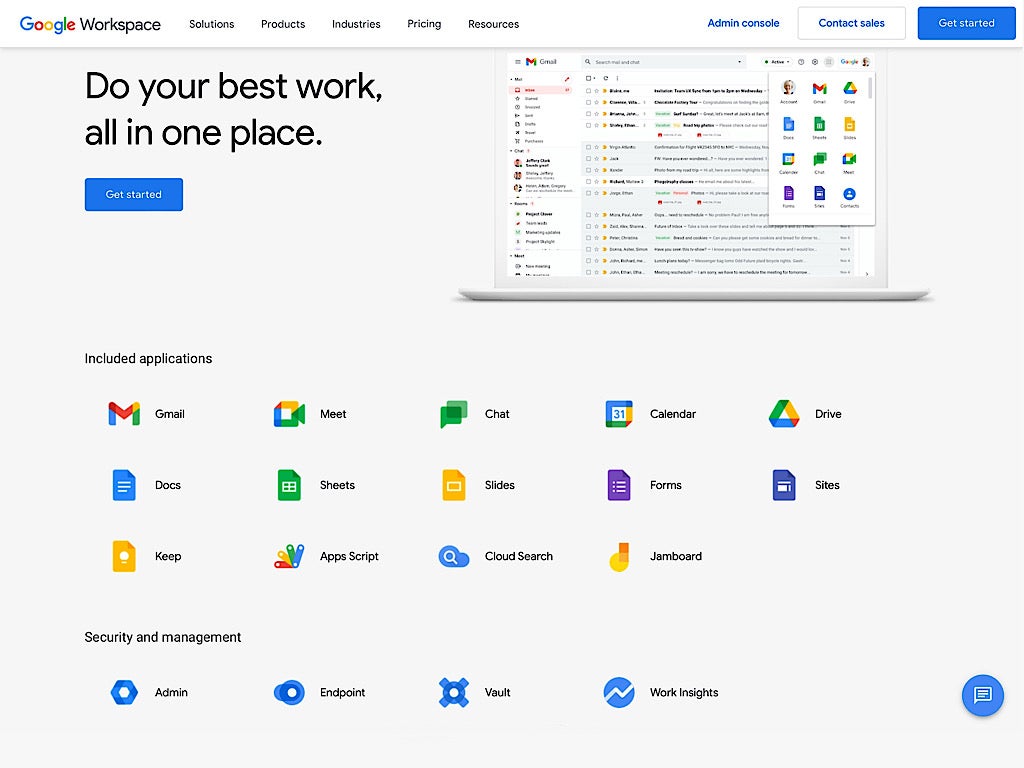
Google Workspace is a set of communication and collaboration apps built for people in organizations. The core Google Workspace communication apps, such as Gmail and Google Meet, are widely used around the world, as are the collaboration apps, such as Google Docs, Sheets, Slides and Forms. The collaboration apps have been built from the beginning to allow multiple people to edit a document, spreadsheet or presentation simultaneously.
- What is Google Workspace?
- What apps are part of Google Workspace?
- What do I need to access Google Workspace?
- What editions of Google Workspace are available?
- Why would I consider paying for Google Workspace if I can use many features for free?
- What is the simplest way to set up Google Workspace?
- Can we use Google Workspace if we historically have used Microsoft Office files?
- What third-party apps work with Google Workspace?
- What are some alternatives to Google Workspace?
What is Google Workspace?
Google Workspace accounts are created and managed by an administrator, in contrast to the standard free Gmail or Google accounts that an individual may create. The administrator has considerable control over Google Workspace defaults, app access and security settings. Workspace allows different configurations to be applied to different groups of people — or, in Workspace terms, different organizational units.
Google Workspace can be configured to serve organizations that deal with highly sensitive data as well. For example, an administrator may prevent offline storage of Workspace data, such as email, calendar items and Drive files.
SEE: Use this cloud engineer hiring kit from TechRepublic Premium to find the right person to manage your cloud setup.
What apps are part of Google Workspace?
The following apps are available as part of the core offering for most editions of Google Workspace. For more details about each app, click the link name to go to the corresponding Google Workspace page.
One important aspect of Workspace apps is speed. Google offers .new shortcuts, which, when entered in a modern browser’s URL box, create a new item of the type indicated. For example, cal.new creates a new Google Calendar event, while doc.new creates a new Google Doc.
- Gmail: The world’s most widely used email service.
- Calendar: Scheduling solution (cal.new).
- Meet and Meet hardware: Group video and audio conferencing (meet.new).
- Chat and Spaces: Team conversations and project places.
- Drive: Private cloud storage that allows shared drives and files.
- Docs: Collaborative documents (doc.new).
- Sheets: Collaborative spreadsheets (sheet.new).
- Slides: Collaborative presentations (slide.new).
- Forms: Customizable forms and surveys (form.new).
- Keep: Collaborative notes (note.new or keep.new).
- Sites: Collaborative websites (site.new).
The following offerings are not prominently featured as core Workspace apps but are often available, depending on the edition of Google Workspace you use. In some cases, these require additional purchases.
- Groups and Groups for Business: Email lists and access management.
- Cloud Search: Search across your Google Workspace.
- Vault: Data retention and e-discovery.
- Jamboard and Jamboard hardware: Collaborative visual board (jam.new).
- Voice and Voice hardware: Virtual phone system.
- Apps Script: Business process automation.
- AppSheet: No-code application development.
- Classroom: Structured learning spaces for teachers and students.
- Domains: Domain registration with integrated Google Workspace sign-up and configuration.
SEE: Discover tips and tricks on how to use Google Meet with this free PDF from TechRepublic.
What do I need to access Google Workspace?
A modern browser (Chrome strongly recommended)
On desktop platforms, such as Windows and macOS, Google Workspace apps may be accessed with a modern web browser. In most cases, organizations that use Workspace will also want to standardize on the Google Chrome browser. Signing in to your Workspace account with the Chrome browser not only gives you access to Workspace apps but also lets you leverage some Chrome-only features.
For example, if an administrator allows it, people may configure Gmail, Docs, Sheets and Slides to sync locally for offline work. Many other modern browsers, such as Microsoft Edge, Firefox Browser and Safari, let people use most Google Workspace app features while online.
SEE: Become a Google Docs power user with this free PDF from TechRepublic.
Google Drive for desktop
For Windows and macOS systems, Google offers Google Drive for Desktop (formerly Google Drive File Stream), which lets people browse Drive files and folders with a locally installed app. This makes the experience of navigating items stored on Drive much like navigating the local file system.
Cloud: Must-read coverage
- CrowdStrike Outage Disrupts Microsoft Systems Worldwide
- Quick Glossary: Cloud Platform Services
- Achieving Cost Efficiency in Cloud Storage: The Role of Western Digital’s Hard Drive Portfolio
- Still Not Backing Up Microsoft 365 Data? Here’s Why That’s a Risky Move
- Verito vs. Rightworks: Which IT Provider Is Best for Your Firm?
Android, iOS and iPadOS apps
Several Google Workspace apps are available to be installed on Android, iOS and iPadOS systems. For example, Gmail, Calendar, Drive, Docs, Sheets, Slides, Meet, Chat and Keep may be downloaded and installed either from Google Play (Android) or the iOS App Store (Apple).
Note: Currently, no mobile apps exist for either Google Sites or Google Forms; although, websites or forms created by those apps do work well on mobile devices.
SEE: Compare iCloud and OneDrive to see which is best for Mac, iPad and iPhone users.
Optional: Hardware and Chrome Enterprise
Many organizations that use Google Workspace choose to purchase related items, such as Chromebooks, Google Meet hardware, Jamboard devices or Google Voice phone equipment. These devices and their related services may be connected to your organization’s Workspace account to be configured by a Workspace administrator.
Chromebooks and other Chrome OS devices in various formats, such as tablets or 2-in-1s, allow people to sign in with a Google Workspace account, then gain full access to all Workspace apps. Most modern Chromebooks can run Android apps, many run Linux apps and a few higher-end devices run Windows apps with the aid of third-party software. Chrome Enterprise controls lets an administrator fully manage and deploy Chrome and Chrome devices.
SEE: Explore all of TechRepublic’s cheat sheets and smart person’s guides.
What editions of Google Workspace are available?
Google differentiates Workspace editions by number of accounts, customer organization type and capabilities.
First, the Business editions are only available for organizations that need up to 300 user accounts. Organizations that need more than 300 accounts should contact Google to explore Enterprise editions. If you want Workspace for a single user, you might consider Google Workspace Individual, but you could select any Business or Enterprise edition.
Second, some editions are only available to specific types of organizations, such as nonprofit and educational organizations.
Third, storage limits, Meet limits on participant numbers and recording, management capabilities for security configuration and reports, and access to certain apps tend to increase as you move from Starter to Standard to Plus editions.
SEE: Compare Zoom versus Microsoft Teams, Google Meet, Cisco WebEx and Skype to find the right video-conferencing apps for you.
Pricing varies, based on both your organization and the Google Workspace edition. For example, educational institutions and nonprofit organizations may qualify to use some editions of Workspace for free, although these organizations may choose to upgrade to paid versions for enhanced capabilities and controls.
Below is a list of the editions offered; for more detailed pricing information, check out Google’s pricing page. Beyond the editions listed, Google promotes Google Workspace for Government, Google Workspace for healthcare and Google Workspace for retail businesses.
Google Workspace Individual
Priced at $9.99 per month, or $99.96 when paid annually, Google’s Individual edition includes booking services and email marketing, along with access to the core Workspace apps.
Google Workspace Individual makes sense when one person wants Workspace apps and does not need to add or manage any additional accounts. For example, the Individual edition would make sense for a person’s part-time side business or for a solo entrepreneur.
Google Workspace Business editions (from 1 to 300 accounts)
Most smaller organizations will choose one of these three plans:
- Business Starter: $7.20 per user per month or $72 per user paid annually.
- Business Standard: $14.40 per user per month or $144 per user paid annually.
- Business Plus: $21.60 per user per month or $216 per user paid annually.
The key differences between the plans include:
- Amount of storage: Starter has 30GB per user, Standard has 2TB per user pooled and Plus has 5TB per user pooled.
- Maximum number of video meeting participants: Starter allows 100 Meet participants, Standard allows 150 Meet participants and Plus allows 500 Meet participants.
- Meet recording capabilities: Not available for Starter but available to Standard and Plus accounts.
- Google Vault and endpoint management: Plus gains additional access to Google Vault and more endpoint management controls.
For more details about storage differences between plans, see Google Workspace storage: 3 essential things you need to know.
SEE: Use this side-by-side analysis from TechRepublic Premium to compare Google Workspace versus Microsoft 365.
Google Workspace Enterprise editions (from 1 to any number of accounts)
Organizations that need more than 300 accounts will need an Enterprise edition, which provides access to more technical security and management controls along with essentially unlimited storage.
Smaller organizations that want access to these features are eligible to sign up for an Enterprise edition, as there’s no minimum number of user accounts required for either Enterprise Standard or Enterprise Plus accounts. However, these features typically are most useful in organizations with greater numbers of people and devices.
Google does not provide published pricing for these editions, so you’ll need to contact their sales staff.
Google Workspace Essentials edition (for organizations with existing email and calendaring solutions)
You can keep your current emails and calendaring solution, such as Microsoft 365, and add Google Workspace Essentials. This lets people in your organization collaborate with Docs, Sheets, Forms, Slides, Meet, Sites and Keep, which they may use alongside legacy solutions.
Essentials Starter may be used by up to 25 people in an organization for free.
Google Workspace Frontline edition
Designed to enable communications between frontline workers and other employees, the Frontline edition includes access to core Workspace apps, such as Gmail, Calendar, Chat, Meet, Docs, Sheets, Slides and Sites, as well as endpoint management features to secure data on mobile devices. Storage, however, is limited to 2GB per account.
Google does not publish pricing for Frontline edition, and requires potential customers to contact sales.
Google Workspace Education editions (for qualified educational institutions only)
Qualifying institutions, such as K-12 schools as well as colleges and universities, may apply to access Google Workspace for Education Fundamentals for free. This not only gives students, teachers, administration and staff access to Workspace collaborations apps but also includes access to Google Classroom.
The Google Classroom app provides a structured way for teachers to share lessons with students, for students to complete and turn in work, and for teachers to grade and give feedback on that work.
The Education editions offered include:
- Google Workspace for Education Fundamentals: Free for qualifying institutions
- Google Workspace for Education Standard: $3 per student per year
- Teaching and Learning Upgrade: $4 per license per month
- Google Workspace for Education Plus: $5 per student per year (formerly G Suite Enterprise for Education)
SEE: Use these Google Classroom tips from TechRepublic to learn how to create and manage classes remotely.
Google Workspace Nonprofit editions (for qualified nonprofit organizations only)
Organizations that apply and qualify can use Google Workspace for Nonprofits at no cost, which is essentially the Google Workspace Starter Edition. However, Google also gives nonprofit organizations the ability to upgrade to other editions at a significant discount. Plans and pricing for qualified and approved nonprofit organizations include:
- Google Workspace for Nonprofits: Free for qualifying organizations.
- Business Standard: $3 per account per month.
- Business Plus: $5.04 per account per month.
- Enterprise editions: Discounted about 70% from standard prices.
Why would I consider paying for Google Workspace if I can use many features for free?
There are at least three reasons to upgrade to a paid Google Workspace account, instead of simply using a free Gmail account:
- Branding: You may configure Workspace to work with your organization’s domain name, so emails you send are from your domain rather than from a gmail.com address.
- Account management: Since Workspace allows you to centrally manage accounts, you may create or remove user accounts as employees join or leave your organization.
- Security: An administrator can improve security settings to require longer passwords, two-factor authentication and limit external sharing among many other options that reduce the risk of undesired data leaks.
What is the simplest way to set up Google Workspace?
For a new organization, go to Google Domains to purchase the domain name of your choice. Once you have registered your domain name, the system offers the option to select and set up Google Workspace accounts for the domain. This method eliminates several domain name server configuration steps you would otherwise need to do manually.
SEE: Check out these Windows, Linux and Mac commands everyone needs to know.
Can we use Google Workspace if we historically have used Microsoft Office files?
Yes. Google Workspace includes several features to support organizations that have files in Microsoft Office file formats. Google Drive supports storage of many types of files, including .doc/.docx, .xls/.xlsx and .ppt/.pptx. Google Drive for desktop lets you open and edit these files with locally installed Office software, if you like.
Google Docs, Sheets and Slides support native editing of and collaboration on Word, Excel and PowerPoint files, respectively. Gmail also lets you quickly save, open or edit Office file attachments you might receive, as well.
What third-party apps work with Google Workspace?
When you want additional apps that work with Workspace, your first stop should be The Google Workspace Marketplace — a directory of third-party apps maintained by Google. Among hundreds of others, these apps include:
- Productivity apps like LucidChart Diagrams, MindMeister and Trello.
- Signature services like DocuSign and HelloSign.
- Storage services like Box and Dropbox.
- Backup providers like Backupify and Spanning Backup.
Workspace also includes the ability to connect to third-party apps with single sign-on and Security Assertion Markup Language. This allows people in your organization to sign in to their Workspace account, then gain access to connected third-party web apps without any additional need to authenticate. In some cases, the system can be configured to automatically add a new account at a third-party service whenever a new Google Workspace account is created. The Pre-integrated SAML apps catalog lists the various vendors that offer this type of integration.
What are some alternatives to Google Workspace?
Microsoft 365 offers a similarly broad, enterprise-management friendly set of collaboration and communication tools. Microsoft Exchange, Outlook, Word, Excel, PowerPoint and Teams remain as standard applications used in many organizations. Other much less commonly adopted alternatives to Google Workspace include Zoho Workplace, Nextcloud and KolabNow.
Individuals who don’t need the organizational email and account management capabilities but wish to work on documents might consider alternatives to Docs, Sheets and Slides, such as LibreOffice or CryptPad. And those who use Apple devices should explore Apple’s iWork apps like Pages, Numbers and Keynote.
Become a Google Workspace expert with The Ultimate Google Workspace Certification Bundle from the TechRepublic Academy.