



Image: Julian Vojtech, Getty Images/iStockphoto
With the help of the Windows key on a standard Microsoft Windows 10 keyboard, users can access dozens of configuration settings, features, and applications with convenient keyboard shortcut combinations. Under most circumstances, accidentally pressing the Windows key is a harmless annoyance, however, when operating a time-sensitive application, like a game for example, it could result in a disastrous, rage-inducing, tantrum of frustration.
Must-read Windows coverage
- CrowdStrike Outage Disrupts Microsoft Systems Worldwide
- 10 Best Project Management Software for Windows in 2024
- Windows 10 Extended Security Updates Promised for Small Businesses and Home Users
- Securing Windows Policy
Disabling the hotkey functionality of the Windows key in Microsoft Windows 10 is not difficult, and there are several possible methods users can employ to change that particular key’s behavior. The two methods explained in this article offer the more straightforward of solutions, saving the more involved methods for later.
This how-to tutorial explains how to disable Windows key hotkey functionality by editing the Windows Registry file and by changing settings using the Group Policy Editor.
SEE: Microsoft Ignite 2019: Azure Arc, HoloLens 2, Edge, Quantum and Teams (TechRepublic Premium)
How to disable the Windows key on your keyboard
First, let me state for the record that the absolute best way to disable the Windows key while gaming is by purchasing and using a gaming keyboard with a built-in disable function. Gaming keyboards often have a simple toggle that will turn the Windows key off and on at will. It is by far the simplest solution.
However, if that is not possible at the moment, we will have to edit the Windows Registry file, which requires the standard disclaimer.
Disclaimer: Editing the Windows Registry file is a serious undertaking. A corrupted Windows Registry file could render your computer inoperable, requiring a reinstallation of the Windows 10 operating system and potential loss of data. Back up the Windows 10 Registry file and create a valid restore point before you proceed.
To start, type “regedit” into the desktop search box and select Registry Editor in the results. Once the Windows Registry file is open, navigate to this key:
HKEY_CURRENT_USER\Software\Microsoft\Windows\CurrentVersion\Policies\Explorer
Click on the Explorer key, as shown in Figure A.
Figure A

Figure A
Right-click on an empty spot in the right-hand window and select New | DWORD (32-bit) Value and name it NoWinKeys, as shown in Figure B.
Figure B

Figure B
Double-click the NoWinKeys entry and change the Data Value to 1, as shown in Figure C.
Figure C

Figure C
Click OK and then close regedit. The change will become effective after you restart your PC. To turn Windows key functionality back on, change the Data Value to zero or delete the NoWinKeys entry.
How to disable the Windows key using Group Policy Editor
The methodology is similar for the Group Policy Editor if you are using Windows 10 Pro. Type “group policy editor” into the desktop search box and select the appropriate entry in the results. Navigate to this folder:
User Configuration\Administrative Templates\Windows Components\File Explorer
Click on the File Explorer entry, as shown in Figure D. Scroll down the list of configuration settings displayed in the right-hand window until you find the entry “Turn off Windows Key hotkeys.”
Figure D

Figure D
Double-click the Turn off Windows Key hotkeys entry and click the Enable radio button, as shown in Figure E.
Figure E
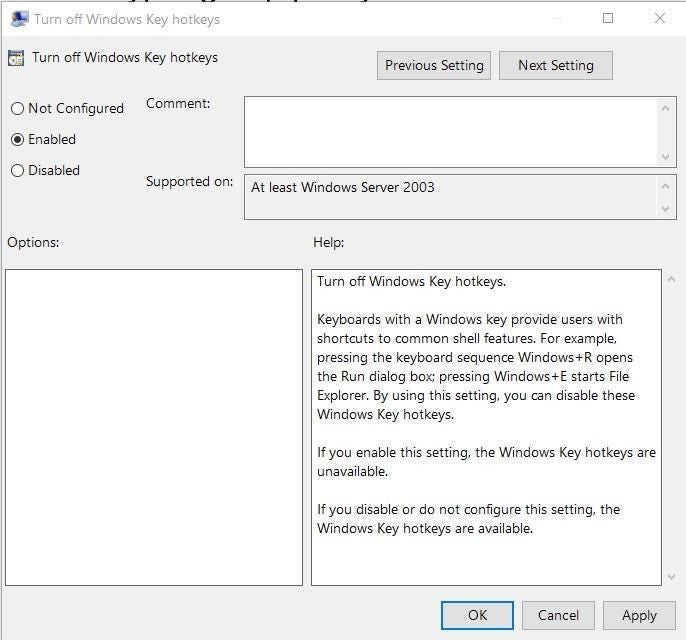
Figure E
Click OK and then close the Group Policy Editor. As before, the change will become effective after you restart your PC. To turn Windows key functionality back on, change the clicked radio button to Disabled or Not Configured.
For more options, check out, “2 more ways to disable the Windows key on your keyboard.”