

Whether for business communication purposes or personal reasons like preserving a loved one’s special note, some voicemails are meant to be kept long-term or indefinitely. Saving voicemails also safeguards against equipment loss or failure and frees up storage space on a device.
Storing voicemails, however, can be a little tricky. The process varies for each device type, and sometimes, another app is needed to get the job done. Read our guide below to learn how to permanently save a voicemail.
Saving voicemails on iOS
Saving a voicemail on an iPhone involves sending the file to a storage option of your choice. Here’s how to do it.
- Go to Phone, then tap Voicemail.
- Open the voicemail you want to save.
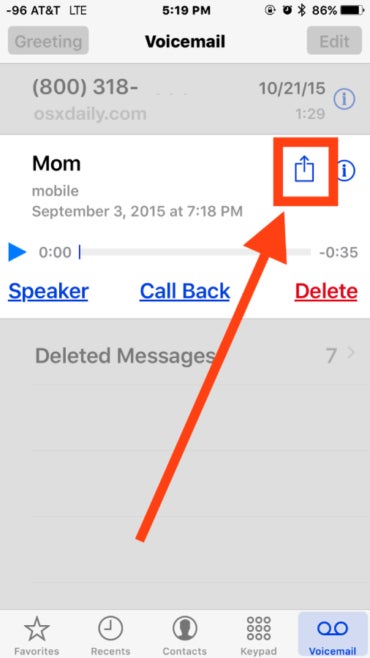
- Tap the Share button in the upper right of the screen and select a storage option.
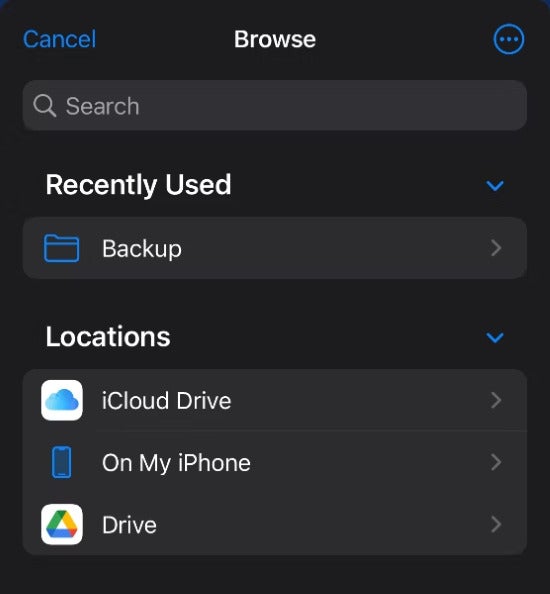
Storage options can vary depending on what apps are installed; regardless, you will see them divided into two groups (see Figure A):
- Recently used: The most recently used storage option
- Locations: The available storage options on your iPhone (e.g., iCloud Drive, Google Drive, Dropbox)
Figure A
You can use the Message and Mail apps to send the voicemail as a text message or email, but a better option would be to swipe until you see the Notes or Voice Memo icons (see Figure B).
Figure B
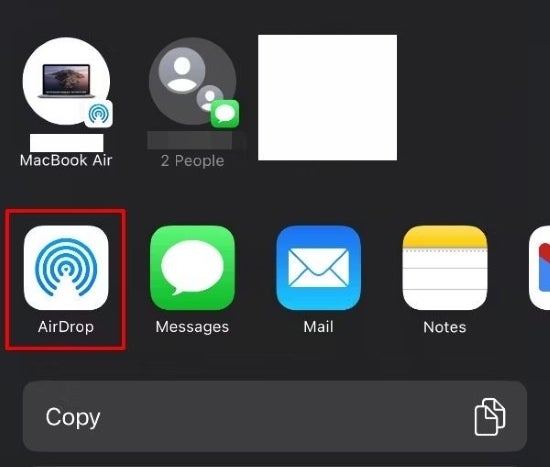
Apple advises saving voicemail messages using Notes or Voice Memo, and as Voice Memo is an audio app, it is more frequently used. If your Voice Memo is synced to your iCloud, a copy of your voicemail is automatically created. It will remain stored there forever, and you can access it anytime.
Related read: Download this email, instant message, and voicemail retention policy from TechRepublic Premium.
More about Office Technology
- Software Installation Policy
- Five Methods to Insert a Checkmark Into Microsoft Office Products
- How to Hide and Handle Zero Values in an Excel Chart
- How to Use Section Breaks to Control Formatting in Word
Saving voicemails on Android
Android is a vast ecosystem, so the process may vary, but saving voicemails for this type of devices typically involves the following steps:
- Access your voicemail screen.
- Open the voicemail, and tap on the three vertical dots icon in the upper right.
- Click Save (Figure D).
Figure D
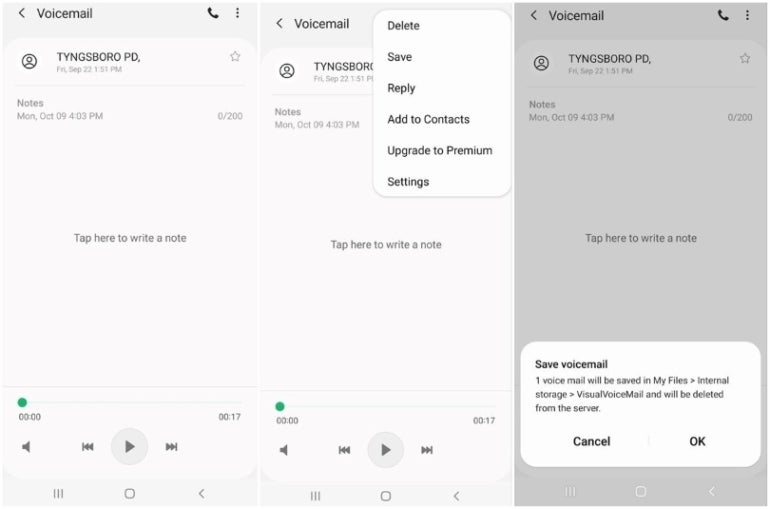
You will see a prompt similar to the one above, including the local file path where the voicemail will be saved. This will save the file to your phone.
Saving voicemails to the cloud
To safeguard a voicemail, copy the file to an SD card or a cloud storage like Dropbox or Google Drive:
- On the phone, you can access the file location — My Files > Internal Storage > VisualVoiceMail — to find the voicemail.
- Press and hold your finger on the object to select it.
- Tap Share in the bottom toolbar (see Figure E). A list of apps to send the file to will appear.
Figure E
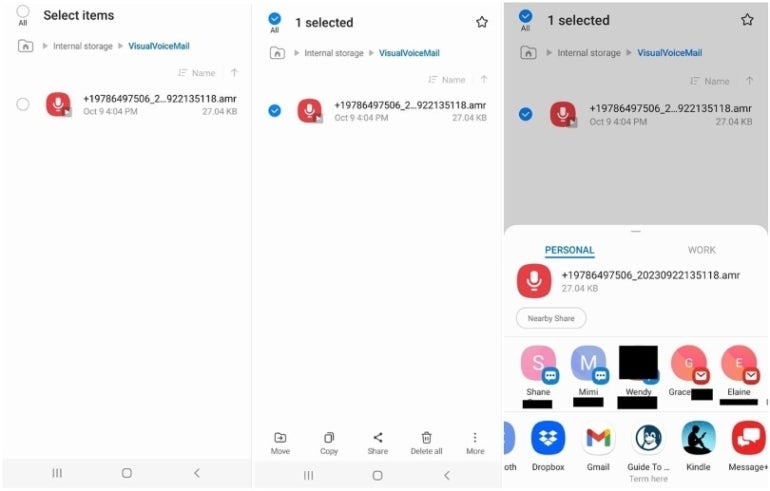
- Choose the cloud storage app that works best for you, and then follow the prompts to add the voicemail.
You can also plug your phone into your PC and browse to a location in Windows Explorer (see Figure F).
Figure F
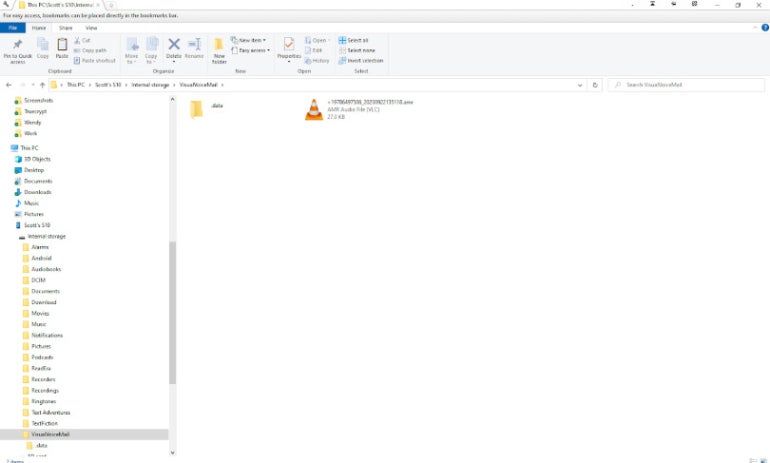
Then cut and paste the .AMR file into your Dropbox folder. Dropbox will keep your file safe, and you can be sure you have access to your voicemails in the event your phone or PC experiences a hardware failure.
Alternative methods for saving voicemails securely
If you intend to repurpose the files for future use or simply want to explore other ways on how to permanently save a voicemail, here are alternative ways you can try.
Use a VoIP service
Voice-over-internet-protocol (VoIP) systems offer built-in voicemail handling features and access to call logs and recordings. You can download important voicemails from the admin dashboard and save them in your preferred storage.
This option is ideal for businesses and IT professionals with an active subscription to VoIP platforms like RingCentral, Zoom Phone, and Dialpad, or those who need a business phone system to support their operations.
Related read: 7 Key Things to Know about VoIP Before Signing a Contract
Enable voicemail-to-email forwarding
You can enable this option from the settings or admin portal. Once set up, your voicemails will be sent to your inbox as audio attachments, allowing you to find, sort, and organize them more efficiently.
Related read: How to Use an Email Forwarding Service
Record voicemails manually
While it is certainly not the best option, recording your voicemails is easy and does the job. All you need to do is have a second device ready to record the audio and play the voicemail from the primary source. This option also lets you save and trim the file. The challenge is in making sure you are in a quiet place when you record the voicemail so the audio output is clean, clear, and crisp.