



This past fall, I noticed that the battery charge in my HP 2000 laptop had begun diminishing. The amount of battery charge slowly faded to the point that it wasn’t holding a charge anymore. Accessing the battery charge notification in Windows 10 told me it was at 0% and no longer charging (Figure A).
- Figure A
- Figure B
- A wild-goose chase
- Must-read Windows coverage
- SEE: How’s your battery holding up? The Windows 10 Battery Report will tell you
- Getting started
- Figure C
- Recent Usage
- Figure D
- Battery Usage
- Figure E
- Usage History
- Figure F
- Battery Capacity History
- Figure G
- Battery Life Estimates
- Figure H
- Also see…
- What’s your take?
Figure A
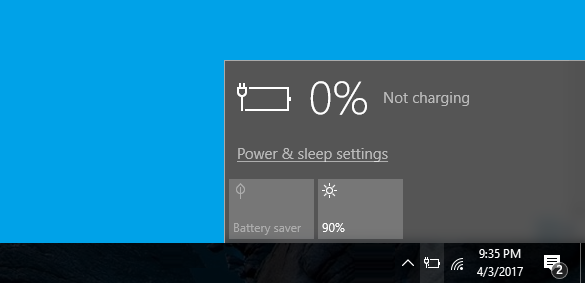
The battery charge notification was showing 0%.
I then ran the HP Battery Check utility and confirmed that the battery was dead, as shown in Figure B. Since the HP 2000 is my backup laptop, I’ve just been using it on AC power. I use my Dell laptop when I’m on the go.
Figure B
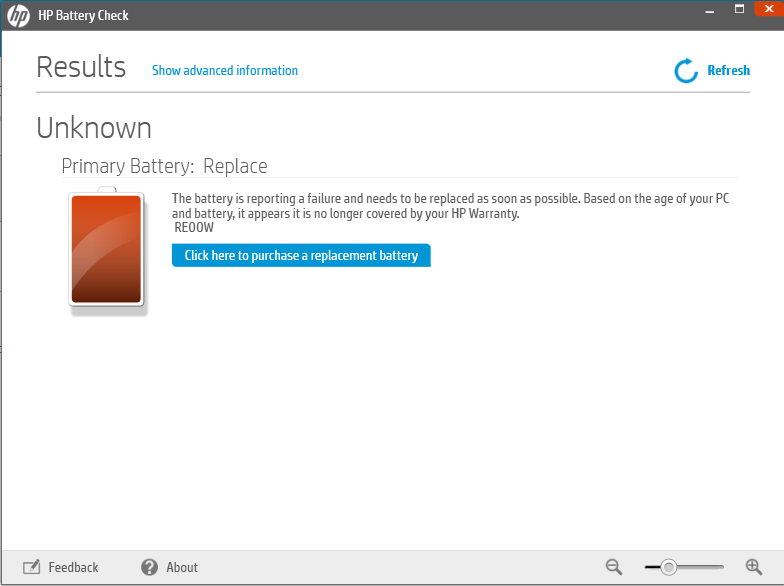
The HP Battery Check utility confirmed that the battery was dead.
A wild-goose chase
Must-read Windows coverage
- CrowdStrike Outage Disrupts Microsoft Systems Worldwide
- 10 Best Project Management Software for Windows in 2024
- Windows 10 Extended Security Updates Promised for Small Businesses and Home Users
- Securing Windows Policy
Recently, I was talking to a fellow I met at a conference. As we were conversing, I noticed that he had an HP 2000 laptop and told him about my dead battery experience. He said that he too had seen the 0% Not Charging notification on his system but that in his case, the battery was not actually dead.
He went into a detailed explanation of how he solved the problem by removing the battery, booting the laptop on AC power, and going to Device Manager and uninstalling the Microsoft AC Adapter and the Microsoft ACPI-Compliant Control Method Battery drivers. He replaced the battery, rebooted the system, which reinstalled the drivers, and then discovered that his battery was once again accepting a charge. I expressed some doubt, but he was steadfast in his belief that the procedure reset his battery.
Over the weekend, I decided to give this procedure a shot. After all, I didn’t have anything to lose but a little bit of time.
Unfortunately, the procedure didn’t revive my battery; it was still dead. However, that got me thinking about an article I had written a while back about running the PowerCfg command’s Battery Report in Windows 10. So I ran the report to see what it could tell me. What I discovered might be helpful to other laptop users. Let’s take a look.
SEE: How’s your battery holding up? The Windows 10 Battery Report will tell you
Getting started
Launching the PowerCfg command and running the Battery Report is easy once you know how. To begin, you’ll need to open an Administrator Command Prompt, which you can do by right-clicking on the Start button and selecting the Command Prompt (Admin) command. Then, type the command
powercfg /batteryreport
and press [Enter]. When you do, the Power Configuration Utility immediately compiles the report and displays a message to that effect, as shown in Figure C.
Figure C
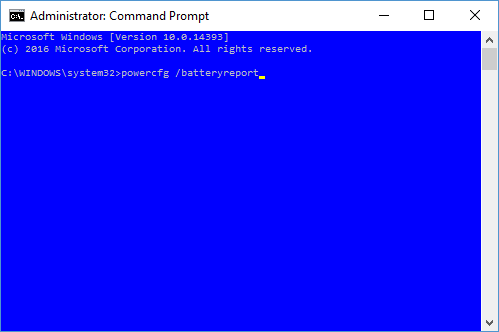
It takes only a moment for the Power Configuration Utility to compile the Battery Report.
Now, just type battery-report.html on the command line. When the Battery Report page loads in your browser, you’ll have to scroll down to see the entire report. It contains six sections plus the header. I’m just going to cover the sections I used in particular case. If you want to learn all about the Battery Report, you can read my earlier article.
Let’s take a look at the pertinent sections of the Battery Report from my HP 2000 with the malfunctioning battery.
Recent Usage
In the Recent Usage section, shown in Figure D, you’ll find a table that lists the power states–Active or Suspended–that the system has gone through over the last three days. This table shows the time that the system started, whether the power source was the battery or AC, and the remaining capacity of the battery at the time the entry was made.
Figure D
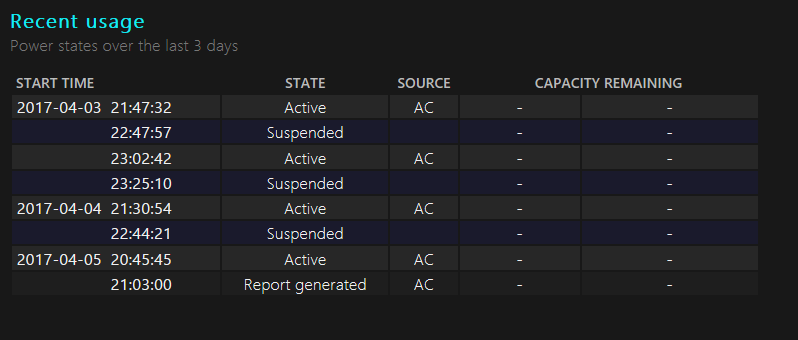
The Recent Usage section lists the various power states from the last 72 hours of use.
As you can see, this section shows that this laptop has only run on AC power the last three days and that the remaining capacity of the battery is unavailable. The Capacity Remaining columns are supposed to show a percentage and the mWh, which stands for milliwatt hours. (Laptop batteries have a voltage rating (V) and milli-Amp hours (mAH) rating, and they’re multiplied together to come up with the milliwatt hours capacity.)
Battery Usage
The Battery Usage section features a chart as well as a table that indicates the date and time for each instance when the battery was drained over the last three days. Of course, since the battery in this laptop is dead, the chart and table are empty, as you can see in Figure E.
Figure E
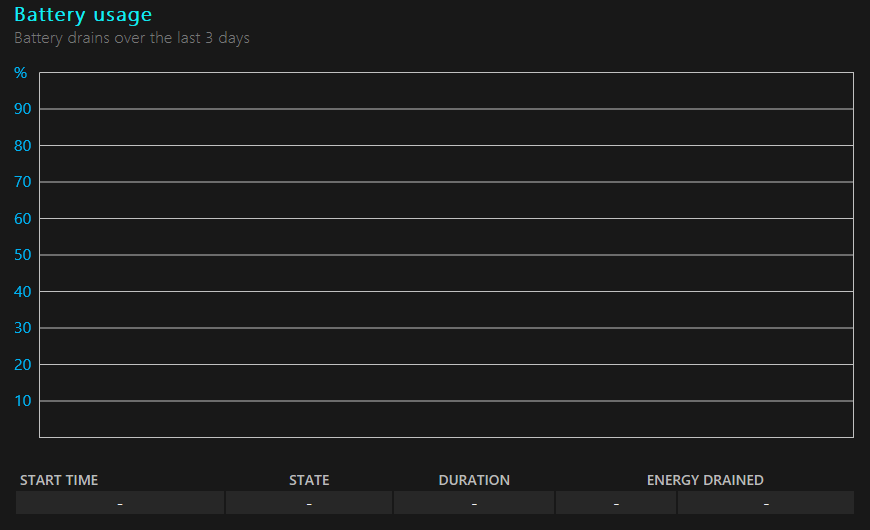
The Battery Usage section features a chart and a table.
Usage History
The Usage History section, shown in Figure F, shows the history of system usage on both AC and battery power. In the first column, you’ll find a usage period–typically seven days, which may or may not be consecutive set of days, depending on how often you use your system. You then see how many hours and minutes within the specified time period that the system ran on the battery and how long it ran on AC power.
Figure F
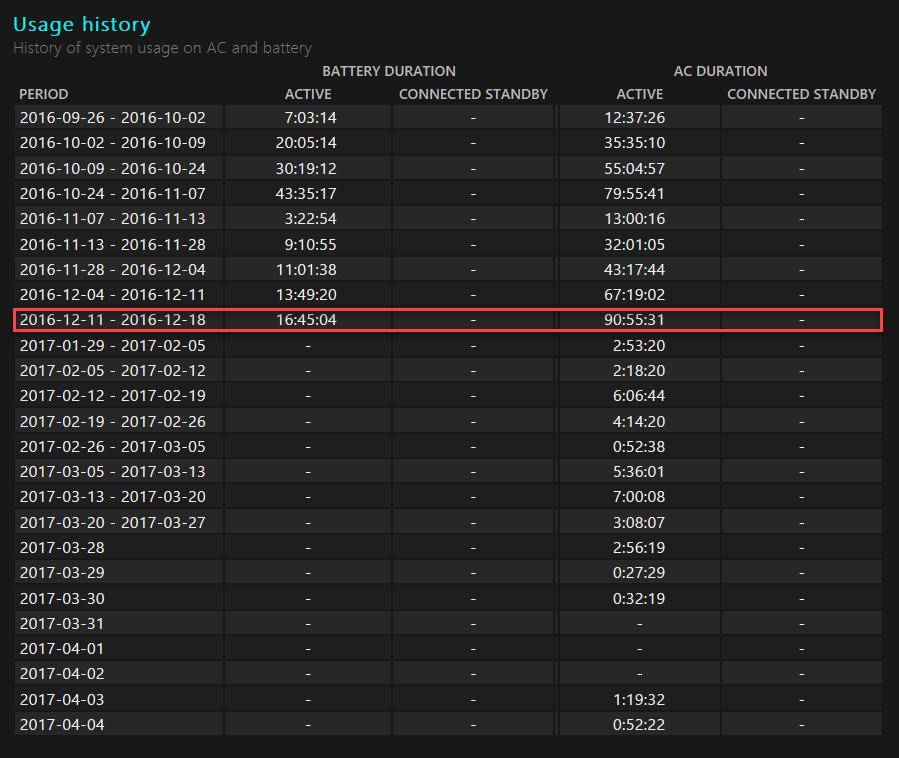
The Usage History section shows the history of system usage on both AC and battery power.
In this section, I began to find some useful information on the decline of my HP 2000 laptop’s battery. On the 9th line I can pinpoint the exact week my battery died: 12/11/16 – 12/18/16. As you can see, that is the last week during which the Battery Report showed any active battery duration–16 hours, 45 minutes, and 4 seconds, to be exact. From that point forward, the Active Battery Duration column doesn’t show any values.
Battery Capacity History
In the Battery Capacity History section, shown in Figure G, you’ll find the charge capacity history of the system’s battery. This table shows both the full charge capacity and the design capacity, along with a usage period, thus providing you with a way to track the health of the battery over time.
Figure G
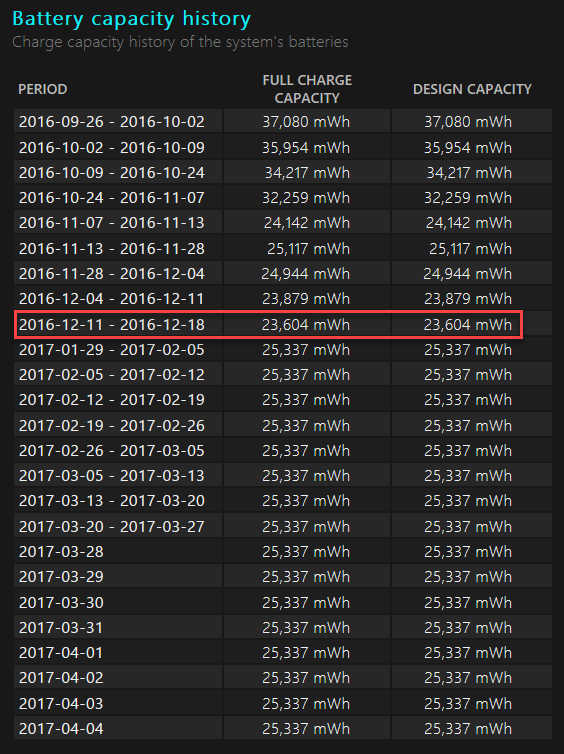
The Battery capacity is measured in mWh (milliwatt hours).
The first measurement period in this Battery Report was the week of 9/26/16, when the full charge capacity was at 37,080 mWh. Over the following couple of months, the full charge capacity dwindled to 23,604 mWh, the week that my battery died: 12/11/16 – 12/18/16. From that point forward, the Full Charge Capacity column and the Design Capacity column consistently show a value of 25,337 mWh. So even though the battery stopped functioning, it appears that it still had a charge.
Battery Life Estimates
At the end of the report is the Battery Life Estimates section, where you’ll see a table that indicates how many hours, minutes, and seconds you can expect the battery to last at a full charge capacity and at design capacity. These estimates are based on the observed drains.
As you can see in Figure H, the battery life on my HP 2000 went from two and a half hours down to a little less than an hour and a half before the battery died. After the week of 12/11/16 – 12/18/16, both the At Full Charge and At Design Capacity columns were empty, again indicating a dead battery.
Figure H
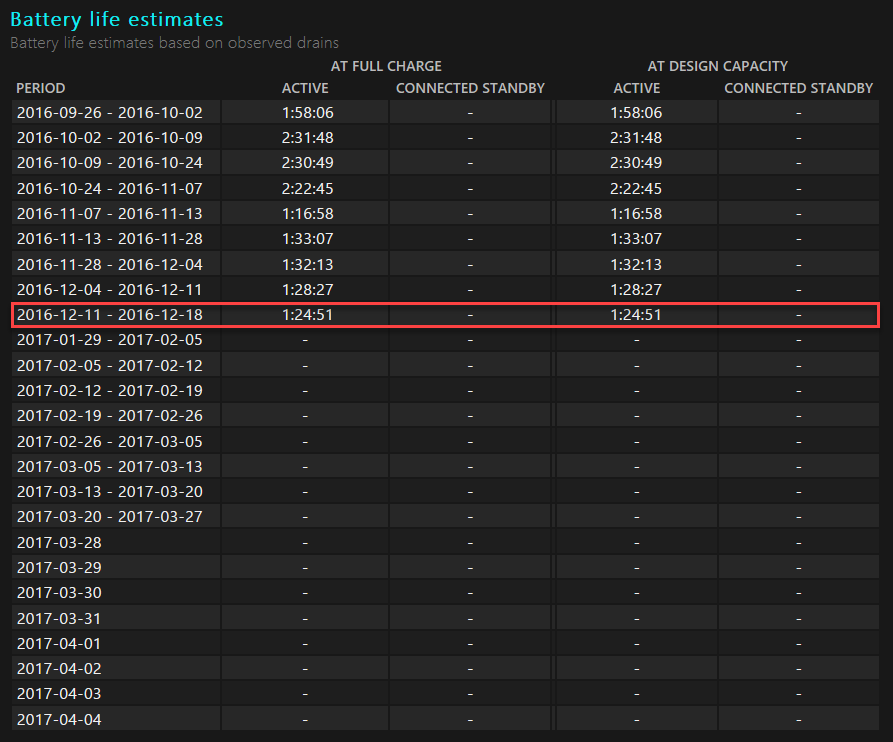
The Battery Life Estimates section will indicate how long you can expect the battery to last at a full charge.
Also see…
- Balance efficiency and performance with Windows 10 Power Options
- Analyze battery usage with Windows 10’s Battery Saver
- Extend your mobile battery life with Windows 10’s Battery Saver
- How to track down USB flash drive usage with Windows 10’s Event Viewer
What’s your take?
Have you run the Battery Report on your Windows 10 system? Have you ever run a Battery Report on a laptop after the battery died? Share your thoughts with fellow TechRepublic members.