



Soon after my article How to track down USB devices in Windows 10 with Microsoft’s USB Device Viewer was published, I received a message from a reader who was interested in tracking USB flash drive usage. More specifically, he wanted to be able to find out when a USB flash drive was connected to a system, when it was disconnected, and ultimately how long the USB flash drive was connected to a system. The ability to track down this type of information could come in handy for a troubleshooting expedition or for conducting a digital forensics investigation.
Must-read Windows coverage
- CrowdStrike Outage Disrupts Microsoft Systems Worldwide
- 10 Best Project Management Software for Windows in 2024
- Windows 10 Extended Security Updates Promised for Small Businesses and Home Users
- Securing Windows Policy
I knew that kind of information would be recorded in Windows 10’s Event logs, and after some investigation with Event Viewer, I found out where. Further investigation and experimentation led me to the Event IDs that correspond to the connection and disconnection operations. And of course, each of these operations had a date and time stamp. I then found out how to identify specific USB flash drives, which allowed me to determine how long a specific USB flash drive was connected to a system.
In this article I’ll explain in more detail what I found. I’ll then show you how to employ these techniques to use Event Viewer to track USB flash drive usage on a system.
SEE: Digital forensics: The smart person’s guide
Getting started
There are several ways to launch Event Viewer. One of the easiest ways is to click the Start button and begin typing Event Viewer. When Event Viewer appears in the Results pane, just click it. As soon as the tool launches, you’ll see the Overview And Summary panel, as shown in Figure A, which displays a list of the most recent events collected from all the logs.
Figure A
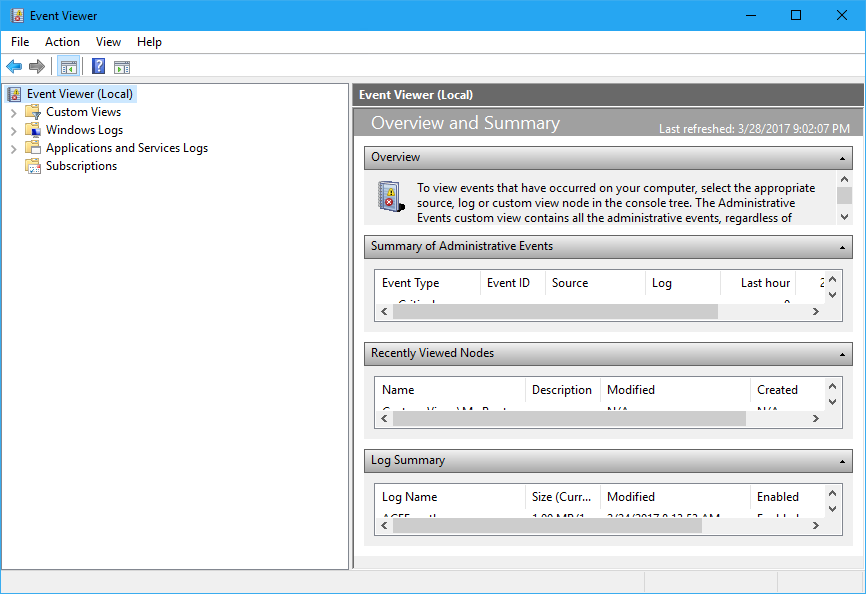
The Overview And Summary panel displays a list of the most recent events.
Event Viewer will keep track of USB flash drive related events in the
Application and Services Logs > Microsoft > Windows > DriverFrameworks-UserMode > Operational
log. However this log is not enabled by default. As such, you need to enable it first by drilling down to DriverFrameworks-UserMode, right-clicking on the Operational Log, and then selecting Properties from the context menu. When the Log Properties – Operational dialog appears, select the Enable Logging check box, as shown in Figure B.
Figure B
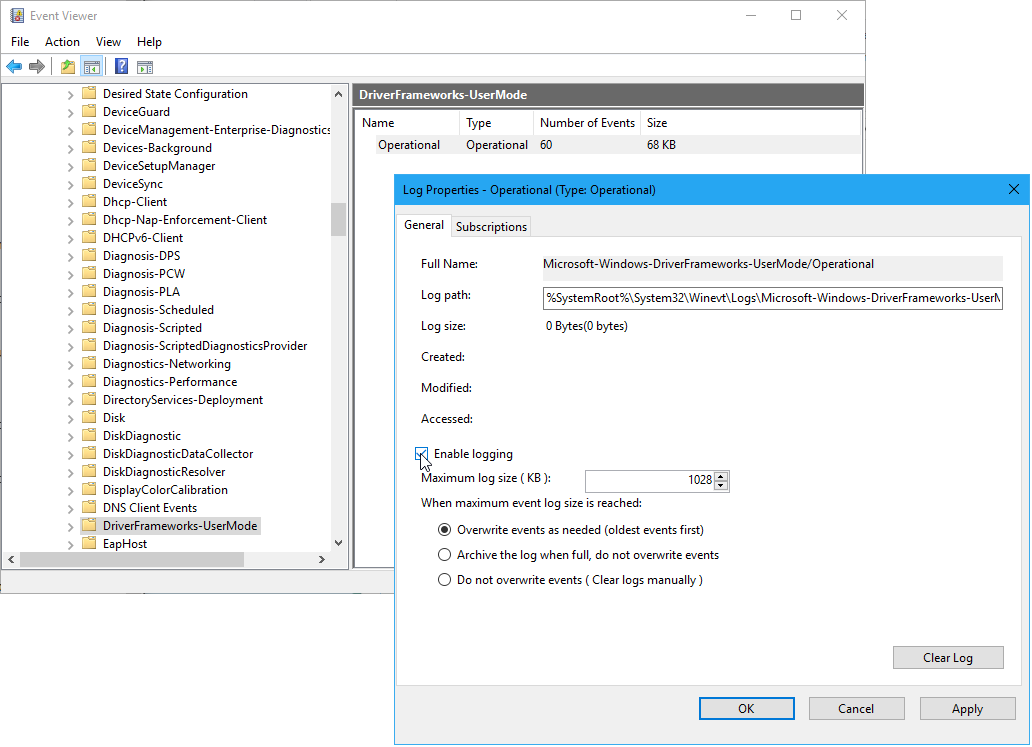
You must enable the Operational Log before Event Viewer will start capturing USB flash drive related events.
Tracking a USB flash drive connection
When you connect a USB flash drive to your system, a number of Information and Verbose Level event records are generated in the Operational Log. These records will consist of the following Event IDs:
- 2003
- 2004
- 2006
- 2010
- 2100
- 2101
- 2105
- 2106
For example, when I connected a USB flash drive to my system, Event Viewer displayed those event records in the Operational Log, as shown in Figure C.
Figure C
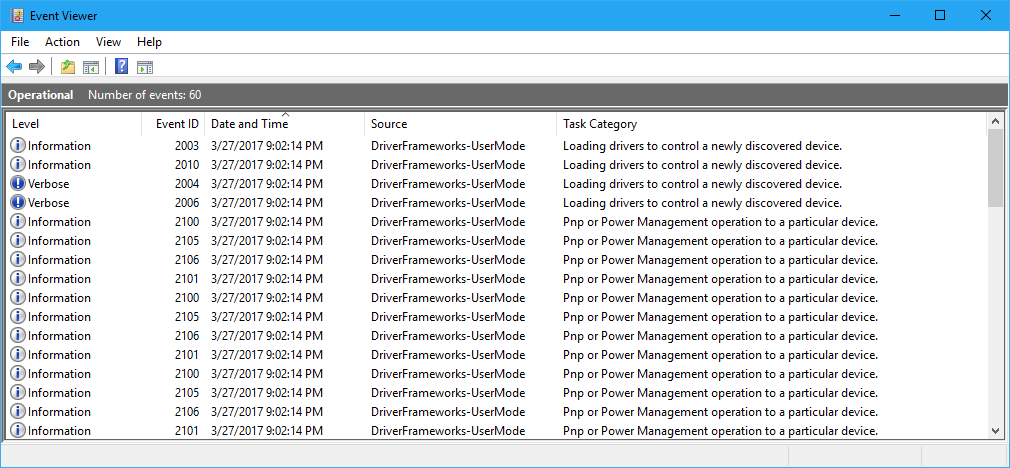
When you connect a USB flash drive to your system, a number event records are generated in the Operational Log.
As you can see, the first couple of event records pertain to loading drivers for the particular USB flash drive. The rest of the records pertain to the pnp (Plug-and-Play) or Power Management operations that get the drive ready to go to work in Windows 10. You’ll also see that each event record has the same Date And Time stamp that corresponds to the instant that the USB flash drive was connected to the system.
The majority of these records contain a coded name for the device that will help you identify the device in a generic way. However, each device’s unique serial number is also included in the majority of these records, which will allow you to identify specific USB flash drives.
As you might have guessed, by combining the date and time stamp with the device’s unique serial number, you can find out exactly when a particular device was connected to the system. Pretty good so far, right?
However, connecting the USB flash drive generated 16 event records. Fortunately, all the records are generated at the same time, and the majority of the event records contain the unique serial number. Therefore, you need to investigate only one record to get what you need.
When a USB flash drive is connected, the first recorded event record is Event ID 2003. So by noting the date and time stamp assigned to an Event ID 2003 record, you can tell exactly when a USB flash drive was connected to the system. If you then open the Event ID 2003 record, as shown in Figure D, you can find all the information you need.
Figure D
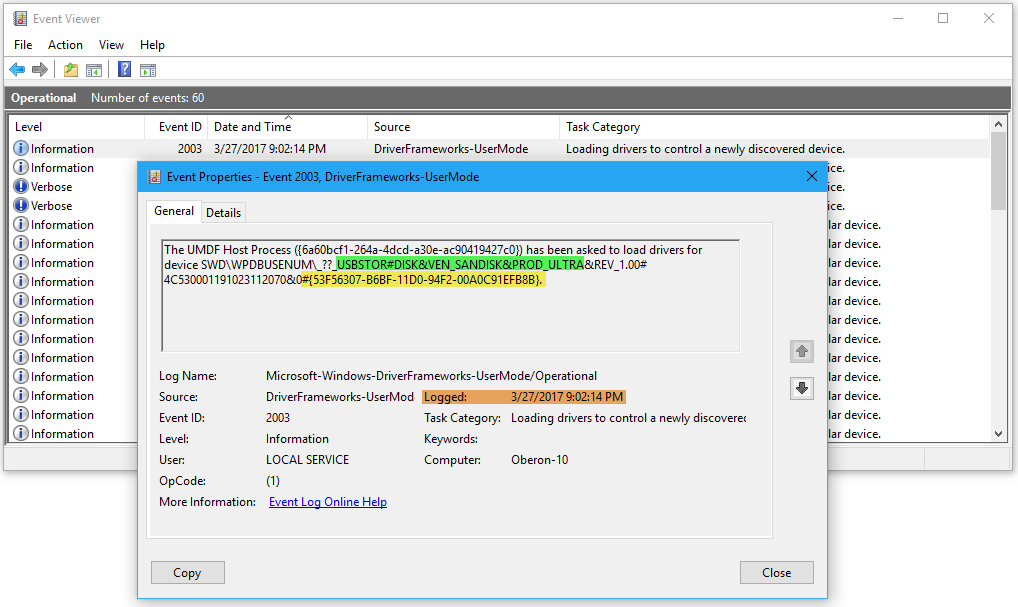
Opening the Event ID 2003 record will provide the necessary information.
The General tab of the Event 2003 properties dialog displays all the pertinent information. To make it easier to see the individual pieces of this information, I’ve applied a highlighter to the screen shot:
- The green highlight shows the coded name for the device: USBSTOR#DISK indicates that this is a USB flash drive, and VEN_SANDISK&PROD_ULTRA tells us that this is a Sandisk Ultra 3.0 USB flash drive.
- The yellow highlight shows where in the string you can find the device’s unique serial number.
- The orange highlight shows the date and time that the USB flash drive was connected to the system.
Tracking a USB flash drive disconnection
When you eject or disconnect a USB device, a couple of Information Level event records are generated in the Operational Log:
- 2100
- 2102
These events records also contain a date and time stamp along with the device’s unique serial number. Even though there are multiple Event ID 2102 event records for a disconnection, the Event ID is unique to a disconnect. As such, by investigating the Event ID 2102 event record, you can find out exactly when a particular device was disconnected from the system. When you open an Event ID 2102 record, as shown in Figure E, you can find all the information that you need.
Figure E
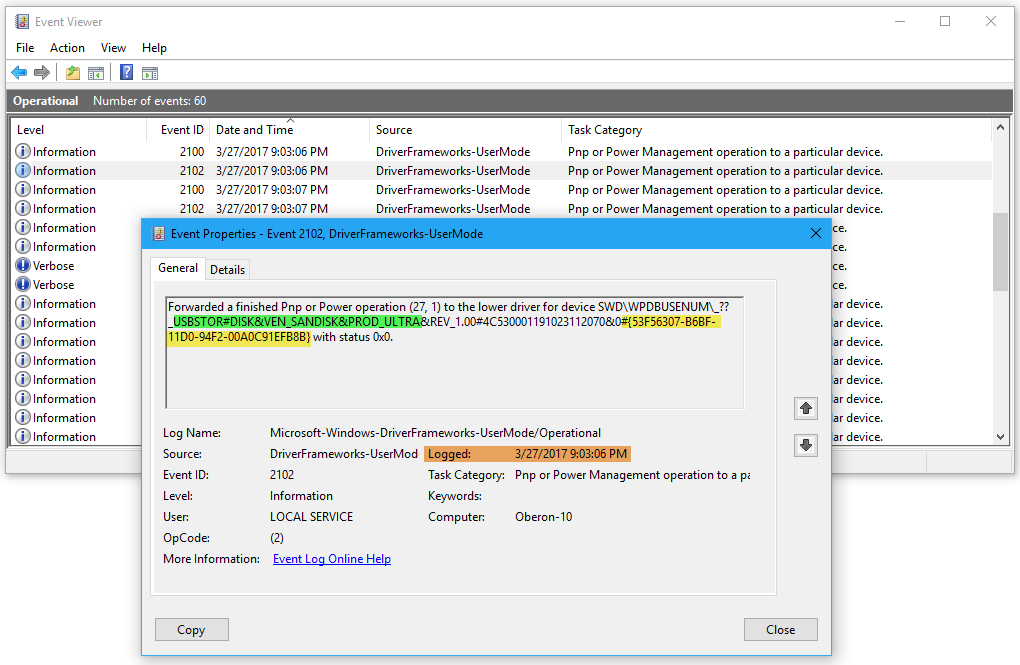
Opening the Event ID 2102 record will provide you with all the information that you need.
On the General tab of the Event 20102 properties dialog, you can find all the pertinent information. To make it easier to see the individual pieces of pertinent information, I’ve applied a highlighter to the screen shot.
- The green highlight shows the coded name for the device: USBSTOR#DISK indicates that this is a USB flash drive and VEN_SANDISK&PROD_ULTRA tells us that this is a Sandisk Ultra 3.0 USB flash drive.
- The yellow highlight shows you where in the string that you can find the device’s unique serial number.
- The orange highlight shows the date and time when the USB flash drive was connected to the system.
SEE: With new security features in place is it time to try Microsoft Edge?
Creating a Custom View
As you can imagine, over time connecting and disconnecting multiple USB flash drivers, the Operation Log will contain a lot of records. To make it easier to track down Event ID 2003 and Event ID 2102 event records in the Operational Log, you can create a Custom View.
To do so, make sure that the Operational Log is showing in Event Viewer, then pull down the Action menu and select the Create Custom View command. When you see the Create Custom View dialog, all you have to do is select the Information check box in the Event Level section and type 2003 and 2102 in the Includes/Excludes Event IDs box, as shown in Figure F.
Figure F
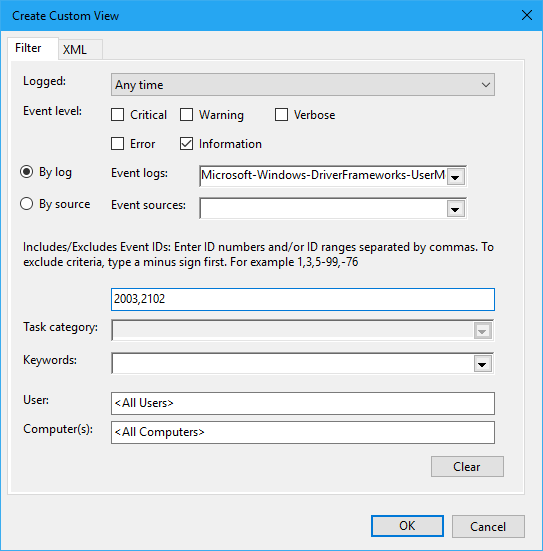
Creating a Custom View will make it easier to track connect and disconnect events.
After you configure your Custom View, click OK. You’ll then see the Save Filter To Custom View dialog box. At this point, simply enter a name, as shown in Figure G, and click OK.
Figure G
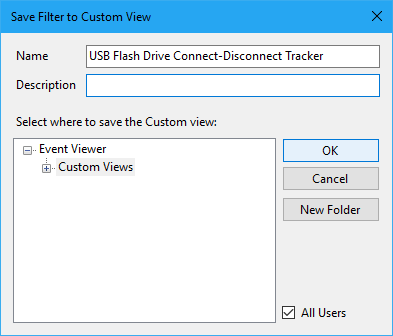
When you click OK, you’ll see the Save Filter To Custom View dialog box.
Now, to access your Custom View, just select it from the Custom Views tree. The USB Flash Drive Connect-Disconnect Tracker view displays only the event records you need monitor USB flash drives, as shown in Figure H.
Figure H
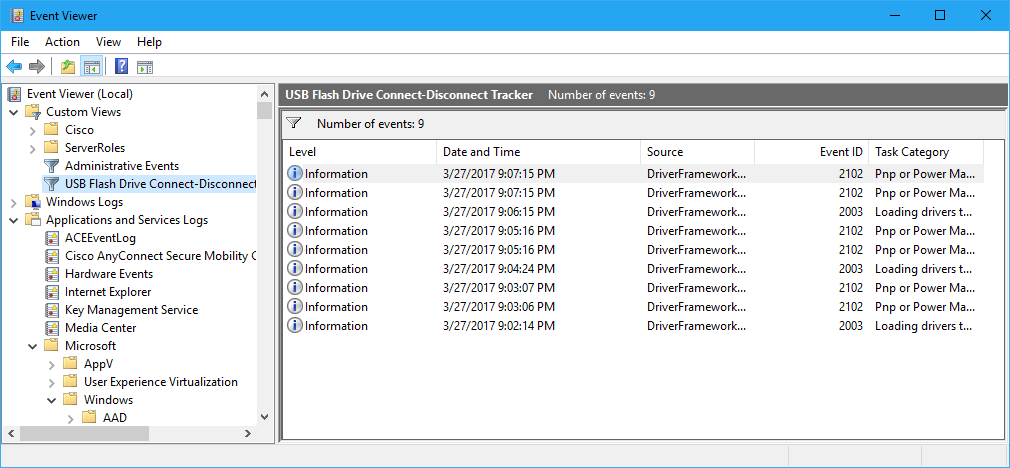
Using a Custom View narrows down the number of event records in the Operational Log.
To make this Custom View even easier to use, pull down the View menu and select the Group By > Event ID command. When you do so, you’ll be able to more easily identify connect and disconnect events, as shown in Figure I.
Figure I
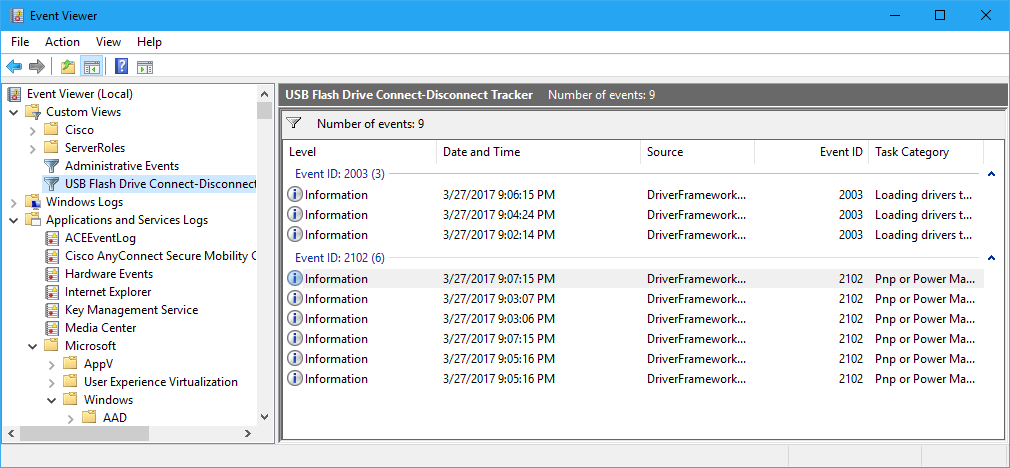
The Group By command provides an even better way to identify the types of event records in the Operational Log.
Putting it all together
By finding the same unique USB flash drive serial number in corresponding Event ID 2003 and Event ID 2102 event records and then applying some math to the date and time stamp numbers, you can tell exactly how long a particular USB flash drive was connected to your system.
Caveats
While the Operational Log shows USB flash drive connect and disconnect events, that’s not the only USB device information this log displays. It may show event records for other USB devices as well. So just be aware of that as you look through the event records.
If you find an Event ID 2003 event record for a specific USB flash drive but don’t find a corresponding Event ID 2102 event record, that either means that the USB flash drive is still attached to the system or the system was shut down before the device was removed. The latter makes tracking a disconnect event a bit more tricky, but not impossible. You can investigate recent shutdowns as a means of determining when a USB flash drive was disconnected. You can track recent shutdowns by creating a Custom View and specifying Windows > System as the Event log, User32 as the Event source, and 1074 as the Event ID.
More Windows how-to’s..
- How to track down USB devices in Windows 10 with Microsoft’s USB Device Viewer
- How to custom-fit your images for the lock screen with Windows 10’s Photos app
- How to use the Delay feature in Windows 10’s Snipping Tool
- How to get more information on Window 10’s Startup tab by enabling additional columns
- How to perform a secure disk wipe with Windows 10’s Format command
What’s your take?
Have you ever needed to track down USB flash drive usage in a Windows 10 system? If so, do you think that this technique will help you? Share your thoughts with fellow TechRepublic members.