


You may already be using Microsoft Teams on your computer to remotely join meetings and collaborate on projects with colleagues. But Teams is also available as a mobile app for on-the-go work. Available for iPhones, iPads, and Android devices, the Teams app lets you set up or join a video or audio call, chat with people, and share files.
SEE: Video teleconferencing do’s and don’ts (free PDF) (TechRepublic)
If you don’t already have the Teams app for your phone or tablet, download it from Apple’s App Store for an iPhone or iPad, or from Google Play for an Android device. The iOS/iPadOS and Android versions have the same basic functionality, though there are some minor layout differences. If you already have an account and access to Teams, either through your organization or individually, sign into the app.
How to chat on Microsoft Teams on your mobile device
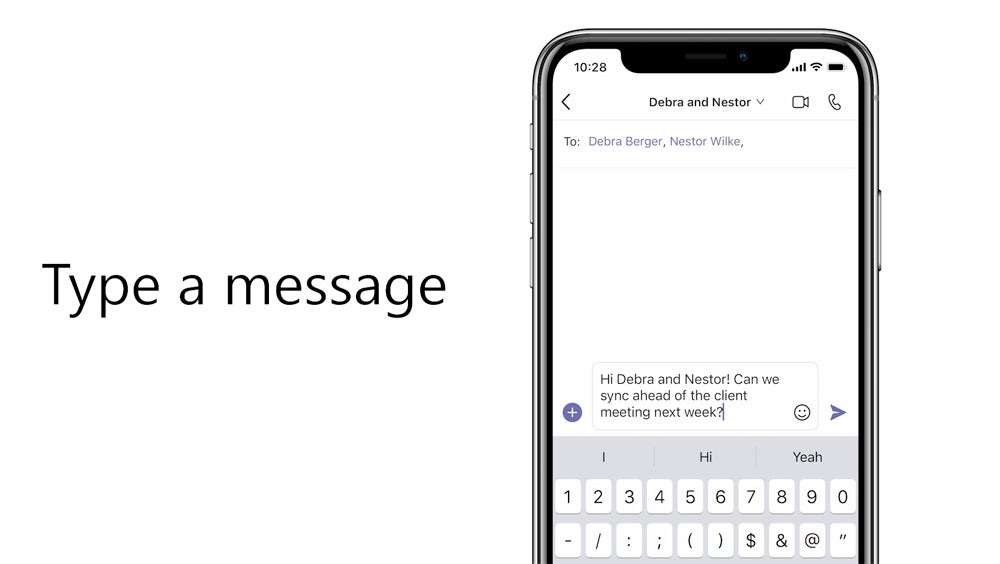
One task you’ll likely want to perform is to chat with an individual team member. Tap the “Chat” icon on the bottom toolbar and then type the name or email address of the person with whom you want to chat. Select the person’s name and type your message. You can then carry on a back-and-forth conversation. Press the “+” icon to the left of the message field to attach an image, GIF, or document. You can also tap the smiley face icon to send an emoji, the camera icon to send an image, or the microphone icon to record and send a voice note.
Can I create a team on Microsoft Teams mobile?
Yes! Navigate to the Chat or Teams page in the app and select “More options” in the upper-right corner. A screen will appear at the bottom that includes a “Create new team +” button. Tap that and choose a name, description, privacy level, and data type for the team. You can then invite people or contact groups to join the team.
If you cannot do this, your IT admin may have disabled team creation for you. Contact them to have it enabled.
Mobility must-reads
- Big Apple OS Makeover: Here’s What to Expect & When
- MWC 2025: Nothing Shows Off (3A) Phones With AI Organization Tool
- Bad News for App Developers: Most Apps Fail to Hit $1,000 Monthly Revenue Within Two Years
- Mobile Device Computing Policy
How to call via Teams on your mobile device
You can place a call to one or more Teams contacts, either via audio or video. From the “Chat” tab, select the chat or the person you want to call or start a new chat with them. Then, tap either the video camera or phone icon to make a video or audio-only call, respectively. If you start the call from a group chat, you will also be asked if you intend to call everyone in the group.
On an iPhone or iPad, you can also use the “Calls” tab in the bottom panel to make a call. If the person you wish to call already appears in call history, tap the “Call” icon in the “Details” section on the right side of the screen. Otherwise, type their name into the dialing pad and tap the phone icon to place an audio-only call or the camera icon to place a video call.
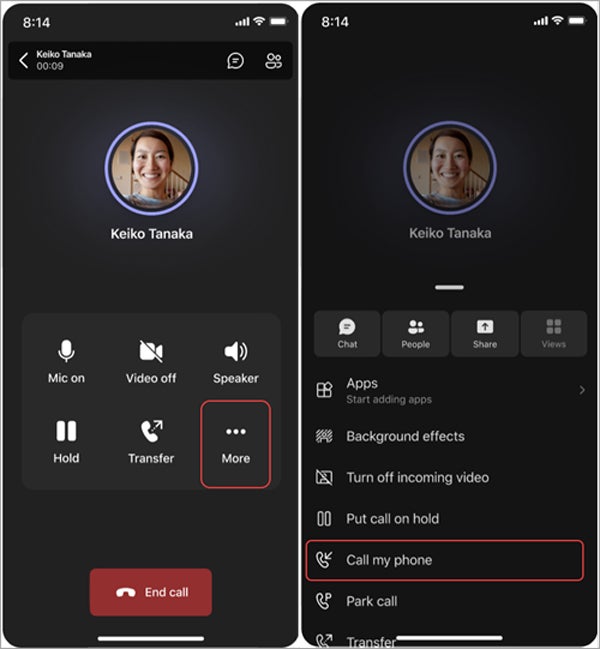
From the in-call toolbar, you can enable or disable the video, microphone, or speaker. You can also put the call on hold or transfer it to someone else. For a video call, you can blur the background or add a background image from the “Background effects” option under the “More” menu.
How to schedule a meeting in Teams on your mobile device
To schedule a meeting, tap the “Calendar” tab, followed by the plus icon at the bottom right and the “Schedule a meeting” button. You can then add your meeting details like the title, participants, data and time, location, and description. You can also tap “Share to a channel” to make it a channel meeting and adjust the privacy settings. Tap “Done” to schedule the meeting and send out invites to the chosen participants.
How to share files in Teams on your mobile device
Next, you can upload and share files with the team to enable quick review and real-time document collaboration. Go to the Teams tab and open the channel where you want to share the file, Tap the “Files” tab at the top of the channel and then the paperclip icon. Choose the file from your phone or cloud storage to upload, and the file will be shared in the “Files” section, visible to all members of the channel. You can also share files in a chat, as described in this article’s “How to chat” section.
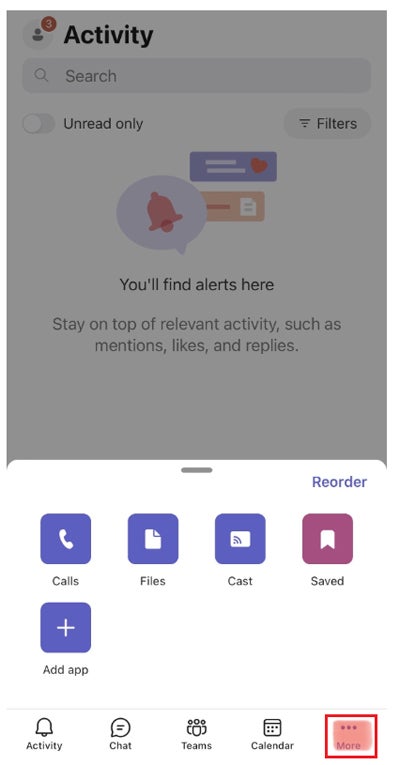
Another way to share files is by using the “Files” button in the “More” tab on an iOS device and in the navigation bar on an Android. Locate the file you want to share from the correct cloud-based service, tap the ellipsis, and tap “Share.” Choose the “Chats” or “Channels” tab depending on how you want to share the file, then type in the name of the desired Chat or Channel. If desired, you can add a message before hitting the send arrow to share.
Other features to check out when using Microsoft Teams on your phone
- Screen sharing: Share your screen during calls or meetings by tapping the three dots and selecting “Share.” This is ideal for presentations or demonstrating steps.
- Push notifications: Receive alerts on your phone for messages, mentions, and calls. Customise these via Settings and stay updated on the go.
- Search and Command bar: Use the search bar at the top to quickly find messages, files, or people. You can also use commands like “/call” or “/files” for instant actions.
- Dark mode: Enable Dark Mode from “Settings” for better visibility in low-light conditions and reduced eye strain.
- Offline mode: You can view chats and access files even when you’re offline. This is great for working in areas with limited connectivity.
Though the mobile app doesn’t offer the full functionality of the desktop app, it should be a handy resource when you’re out and about.