


Image: Andy Wolber/TechRepublic
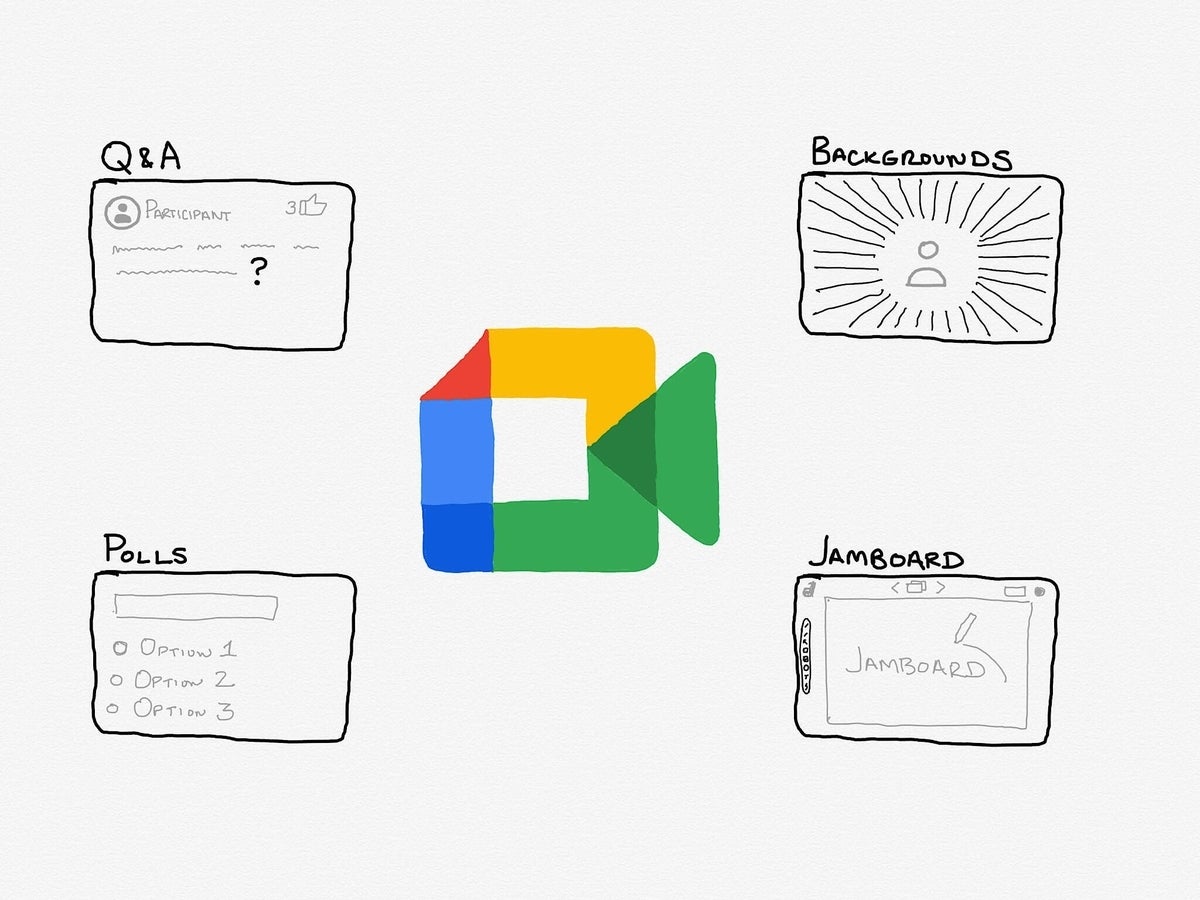
Most people who use Google Meet now have access to two very visual features: Custom backgrounds and Jamboards. Choose a blurred background to preserve a bit of privacy, or select a custom background image to highlight a personal picture, reinforce a brand, feature a fun photo, or convey your mood. For people who like to sketch ideas, Jamboard provides a collaborative board, or series of boards, where one or more people may draw, insert images, or type text.
What's hot at TechRepublic
- Blackpoint Cyber vs. Arctic Wolf: Which MDR Solution is Right for You?
- Why AWS Sellers Choose Deepgram Over Other Voice AI Tools
- SS&C Intralinks DealCentre AI vs. Datasite: Which platform is built for the future of dealmaking?
- SS&C Intralinks FundCentre AI vs. Juniper Square: Which platform better supports modern private markets fund managers?
- Verito vs. Rightworks: Which IT Provider Is Best for Your Firm?
Meeting owners may initiate Activities, which include Poll and Q&A tools. Google Meet Q&A provides a structured way to ask, respond to, and manage text-based questions during a meeting, while a Poll may help you better understand meeting participants’ demographics or preferences, gauge group sentiment, or simply serve as a fun icebreaker. As of early November 2020, polls allow participants to select from up to 10 options, while Q&A lets participants not only ask questions, but also upvote questions submitted by other people. After each meeting, the meeting owner receives an email with an attached Google Sheet that contains Poll and Q&A content.
Follow the steps below to experiment with each of these four features in a desktop version of the Chrome browser.
SEE: Top cloud providers in 2020: AWS, Microsoft Azure, and Google Cloud, hybrid, SaaS players (TechRepublic Premium)
How to change your Google Meet background
While in Google Meet on the web:
- Select the three-vertical dot menu (in the lower-right corner), as shown in Figure A.
- Choose Change Background. Depending on your Google Workspace edition and settings, a Blur Background option might be your only option.
- Then select:
- Background off
- Blur (either slightly a significantly)
- Any one of the 26 provided images (as of November 2020)
- + upload an image of your own choice
Test your custom background before you use it in a meeting, since your clothing, skin, and background may interact in different ways in different settings.
Additionally, note that if you use a custom-created image with text in the background, the text may appear to be reversed on your own screen. However, in my tests, the image displayed in a readable manner to others in the meeting.
Figure A

How to draw together with Jamboard in Google Meet
To access or create a Jamboard while in Google Meet on the web:
- Select the three-vertical dot menu (in the lower-right corner), as demonstrated in Figure B.
- Choose Whiteboard (Open A Jam) from the menu.
- Then select either Start A New Whiteboard or Choose From Drive. You may be prompted with the option to adjust Jamboard access settings.
- Meeting participants will receive a notice of a new Jamboard (in the lower-right), and may access the link to the Jamboard in the meeting Chat.
- The board owner may select the Share button to add or adjust access to the Jamboard for people or groups.
Figure B

How to manage Q&A in Google Meet
To access Q&A while in Google Meet on the web:
- Select the Activities icon (Figure C), comprised of three basic shapes (i.e., a triangle, square, and circle, found in the upper-right corner).
- Select Q&A.
- If you are the meeting Owner, adjust the Allow Questions slider to the right to enable questions.
Any meeting participant may select the + Ask A Question button, then enter a question, and select Post. This adds the questions into the Q&A tool. After someone in the meeting adds a question, other participants may “upvote” the inquiry, which allows people a way to prioritize questions in situations where there are a large number of people or questions. Interestingly, as of now, you may upvote your own question.
Q&A also includes tools to help filter, sort, and manage questions. Select the drop-down menu on the left to select the set of questions displayed (i.e., choose from All Questions, Answered, Unanswered, or Hidden). Additionally, you may select the drop-down menu on the right to sort the set of questions displayed (i.e., choose from Oldest First, Newest First, or Popular.) You may also mark questions as hidden or answered, or delete any question.
Figure C

How to poll Google Meet participants
To create and use a poll in Google Meet:
- Select the Activities icon (Figure C), comprised of three basic shapes icon (the triangle, square, and circle icon in the upper-right corner).
- Select Polls.
- Select Start A Poll.
- A form for your poll displays, which includes:
- An Ask A Question field for your question,
- Two fields (i.e., Option 1 and Option 2) for poll options.
You may select the + Add An Option button to add up to 10 different response options to a poll.
5. Fill in the Ask A Question field and as many option fields as desired, then select Save.
6. Select Launch to activate the poll.
7. When finished, select End The Poll.
8. Adjust the slider to Show Everyone The Results.
Note: The last two steps may be reversed. You may choose to let people view results as they are submitted, then end the poll. The sequence will depend on whether you want people to potentially be influenced by other responses.
Your experience
Has the addition of custom backgrounds, Jamboard collaboration, Q&A, or Polls changed how you use Google Meet? Which of these four features do you find most helpful? Do you have a tip on how to create effective Polls, or a particularly helpful way to handle Q&A? Let me know how you use these features in your Google Meet sessions, either by adding a comment below or messaging me via Twitter (@awolber).