


Most modern operating systems contain built-in tools for creating, deleting, or resizing partitions. But many users find that third-party tools make these types of tasks easier, since such tools might not have the same limitations as a native partition management utility. Here are several good partition managers, which won’t cost you a dime.
Note: This article is also available as an image gallery and a video hosted by TechRepublic columnist Tom Merritt.
Must-read Windows coverage
- CrowdStrike Outage Disrupts Microsoft Systems Worldwide
- 10 Best Project Management Software for Windows in 2024
- Windows 10 Extended Security Updates Promised for Small Businesses and Home Users
- Securing Windows Policy
1: MiniTool Partition Wizard Free Edition
As its name suggests, MiniTool Partition Wizard Free Edition (Figure A) is a free tool for creating and managing partitions. It has a clean interface and does a nice job of providing access to the most common partition-related tasks without being overly complex.
Figure A
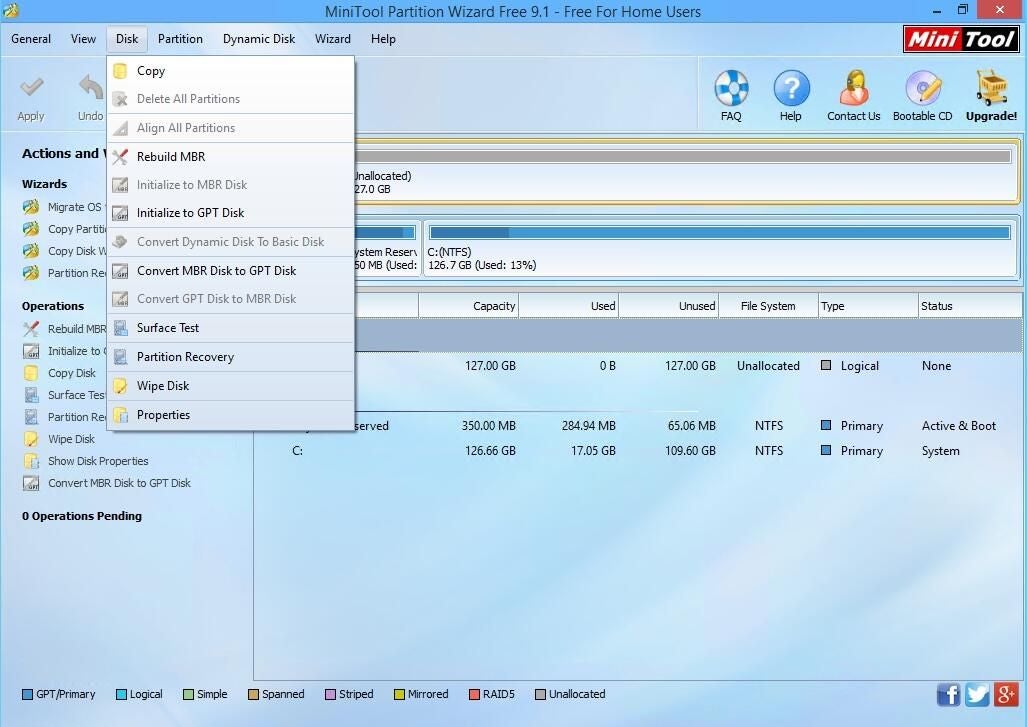
For example, this tool offers options for rebuilding the MBR, copying a disk, and even doing a disk surface test.
2: EaseUS Partition Master Free Edition
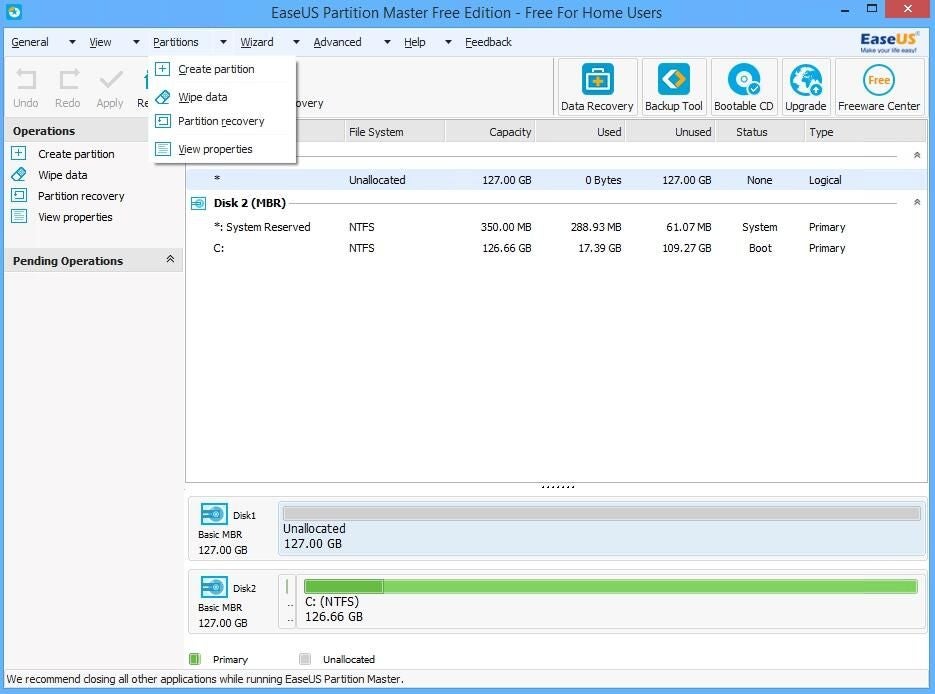
EaseUS Partition Master Free Edition (Figure B) is another free tool for creating and managing partitions. At first glance, it appears to be somewhat lightweight. Upon closer inspection, however, you’ll discover that it includes some nice features, such as a disk cloning wizard and a wizard that lets you migrate an OS to an alternate location.
Figure B
3: AOMEI Partition Assistant Standard Edition
AOMEI Partition Assistant Standard Edition (Figure C) is a free partition management tool. Its interface isn’t exactly original. In fact, I had to do a double take to see whether this application was just a reskinned version of one of the other applications discussed in this article. But the application is indeed unique. It has all the basics covered and offers lots of wizards to help with common tasks. Some of the more useful wizards include a partition recovery wizard, an NTFS to FAT32 converter, and even a tool to migrate your computer’s operating system to SSD.
Figure C
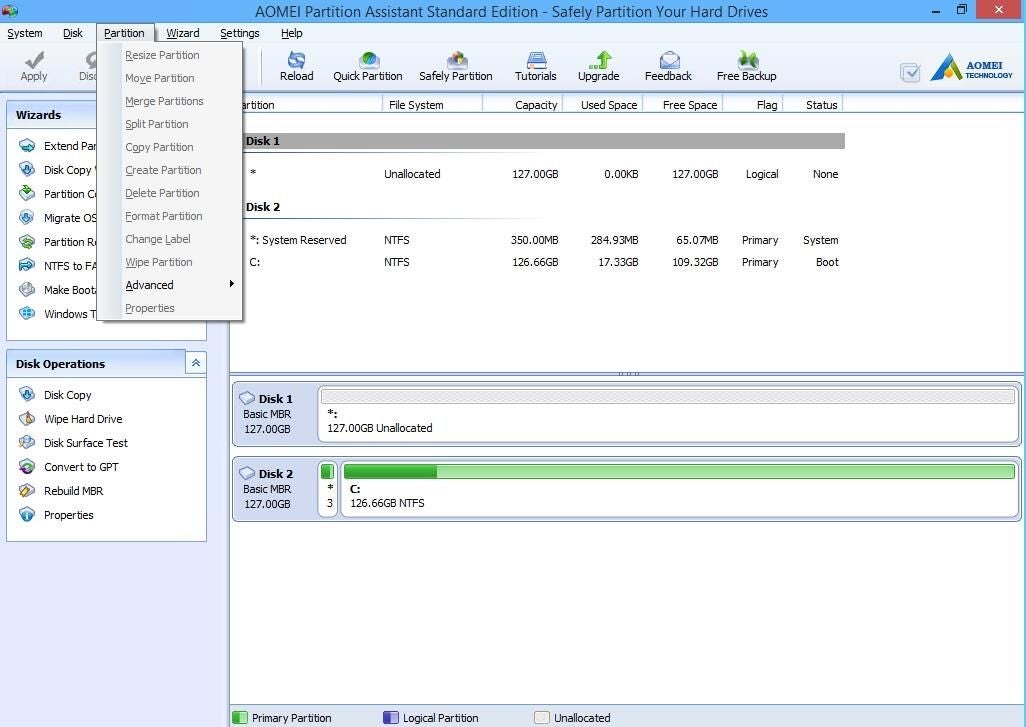
AOMEI Partition Assistant Standard Edition is free; an upgrade to the professional edition is available for $36.
4: Paragon Partition Manager Free Edition (64-bit)
Paragon Partition Manager Free Edition (Figure D) is a lightweight tool for creating and managing partitions. It appears to be designed for beginners. The application contains a series of colorful tiles with options for things like creating, resizing, and deleting partitions. When you make a selection, the application launches a wizard that guides you through the tasks. These wizards are largely automated and provide few options for controlling the selected operation.
Figure D
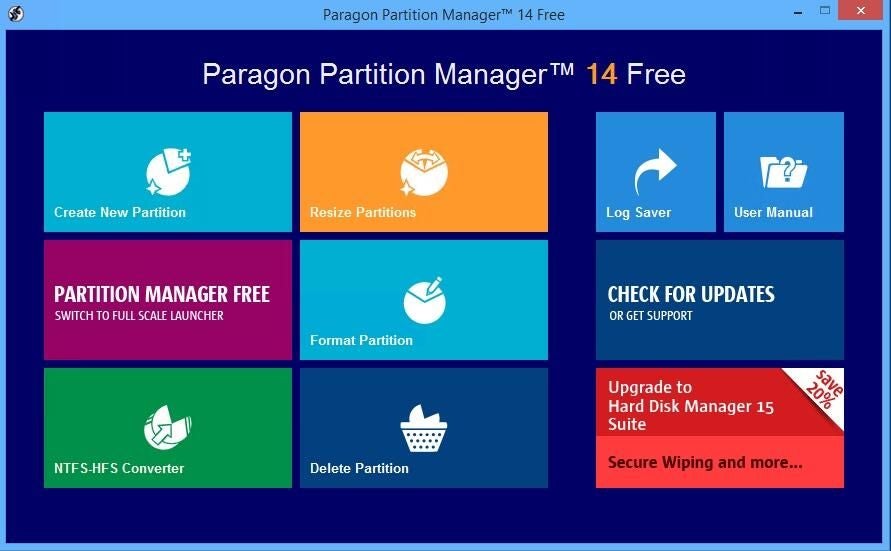
This application might do a good job of preventing someone who doesn’t know much about partitions from making any critical mistakes, but it probably isn’t the best option for IT professionals.
5: Macrorit Disk Partition Expert Free
Macrorit Disk Partition Expert Free (Figure E) reminds me a lot of MiniTool Partition Wizard, but it allows for a greater variety of operations.
Figure E
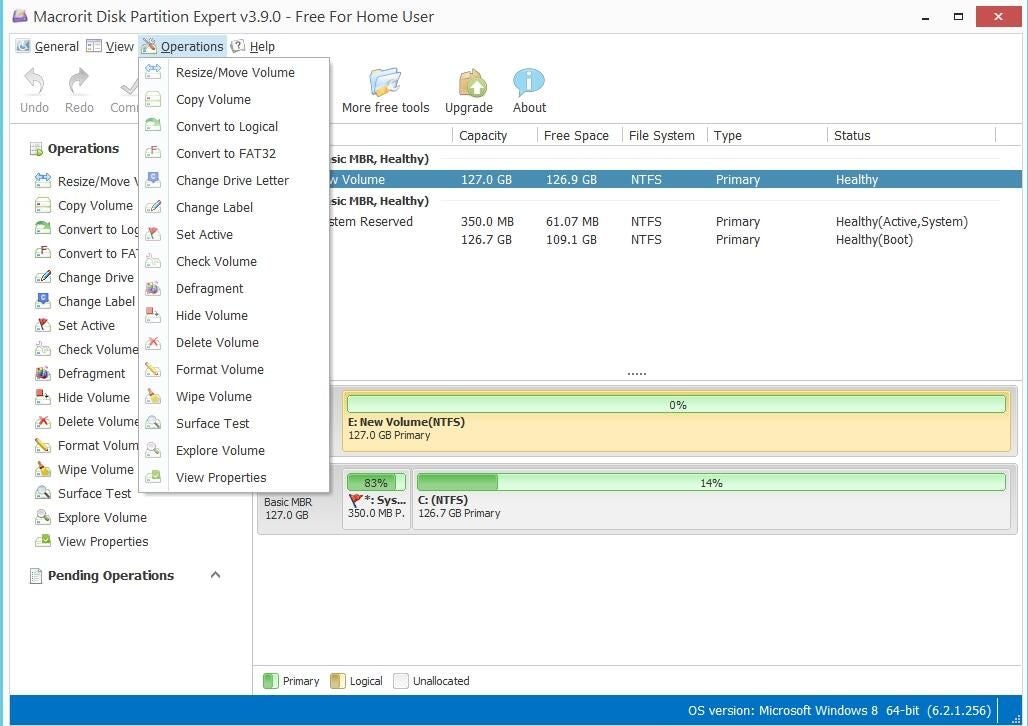
Macrorit offers plenty of nice extras, including a disk defragmenter, a volume checker, and a disk surface test. It also includes some volume-level tools that allow you to do things such as explore or wipe a volume.
Also read…
- Five handy calculator apps for Windows
- Five apps for benchmarking your hardware
- Five versatile apps for the one-person IT shop
- Five tools for defragmenting your hard disk
More tools?
What third-party partition management utilities have you tried? Share your list of good (and bad) tools with fellow TechRepublic members.