


For advanced Linux users, starting, stopping, and restarting Linux services is essential. These operations allow users to access the functionality of each service. For example, to use a web server, users need to start the Apache service, or to use a database, users must start the MySQL service. Managing Linux services is also important for system stability and can help improve system performance.
Despite common belief, starting, stopping, and restarting services in Linux is relatively straightforward. We’ll be working with Linux, but all of the commands for starting, stopping and restarting Linux services can be run on CentOS, Ubuntu, Redhat, Fedora, Debian, and many other distributions.
What is the difference between systemctl and service commands?
There are two official management tools that provide a consistent way to start, stop, restart, and manage system services in Linux:
- systemctl
- service
Systemctl offers more advanced functionality, including dependency management, enabling/disabling services, and integration with journalctl for logging. Service is simpler and primarily used for basic service start, stop, and status commands. It is often used with older SysVinit-based systems.
Which one you use will depend on whether your distribution uses systemd or init. Most modern distributions now use systemd, so systemctl is the service manager of choice. But some old habits die hard, so many administrators still hold onto the aging service command.
Fortunately, the developers of systemd made sure to retain service and redirect it to systemctl, so even on systemd-based systems, using service will still work for basic tasks
To complicate matters more, you might find a random service you’ve installed that hasn’t been updated to either the service or systemctl tools and must manually start it with /etc/rc.d (or /etc/init.d).But we’re looking for best practices here, and for starting, stopping, or restarting applications on Linux, best practices begin and end with systemctl.
SEE: Start learning to use Linux for IT and Sysadmin with this bundle
Starting a Linux service
Let’s say you want to start the Apache server.
To do this:
- Open a terminal window.
- Run the command
sudo systemctl start httpd.
In this command:
sudotells Linux you are running the command as the root user.systemctlmanages systemd services.starttells the systemctl command to start the Apache service.httpdis the name of the Apache web server service.
- Once you run the command you will get the following message:
The service httpd has started successfully.
Note that if the service is already running you will see the following message:
The service httpd is already running.
SEE: How to quickly open a terminal in a specific Linux directory
Common error messages
Failed to start httpd.service. Unit httpd.service not found.
This error occurs if the Apache web server package isn’t installed or the service unit file is missing. Install the Apache package using sudo apt install apache2 (on Debian-based systems) or sudo yum install httpd (on Red Hat-based systems) to resolve it.
Failed to start httpd.service. Address already in use.
This indicates that another process already uses the port Apache wants to bind to (usually port 80). Identify the conflicting process with sudo lsof -i:80 and stop it, or change the port configuration in Apache’s config file.
Stopping a Linux service
To stop the Apache service:
- Open a terminal window
- Run the command
sudo systemctl stop httpd. - You should now see the following message:
The service httpd has been stopped successfully.
Note that if the service, in this case Apache, was not running, you will get the following message:
Failed to stop service httpd. Unit httpd.service is not loaded.
Install it using sudo apt install apache2 (Debian-based) or sudo yum install httpd (Red Hat-based).
Or you may get one of the following messages:
Failed to stop service httpd. Unit httpd.service is not running.
This indicates Apache is already stopped, so no action is needed.
Failed to stop service httpd. Unit httpd.service is in a failed state.
This suggests Apache encountered an error and is in a failed state. To troubleshoot, run sudo journalctl -xe to view detailed logs, then try restarting the service.
Failed to stop service httpd. Unit httpd.service is locked.
This error occurs if another process is controlling the service. Wait briefly and try again, or check for running management tasks with ps aux | grep httpd to identify the locking process.
SEE: Linux 101: How to search for files from the Linux command line
Restarting a Linux service
To restart the same service (Apache):
- Open a terminal window.
- Run the command
sudo systemctl restart httpd. - The service will restart, and you’ll be returned to the bash prompt.
- You will get the following message:
The service httpd has been restarted successfully.
Common error messages
If the Apache service isn’t running, you’ll see the following output:
The service httpd is not running.
You can start it directly with sudo systemctl start httpd or check its status with systemctl status httpd.
You may also see the following:
Job for httpd.service failed.
This usually indicates a configuration or dependency issue. To troubleshoot, review the error details with sudo journalctl -xe and correct any configuration issues.
Starting, stopping, and restarting services with service usage
To make matters interesting, the service command still works — even for those distributions that have migrated to systemd and systemctl. This means those who instinctively type service when needing to restart a service on Linux won’t receive an Unknown command error.
SEE: Run a Google search from the Linux command line with Googler
In the case of service, the command will redirect to systemctl. In fact, when you run the service command on a systemctl-enabled distribution, you’ll clearly see the redirect information.
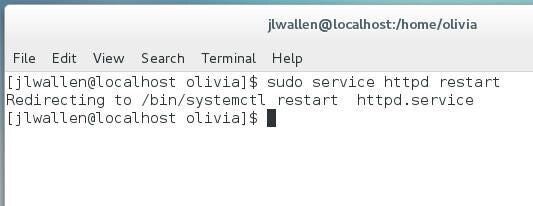
The service command usage is a bit different from systemctl. The service name and start, stop, and restart options are switched:
sudo service httpd start
sudo service httpd stop
sudo service httpd restart
In each case, you’ll see service redirected to systemctl, but the service you are attempting to start, stop, or restart will succeed.
To learn more about what systemctl can do for you, make sure to issue the command man systemctl and give the man page a read.