


Old laptops are getting one more shot at relevance, though US buyers may have already missed the latest window.
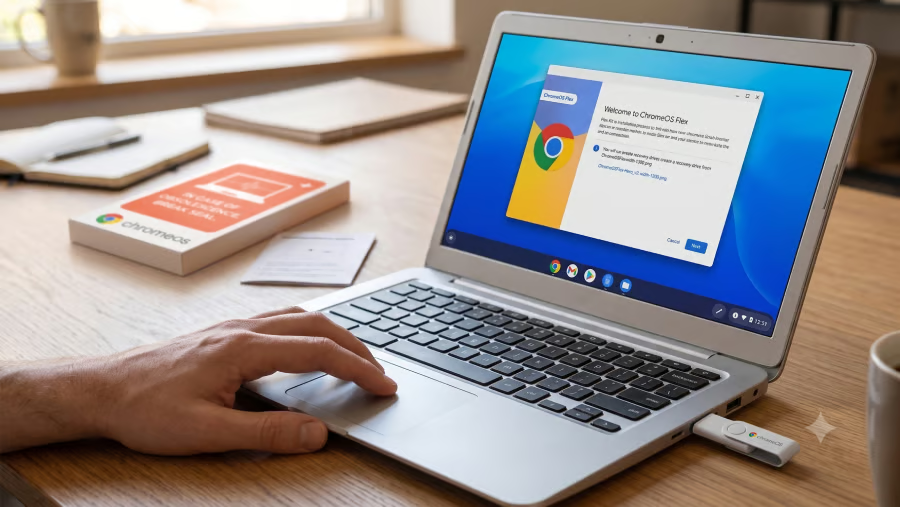
Google and Back Market’s $3 ChromeOS Flex USB Kit appears to be sold out again in the US after briefly returning to stock, while the kit remains available in the UK. The reusable USB drive comes preloaded with ChromeOS Flex, giving users an easier way to test or install Google’s lightweight operating system on aging PCs that may not be good candidates for Windows 11.
ChromeOS Flex is still free to download, so the kit is less about access and more about convenience. For the right laptop, it could stretch usable hardware a little longer. For the wrong one, it could expose app, hardware, and security limits fast.
Why the kit is getting attention
Google and refurbished-device marketplace Back Market restocked the ChromeOS Flex USB Kit after the first batch sold out shortly after launch. The kit includes a reusable USB drive preloaded with ChromeOS Flex, plus setup guidance for people who do not want to create their own installer.
Google pitched the kit at people caught between buying a new computer and keeping an older one on an unsupported operating system. The company previously said the Windows 10 transition “left many people with a difficult decision: spend hundreds on a new device, or continue using an insecure, outdated one.”
ChromeOS Flex remains free to download, so the $3 kit is really about convenience. It gives people a ready-made installer instead of asking them to create one with the Chromebook Recovery Utility, adjust boot settings, and troubleshoot the process on their own.
For anyone comfortable with those steps, the free download works just fine. For everyone else, the preloaded USB stick makes the first step less intimidating.
In earlier TechRepublic reporting, I covered several alternatives for older Windows 10 PCs after the first batch of ChromeOS Flex kits sold out, including FydeOS, Zorin OS, Linux Mint XFCE, Fedora Silverblue, and Aurora. Those options showed that users have more than one path to keep functional hardware out of retirement.
Now that the ChromeOS Flex Kit is back in stock, the question changes. Instead of asking what to use when Google’s kit is unavailable, users need to decide whether ChromeOS Flex is actually the right fit for the old PC they want to save.
Who should use the ChromeOS Flex Kit
Browser-first users
ChromeOS Flex makes the most sense for people who already do most of their work inside Chrome.
If someone mainly checks email, edits Google Docs, uses Microsoft 365 in the browser, joins video calls, watches streaming services, and saves files in the cloud, the move away from Windows may not feel disruptive. The old laptop becomes a clean web machine instead of a full PC replacement.
Families with spare laptops
The kit could help households turn an aging Windows laptop into something useful again. A device that feels too slow for Windows may still work well for homework, school portals, web research, YouTube, email, or as a shared guest computer. This is one of the clearest consumer use cases because the risk is low and the cost of trying it is minimal.
Students and schools
ChromeOS Flex can fit classrooms when the required tools are already web-based. Older lab PCs or donated laptops could still handle online assignments, typing practice, learning platforms, and basic research. Schools should check compatibility first, but extending hardware life can delay replacement costs without leaving students on unsupported Windows machines.
Small businesses with simple shared devices
Small teams may find ChromeOS Flex useful for devices with narrow, browser-based jobs. A front-desk computer that opens email, scheduling software, web forms, cloud storage, or a browser-based CRM is a stronger fit than a workstation running local business software. For these setups, the kit could keep basic operations running on machines the business already owns.
People who want the easiest setup
ChromeOS Flex is free, but creating an installer still requires a few technical steps.
The $3 kit is useful for people who want to skip creating their own installer or setting up a laptop for someone who just needs a clean browser-based device.
More Google coverage
- New Google Search AI Mode is ‘Total Reimagining,’ Says CEO Sundar Pichai
- In Major Ruling, Judge Finds Google ‘Willfully Acquired and Maintained Monopoly Power’ Over Digital Ad Market
- Google’s Big Bet on Nuclear Energy: ‘The Race to Power AI-Driven Data Centers is Accelerating’
- Computer History Museum Releases Original AlexNet Code: Why It Matters
Who should skip it
People who need Windows-only apps
ChromeOS Flex is not a simple swap for a full Windows setup.
Anyone who depends on local accounting software, legacy business apps, Windows-only utilities, custom internal tools, or specialized desktop programs should be careful. A bookkeeper using QuickBooks Desktop or a small shop running old Windows software may be better off replacing the PC, paying for extended support, or moving to a supported Windows machine.
Users expecting Android apps
ChromeOS Flex does not deliver the same experience as a regular Chromebook.
Google’s support documentation says ChromeOS Flex has important differences from ChromeOS, including app and hardware limitations. It does not provide the full Google Play and Android app experience users may expect from a standard Chromebook.
Gamers and creative pros
ChromeOS Flex is not built for Windows games, GPU-heavy workloads, or advanced creative software. A laptop used for PC gaming, Adobe desktop apps, video editing, music production, CAD tools, or local media workflows is not a good candidate. Even if ChromeOS Flex installs, the user may quickly run into app gaps, hardware limits, or performance problems.
Businesses with strict security or compliance needs
ChromeOS Flex can help revive old hardware, but it does not include all the security features found on managed Chromebooks. Google said ChromeOS Flex devices do not have a Google security chip, so ChromeOS verified boot is not available. Admins also need to manage BIOS or UEFI firmware updates separately.
Owners of unsupported or very old hardware
Not every old laptop is worth saving with ChromeOS Flex. Google said minimum requirements include an Intel or AMD x86-64-bit device, 4 GB of RAM, 16 GB of storage, USB boot support, and full BIOS administrator access. It also said functionality is only guaranteed on certified models.
Check before wiping the laptop
ChromeOS Flex offers a useful safety step: users can boot from a USB drive and test it before installing it permanently.
Use that test to check Wi-Fi, keyboard, trackpad, webcam, ports, external monitors, printers, and everyday web apps. Google also maintains a list of certified models with support status, known issues, and end-of-support dates.
A permanent install can improve the experience, but it also wipes the device. Back up files first, confirm browser-based alternatives for important apps, and avoid installing ChromeOS Flex on a primary work machine without testing.
Is ChromeOS Flex right for your old PC?
The ChromeOS Flex Kit makes the most sense for an older PC that still runs well enough but no longer needs to behave like a full Windows machine.
A browser-first laptop used for email, documents, video calls, schoolwork, or basic business tasks could get more mileage from ChromeOS Flex. A device tied to Windows software, Android apps, specialized hardware, or stricter security requirements probably needs a different plan.
The quick sellout shows how many people still have working PCs that feel too useful to replace, even as software support cycles push them toward retirement. ChromeOS Flex gives some of those machines a second act, as long as users test it first and understand the trade-offs before installing it.
Also read: A Windows 10 PC that cannot run Windows 11 still has options, from ESU and ChromeOS Flex to Linux, repurposing, or replacement.