This gallery is also available as a TechRepublic article.
With the Android platform there are so many options for\r\nnearly every task. Such is the case with file sharing/browsing. With Android\r\nfile managers you have more options than you might expect; one such option\r\nbeing the ability to connect to network file shares (otherwise known as SMB / CIFS shares).\r\nThis functionality isn’t built-in, however. In order to connect to an SMB share\r\non a remote computer, a third-party app must be installed. Fortunately, there\r\nare enough applications that offer this feature to choose from. But which one\r\nis right for you? I have found five SMB-capable file managers for you to\r\nexamine. Each of these tools is free and makes the task of connecting to your\r\nshares a snap. Once connected, you’ll be copying and/or moving files back and\r\nforth with ease.
\r\n\r\nAll of these applications work well with either Android\r\ntablets or smartphones and do not require root access or the most up-to-date\r\nversion of Android. Let’s dig in and see which of these is best suited for you.
\r\n\r\n
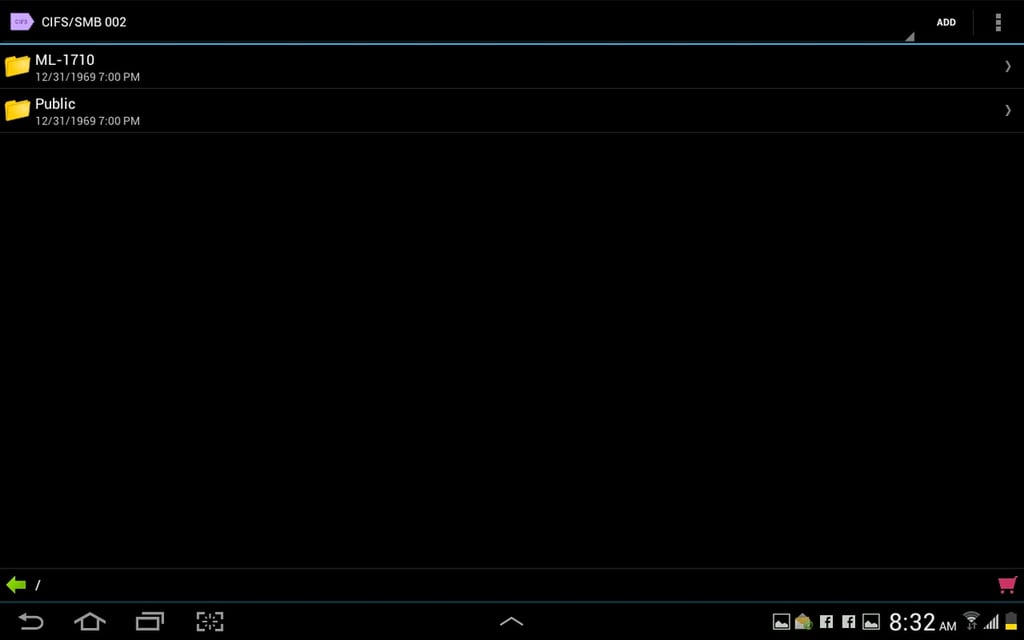
\r\n\r\nFolder\r\nTag CIFS is a SMB/CIFS plugin for the Folder\r\nTag file manager. With this plugin you can manipulate (move/copy) files to\r\nand from a network share with ease. With this file manager you add all folders\r\nas ‘tags’. These tags enable you to quickly open folders by ‘tags’, similar to\r\ntagging files and folders on a desktop PC. You can filter and sort tags as well\r\nas open, send, create, store, delete, rename all tags. The Folder Tag file\r\nmanager has plenty of other plugins, but the CIFS plugin is the only one you\r\nneed in order to connect to your SMB shares. To add a share first tap Add\r\n(upper right corner – Figure A).
\r\n\r\n
Credit: Image by Jack\r\nWally for TechRepublic
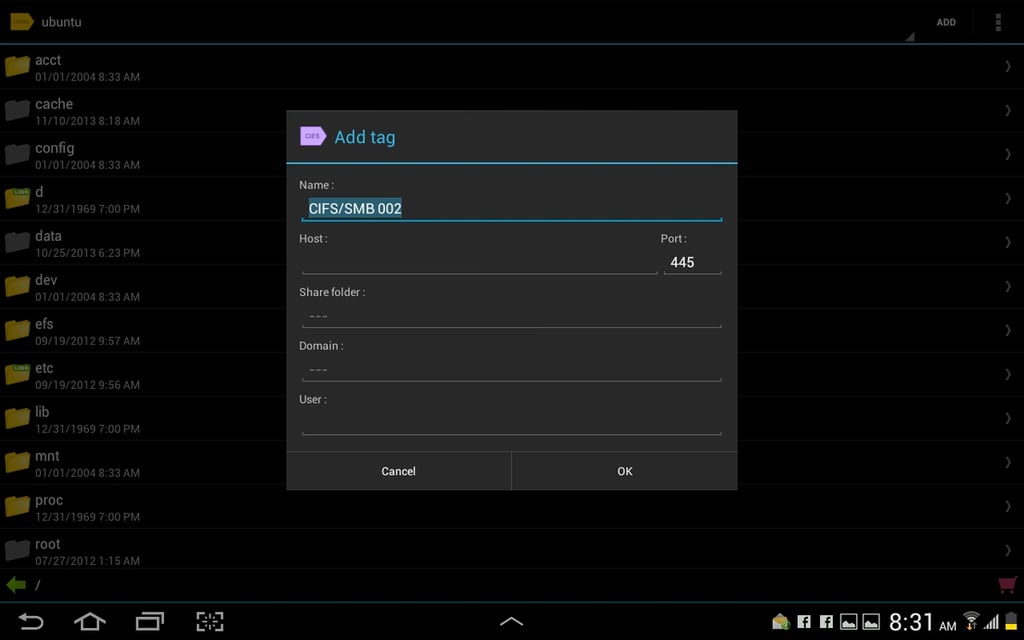
In the resulting window, enter the connection details (Figure\r\nB) and tap OK.
\r\n\r\n
Credit: Image by Jack\r\nWally for TechRepublic
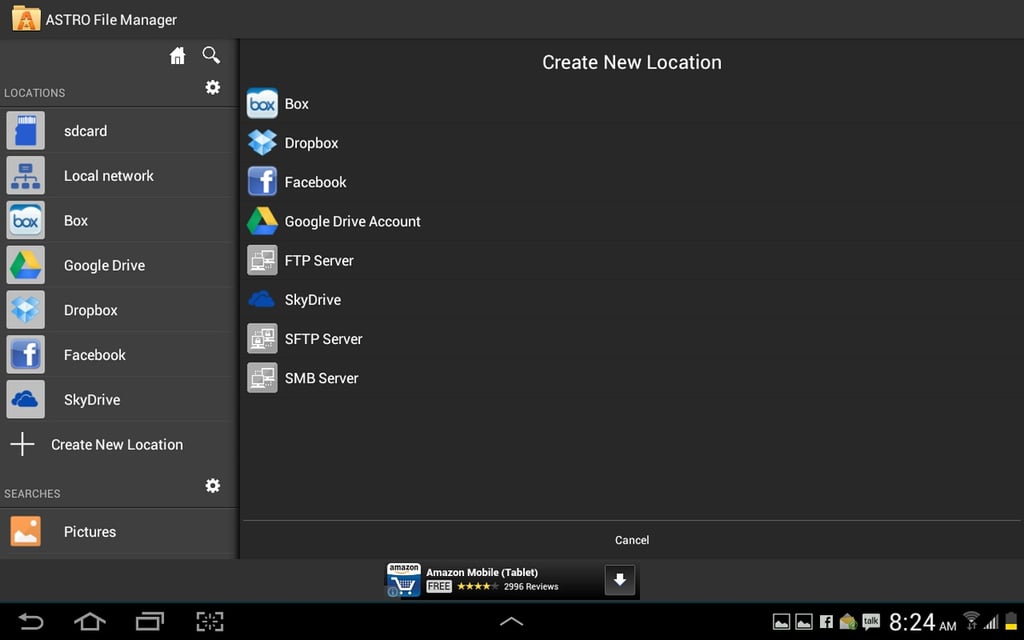
\r\n\r\nAstro\r\nFile Manager is one of the finest file managers available for the Android\r\nplatform. Once installed, nothing more need be added – SMB connectivity is\r\nbuilt in. Astro has an outstanding interface that makes every aspect of usage\r\nsimple. Of course, Astro also has plenty of other features – most important is\r\nbuilt-in cloud support (Facebook, Dropbox, Google Drive, Box or SkyDrive). To\r\nconnect to an SMB share with Astro, tap Create New Location (Figure C).
\r\n\r\n
Credit: Image by Jack\r\nWally for TechRepublic
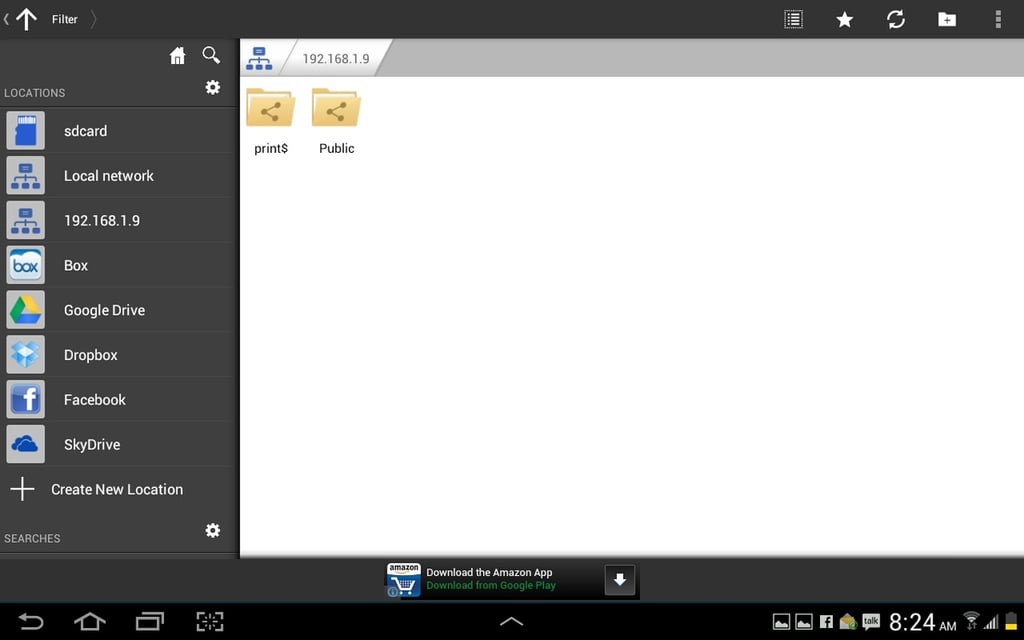
From the resulting screen, tap SMB server and then fill in\r\nthe address of the share and tap Save. Once the connection is made, the share\r\nwill appear in the file manager (Figure D).
\r\n\r\n
Credit: Image by Jack\r\nWally for TechRepublic
\r\n\r\n
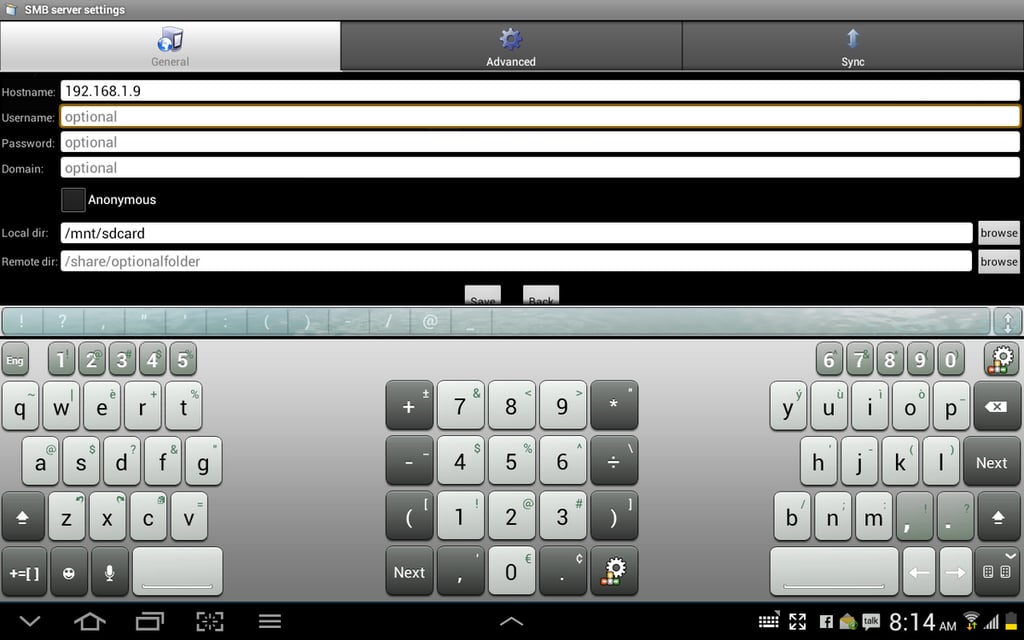
AndSMB\r\nmight not have the prettiest interface, but it’s one of the more powerful\r\nSMB-capable file managers on the list. This is the manager you want if you need\r\nto keep numerous shares saved on your Android device – each with different\r\nauthentication. AndSMB allows you to manage local and SMB files with download\r\nand upload support. The interface is fairly bare-bones, but it’s incredibly\r\neasy to use. To create an SMB connection, tap the Add button from the main\r\nwindow, enter the necessary information (Figure E), and tap Save.
\r\n\r\n
Credit: Image by Jack\r\nWally for TechRepublic
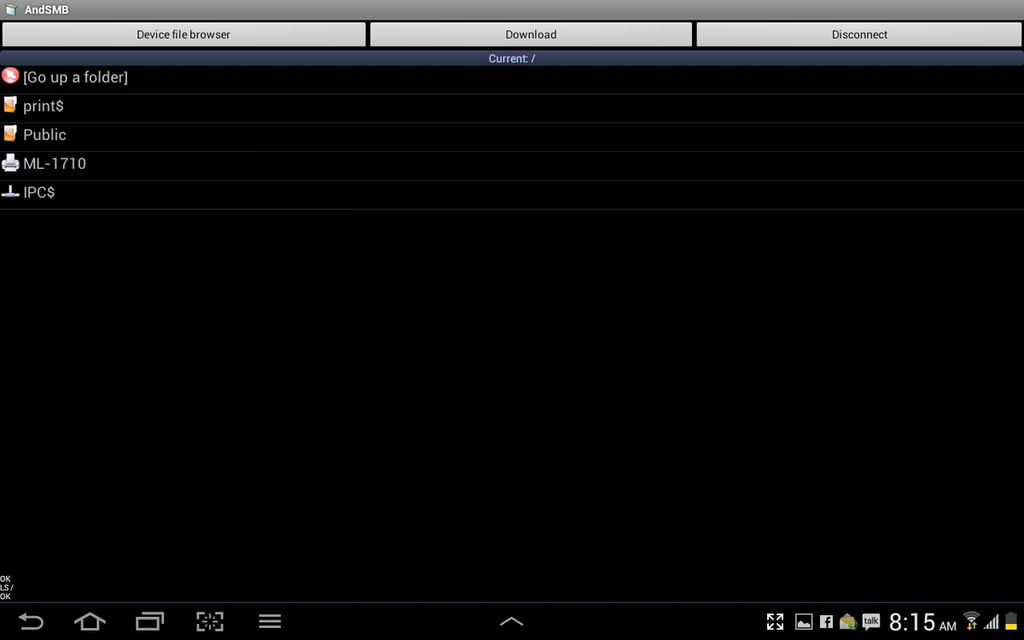
Once you’ve saved the\r\nconnection, you can tap Connect from the listing in the main window to connect\r\nto that share (Figure F).
\r\n\r\n
Credit: Image by Jack\r\nWally for TechRepublic
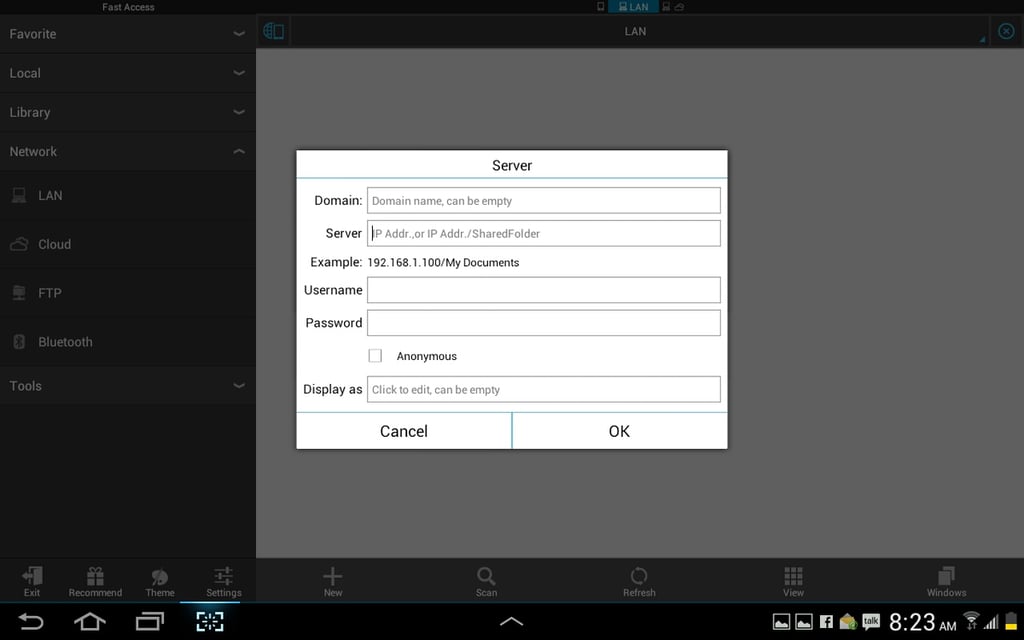
\r\n\r\nES\r\nFile Explorer has the sleekest interface of the group and allows you to\r\nconnect to SMB shares as well as cloud services and FTP servers. ES File Explorer\r\nalso has one of the largest feature sets of all the file managers (built-in\r\nviewers, built-in zip/rar support, application manager, root explorer, task\r\nkiller, and more). With the SMB connection you can copy/move files to and from\r\nthe share. To create an SMB connection tap the New button and then fill out the\r\nnecessary information for the share (Figure G).
\r\n\r\n
Credit: Image by Jack\r\nWally for TechRepublic
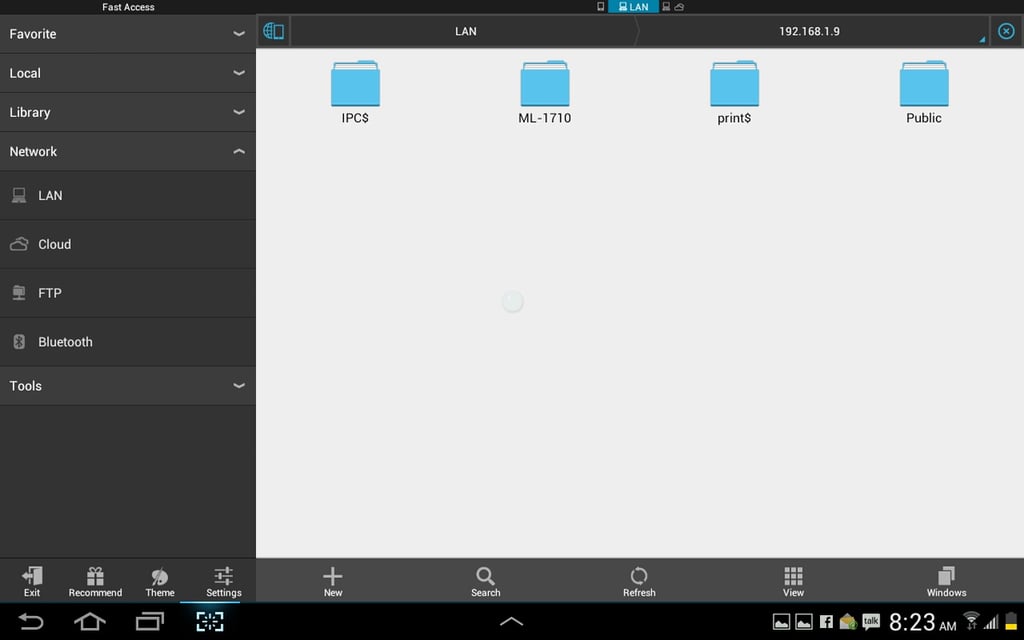
Once connected, the share folders/files will appear in the\r\nmain window (Figure H).
\r\n\r\n
Credit: Image by Jack\r\nWally for TechRepublic
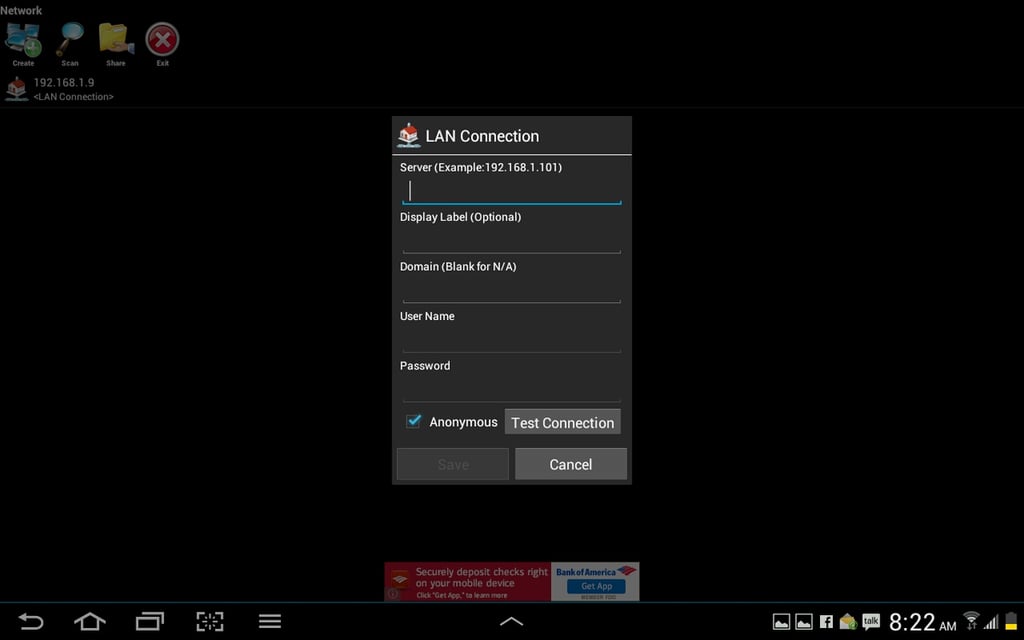
\r\n\r\nFile Manager\r\n(Explorer) falls in line with AndSMB, with regards to its interface. But\r\ndon’t let the simplistic interface fool you; File Manager makes working with\r\nSMB shares powerful and easy. With features like grid view, bookmarks, search,\r\nFTP file sharing, streaming media playback, multi-select, list and grid view,\r\ncloud storage support, photo/video thumbnail support, built-in text editor, and\r\nmore – File Manager is perfect for those looking for a minimalist interface\r\nwith maximum features. To create an SMB connection, tap Create and then fill\r\nout the SMB connection information (Figure I).
\r\n\r\n
Credit: Image by Jack\r\nWally for TechRepublic
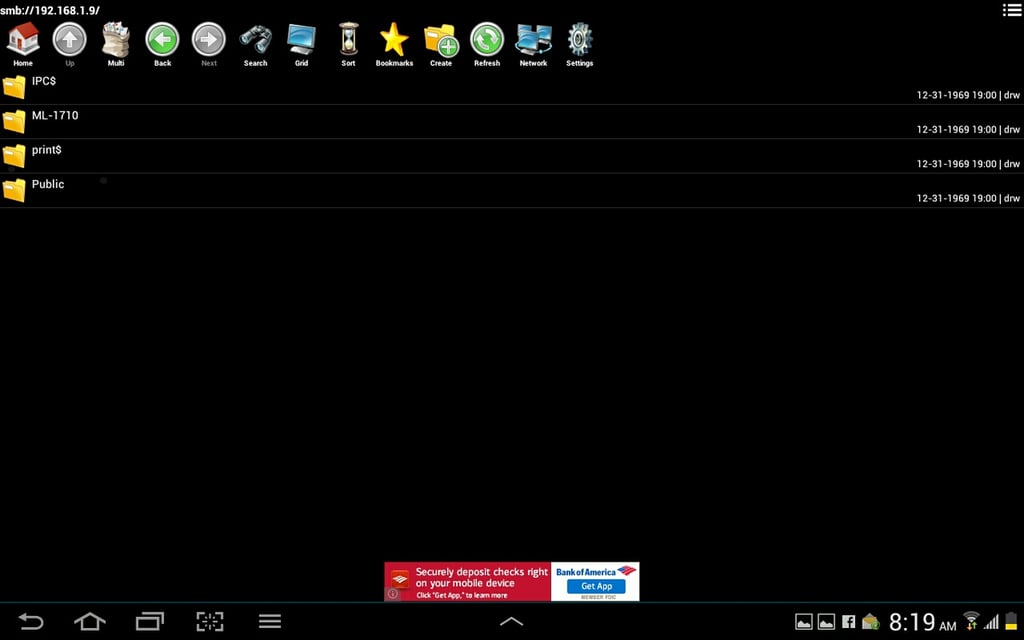
Once connected (Figure J), you can work with files,\r\nset bookmarks for folders, and much more.
\r\n\r\n
\r\n\r\n
You are limited to your local file system on an Android\r\ndevice. With the help of these SMB connection tools, you can easily manage\r\nfiles and folders on a local network share. Give one of these a try and see if\r\nit doesn’t help to extend the capabilities of your Android device well beyond\r\nthe local file system.
\r\n\r\n
Credit: Image by Jack\r\nWally for TechRepublic

Jack Wallen is an award-winning writer for TechRepublic, The New Stack, and Linux New Media. He's covered a variety of topics for over twenty years and is an avid promoter of open source. For more news about Jack Wallen, visit his website jackwallen.com.


