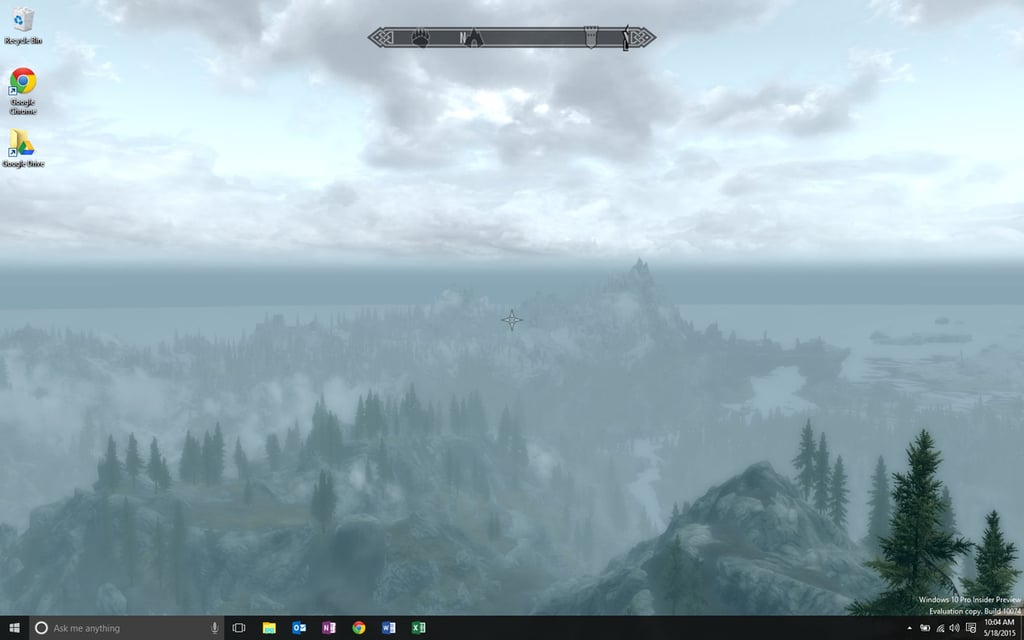
Here is the Microsoft Windows 10 Desktop. It looks very much like a\r\nWindows 8 Desktop.
One difference is the “Ask me anything” section of the taskbar–that’s Cortana listening for those magic words: “Hey Cortana!”
You might also notice that there are some Microsoft Office 2013 icons on\r\nthe taskbar, along with the familiar icon for the Chrome browser. Those were\r\ninstalled on this PC when it was running Windows 8.1, and they were there when\r\nWindows 10 finished its install. Windows 10 is basically a Windows Update.
By the way, I’m using an aging HP Pavilion Entertainment notebook PC\r\n(HP DV7t 1000) for this gallery. Windows 10 runs smoothly albeit a bit slowly.
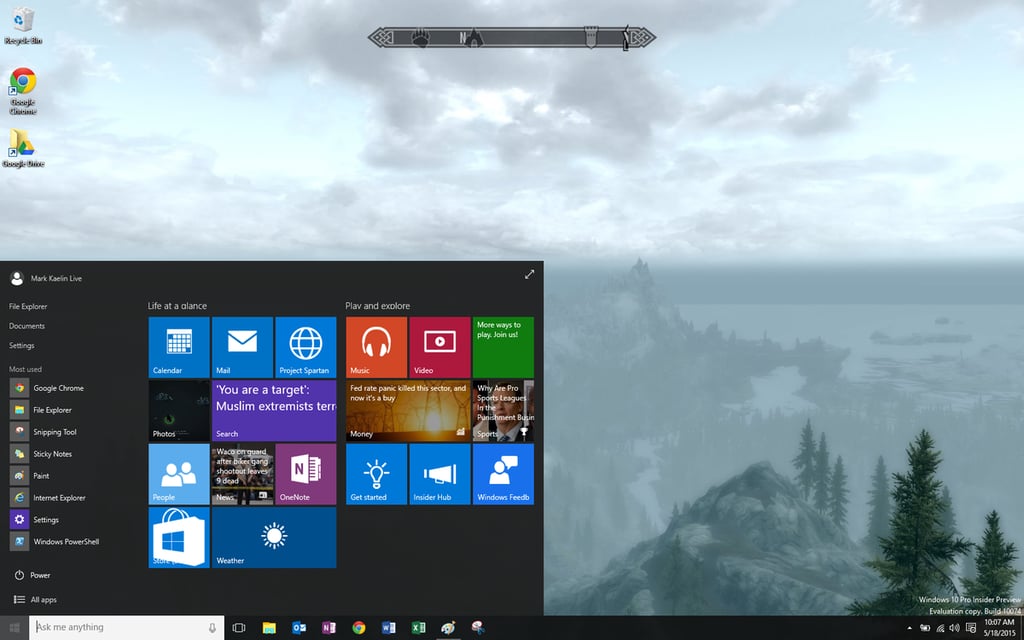
When you click the Windows icon in the lower left-hand corner (or press\r\nthe [Windows] key), you’ll see the new smaller Start Menu screen. There are\r\nstill active tiles, but the Start Menu no longer completely covers the desktop\r\nas it does in Windows 8.
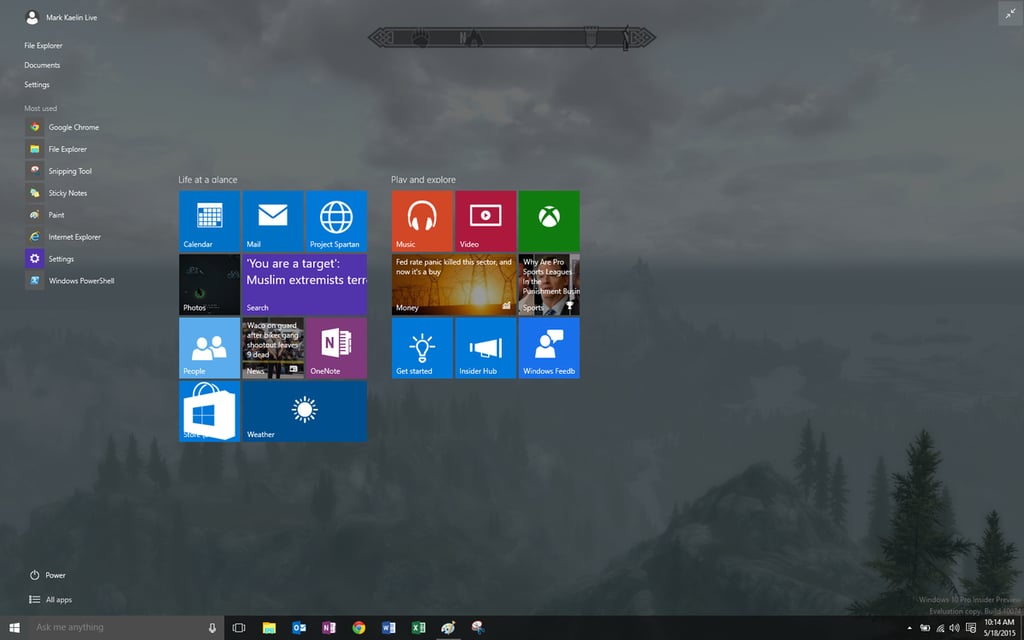
Unless of course you want it to, then you just click the expansion arrow\r\nto get the full screen.
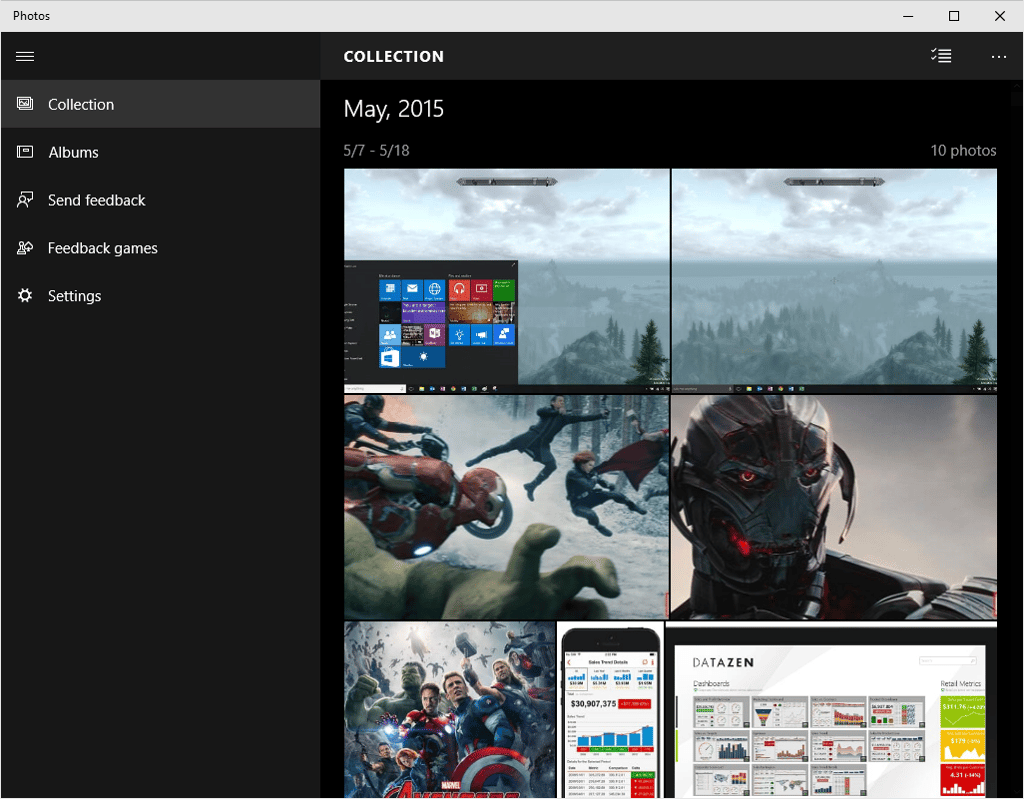
The general applications that come with Windows, like the photo app\r\nshown here, have been, for the lack of better word, “tabletized.”\r\nThis is where you’ll see the blending of desktop and tablet interfaces.
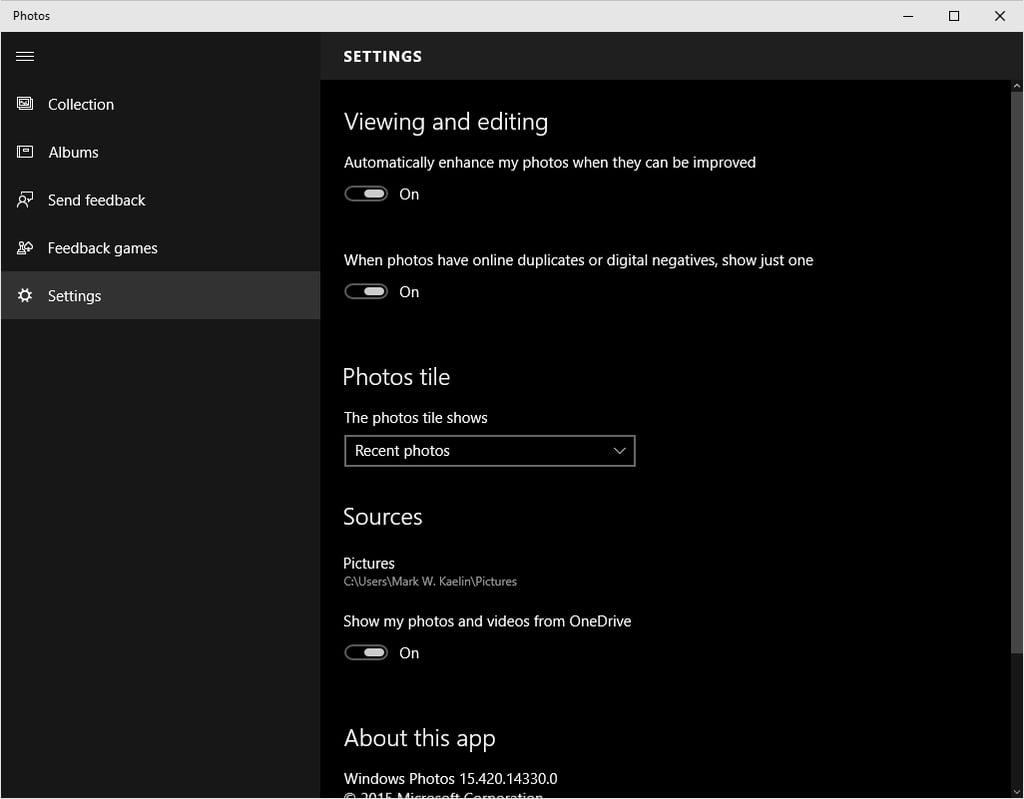
The settings page for the Photo app is an even better example of a\r\ntablet friendly interface on the desktop.
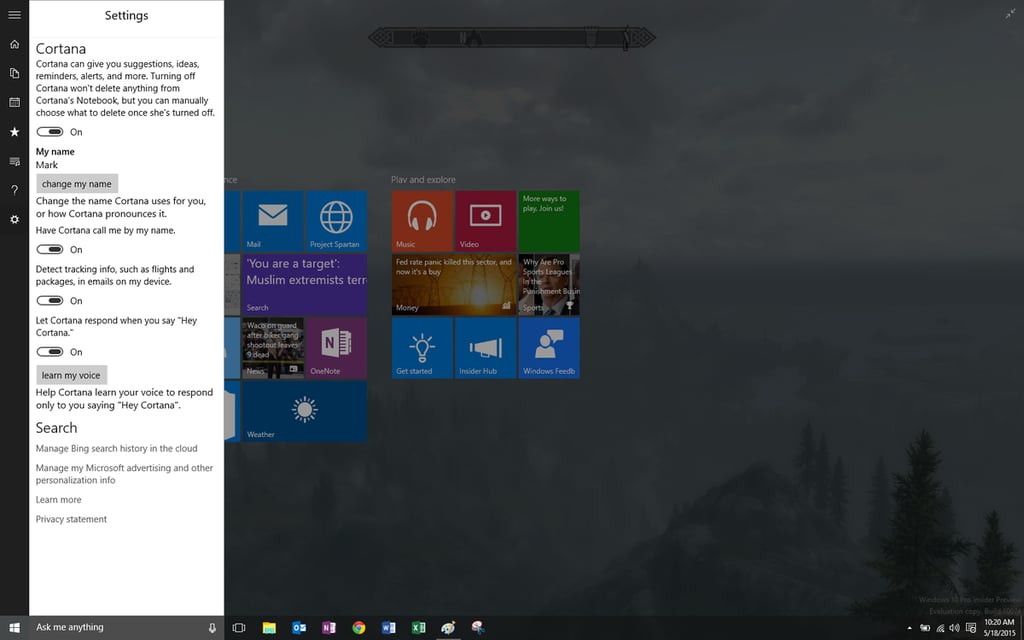
I changed the settings to have Cortana call me Mark, but I suppose you\r\ncould choose something more appropriate, like Dr. Evil, if so inclined.
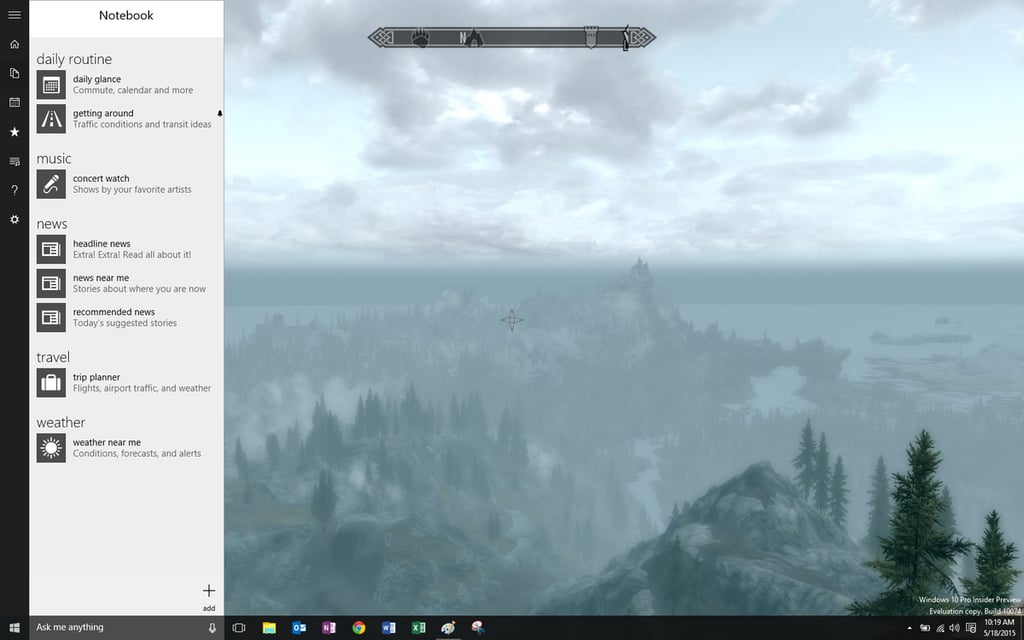
As part of the Cortana system, Microsoft is trying to provide some of\r\nthe basic productivity features people tend to use on a regular basis. There’s\r\na notebook app, basic email, calendar, and a task list.
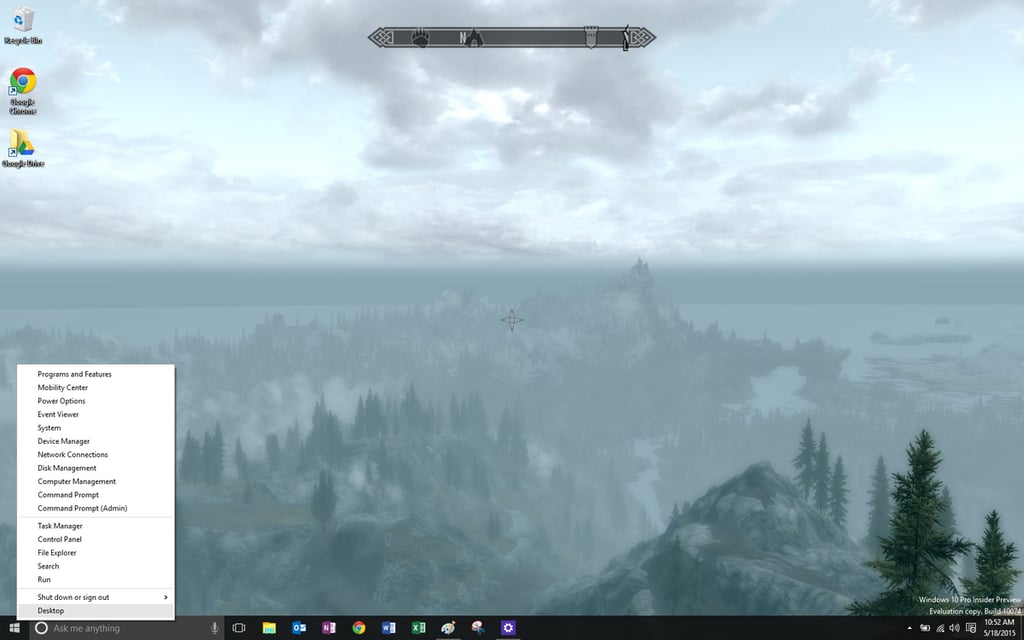
If you right-click on the Windows icon in the corner, you get the\r\nfamiliar Windows 8 menu of system control, setting, and configuration\r\napplications.
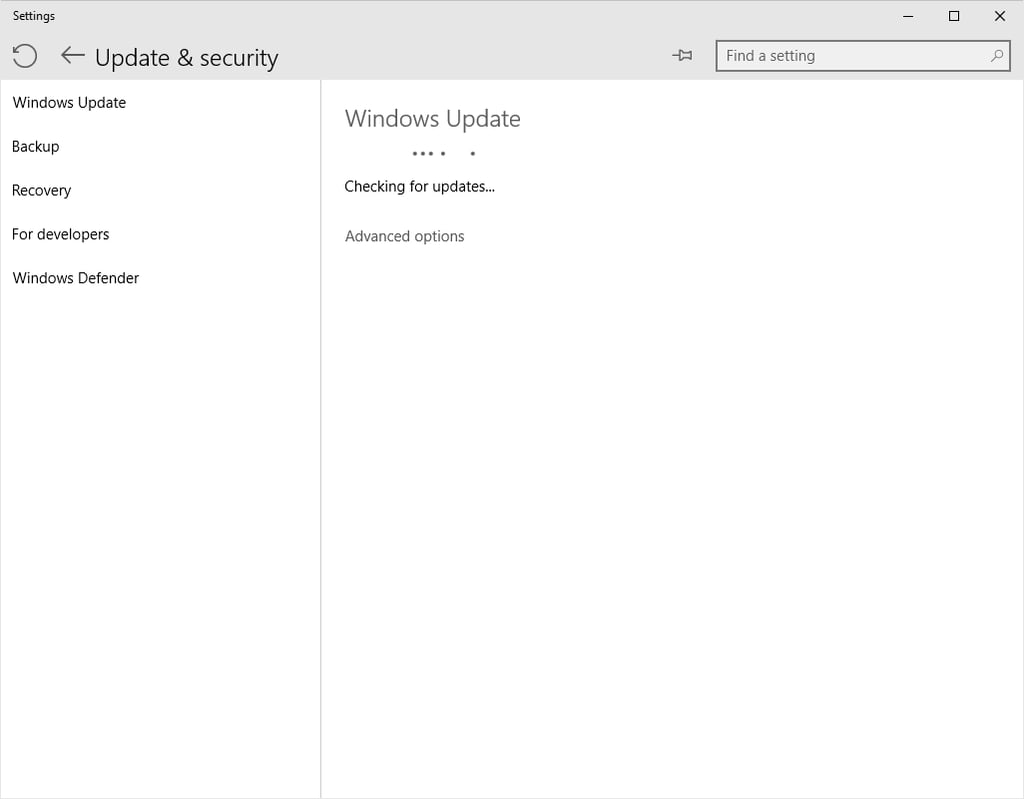
Of course, there’s the familiar Windows Update dialog screen. It looks\r\na little different, but it still performs the same function.
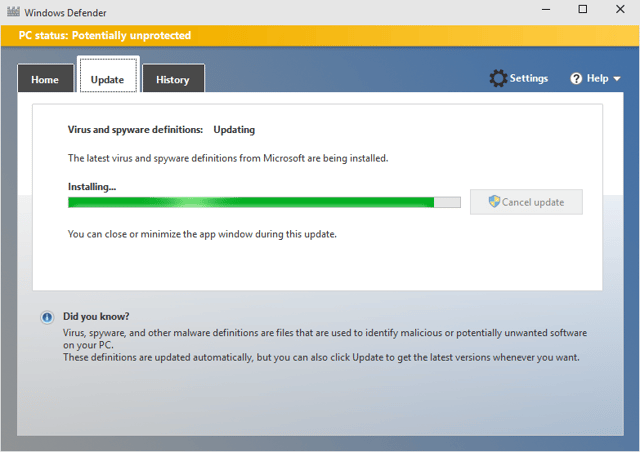
And Windows Defender is still around to protect us from malware and\r\nother security problems.
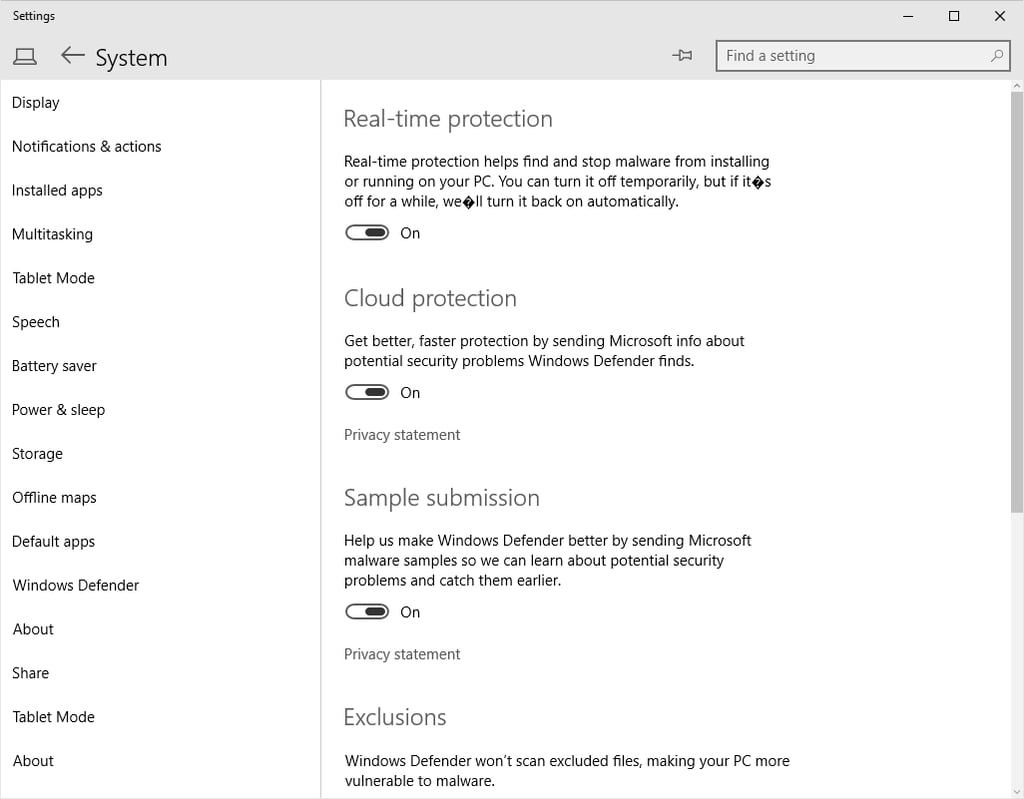
The Systems Settings screen has changed a bit to accommodate the tablet\r\ninterface, but all of the functions are still available.
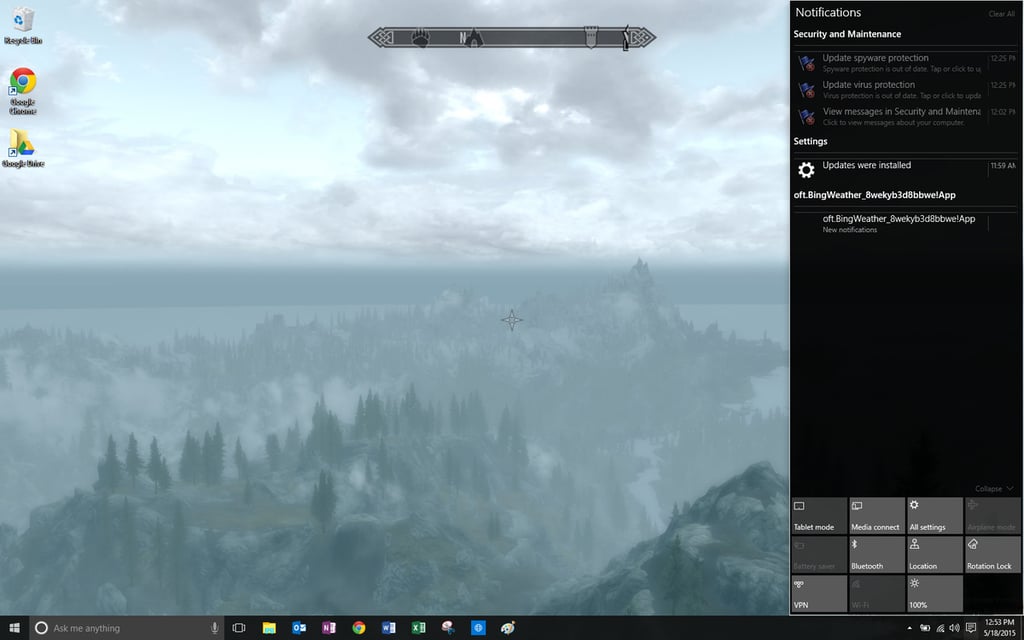
One significant change in Windows 10 is the increased functionality of\r\nthe Action Center, which is now called the Notifications menu. You can see at a glance what updates have been recently applied and get access\r\nto useful areas, like system settings, through this feature.
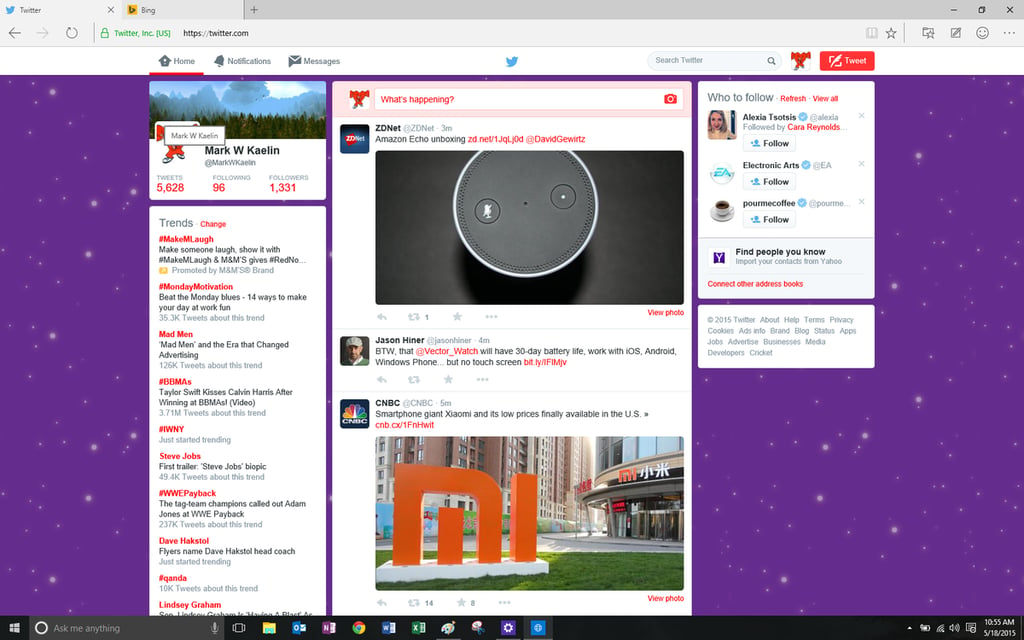
This is a look at the new browser from Microsoft that will come with\r\nWindows 10. The code name is Project Spartan, but it has already been announced\r\nthat the shipping name will be Edge.
Notice the clean, minimalistic look. If you’re not paying attention, you\r\nmay not even notice that you’re in a browser.
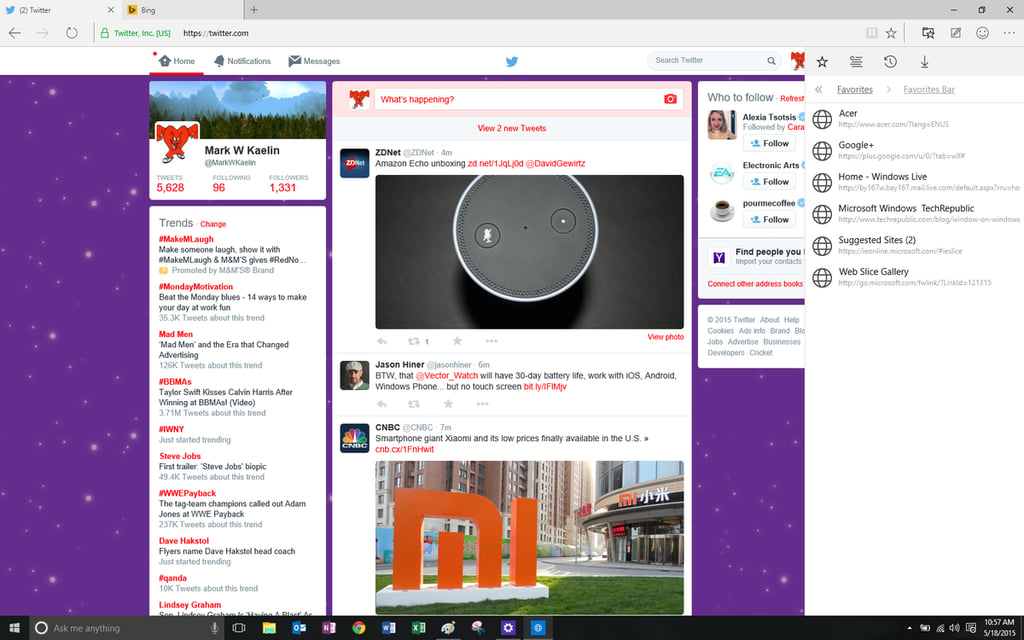
The Edge Favorites Bar is more of a Favorites Sidebar. Once again, to\r\naccommodate fat fingers on a tablet or a smartphone, the bar needs to have some\r\ngirth that’s not necessary on a desktop–a compromise I can live with, I\r\nthink.
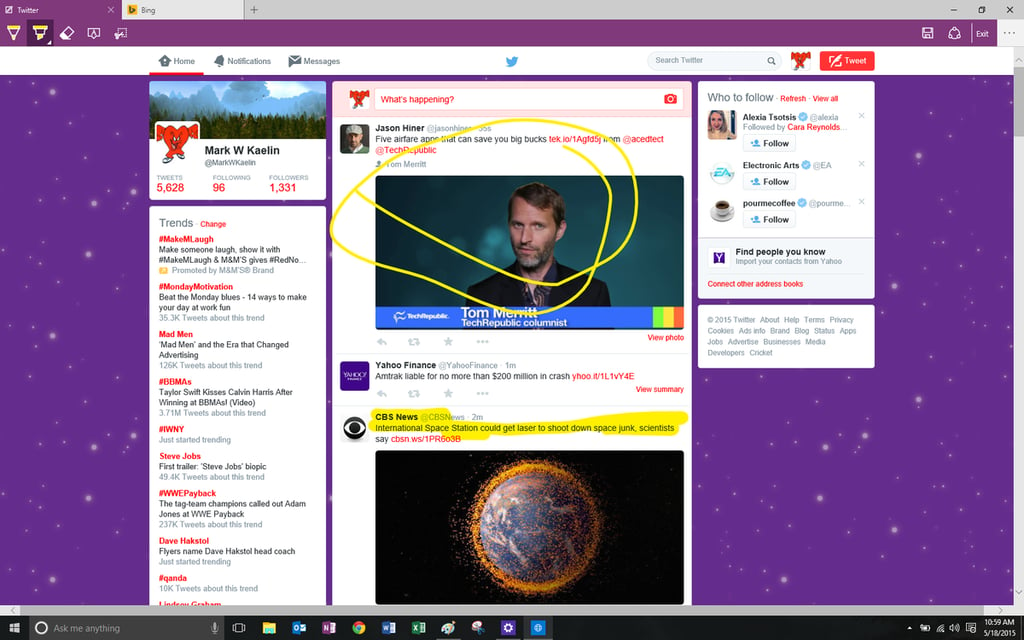
As part of its commitment to the theme of collaboration, Microsoft is\r\npushing the annotation features of the Edge browser. Using the built-in tools,\r\nyou can mark up a web page to your heart’s content.
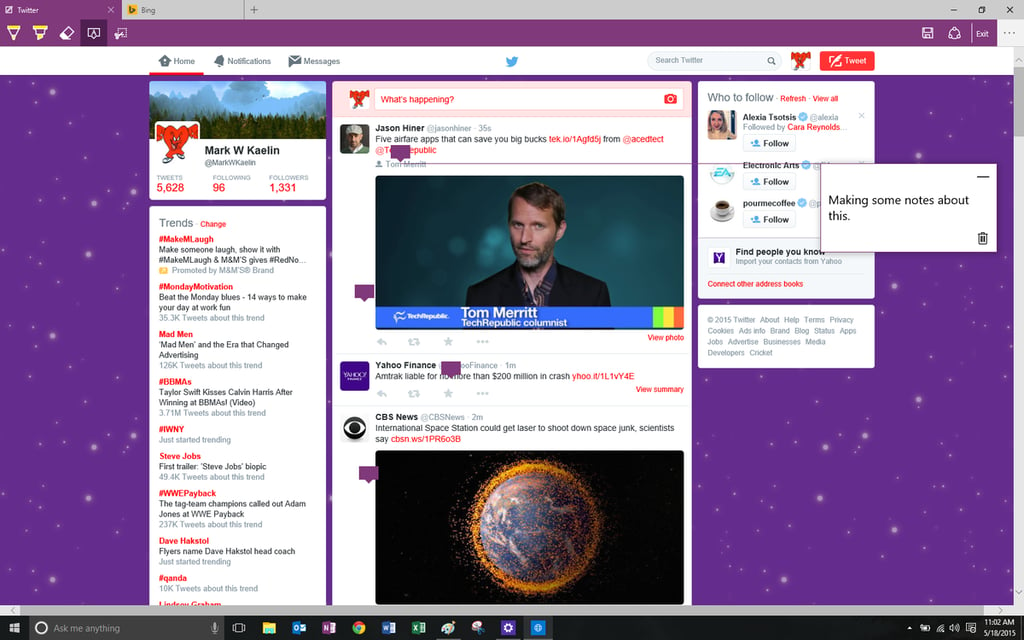
You can make notes for yourself or for your collaborative partners.
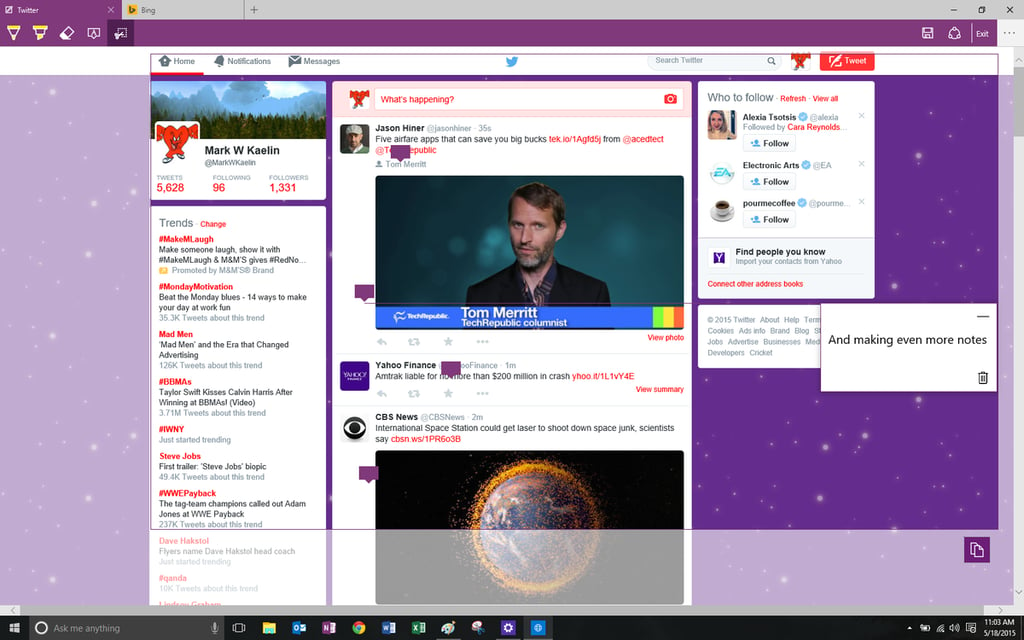
You can also cut out sections of a web page you want to highlight and\r\nshare just that section with friends and colleagues.
Personally, I don’t think I will make much use of these tools, but I\r\nthink it’s nice to have them available on the rare occasion where it would\r\nprove useful.
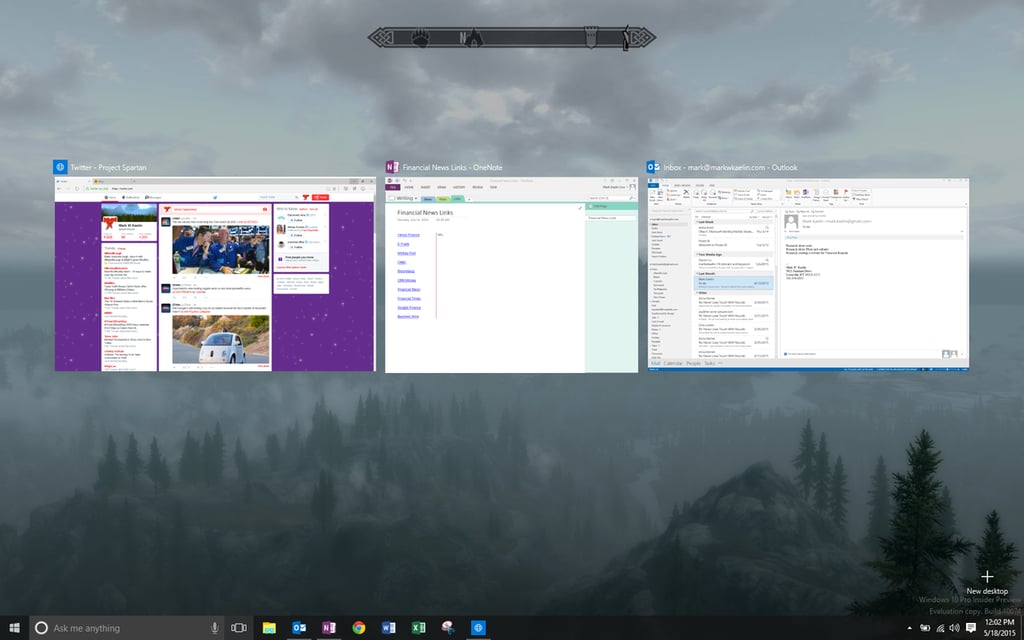
There is one new Windows 10 feature that really appeals to me.\r\nIt’s called Task View, and it’s accessed\r\nby clicking the icon just right of Cortana on the Task Bar. This feature is the\r\nold [Alt]+[Tab] task switcher on steroids.
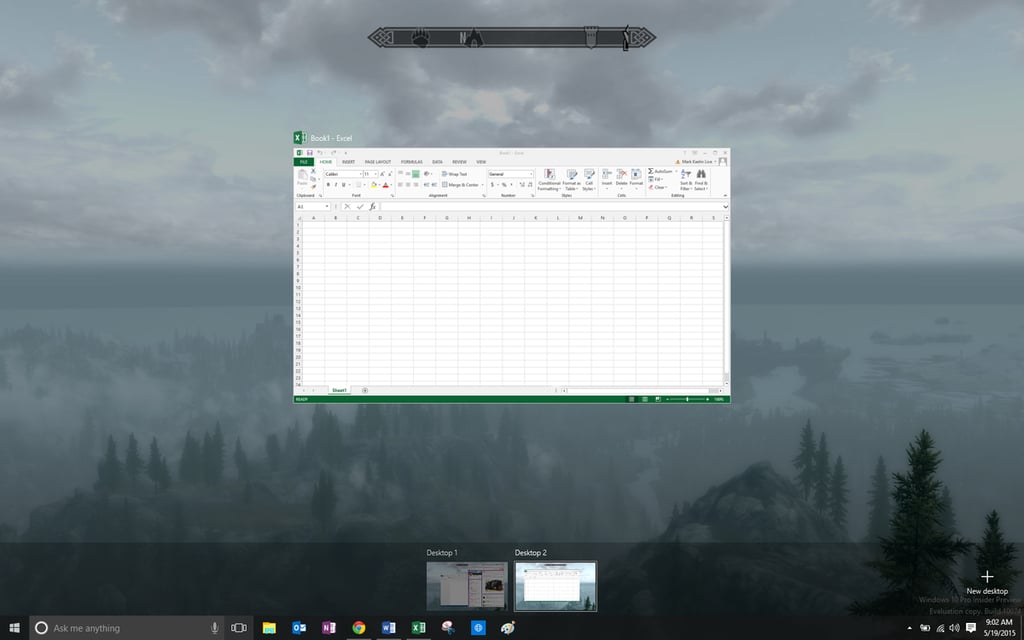
One new feature in Task View is the ability to create more than one\r\ndesktop. Now, not only can you switch between running applications, but you can\r\nalso switch between desktops.
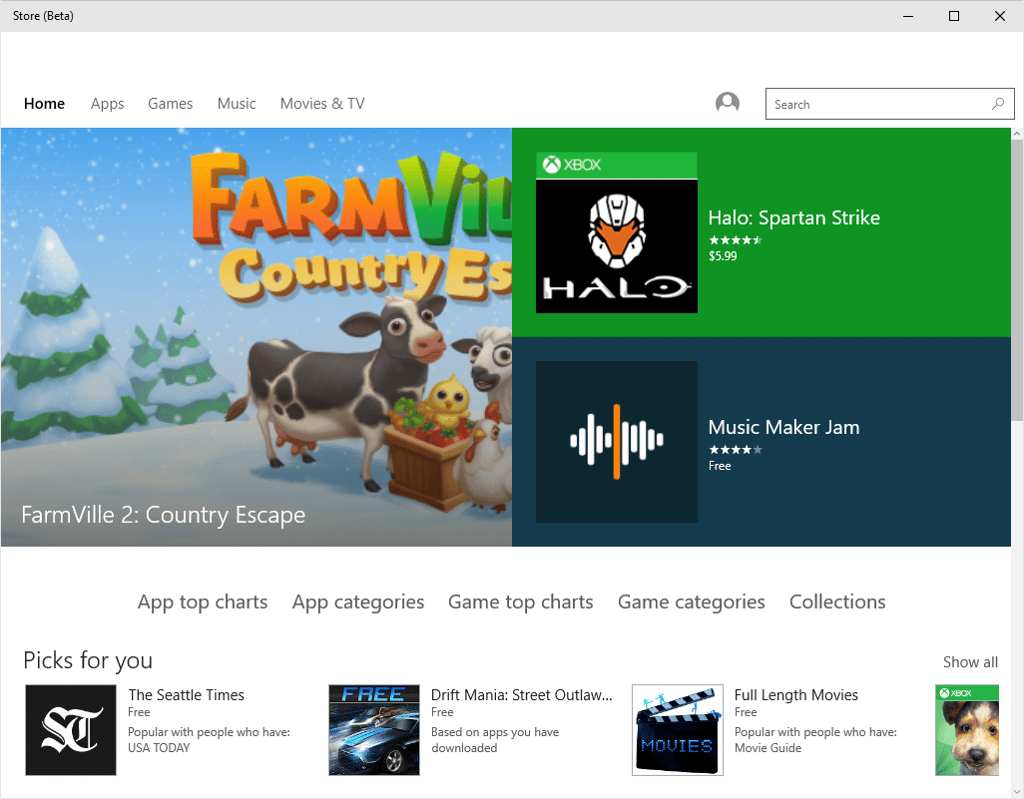
There are also some standard apps that are held over from Windows 8, like\r\nthe Store app. Microsoft would like to have us use the Store much more than we\r\nhave, but the adoption by users has been nominal at best.
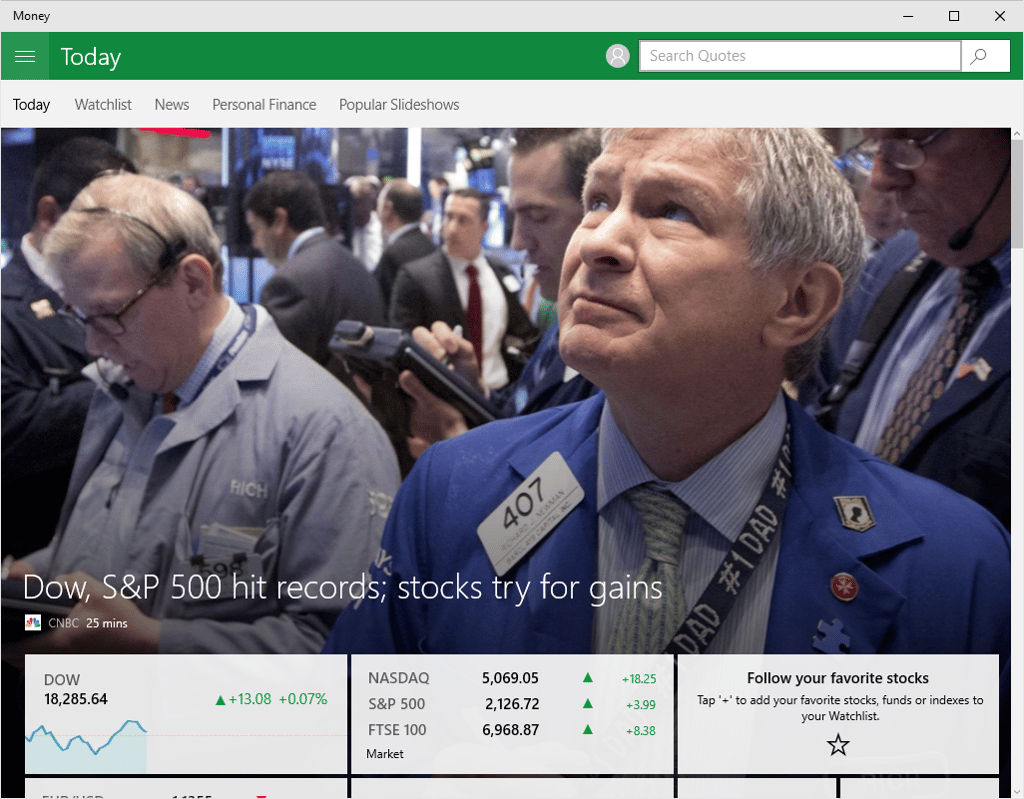
There are other apps in the standard set of Windows 10 tile-friendly programs,\r\nlike the Money application shown here. All of them have the hybrid\r\ndesktop/tablet interface. The interface may take some getting used to, but it’s not the worst interface in the world, so give it some time.
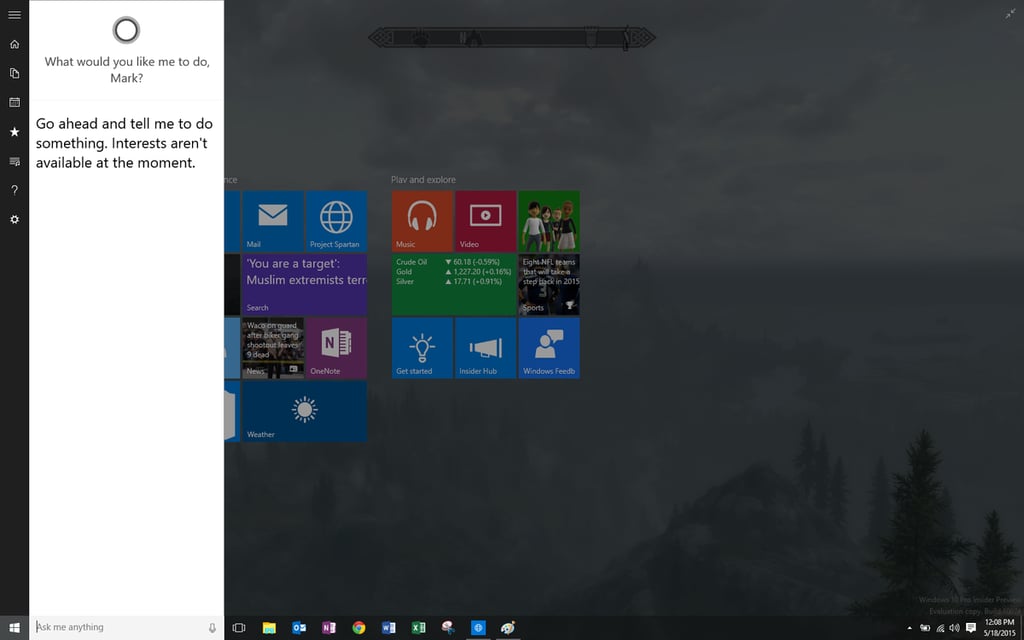
One note about Cortana. I was able to talk to Cortana in some fashion,\r\nbut all she could do was send my uttered phrases to a Bing search. I think she\r\nis just being difficult.
I’m skeptical about the practicality of all voice recognition\r\ntechnologies, at least when it comes to computing devices. Saying “Hey\r\nCortana” and then “Nearby Restaurants,” which brings that phrase\r\nto a search engine dialog box, is much less efficient than just typing it. I\r\nthink we have a long way to go before we can converse with an AI like the Hal\r\n9000, which is a good thing. I’m not looking forward to the day when my\r\ncomputer says those ominous words: “I’m sorry Mark. I can’t do that.”

Mark W. Kaelin has been writing and editing stories about the information technology industry, software, hardware, gaming, finance, accounting, and technology geekdom for more than 30 years.


