


If you use Google Drive, you may have noticed “Starred” in your document list on the left side of the screen. Starred items provide a way for you to access files quickly, without the need to search. Unlike “Recent” items, which are files opened or edited, um, recently, your Starred items tend to be either active documents or reference files.
SEE: Feature comparison: Time tracking software and systems (TechRepublic Premium)
For example, my Starred items typically consist of three types of files:
- Active documents: Client files and articles in process.
- Reference documents: Workshop descriptions and biographical and photo info for speaking engagements.
- Template documents: For clients to use to gather information and for me to use for tech recommendations.
I tend to un-Star items when they’re finished. When I complete an article or client document, I remove the Star. I use Google Drive on several platforms, including my browser and mobile devices. By Starring items, I can quickly access specific files on any platform. However, Starring and accessing Starred items operates a little differently in the browser than on mobile devices. Here’s how it works.
How to add or remove an item from Starred in a browser
You may choose from two places to toggle starred items in the browser.
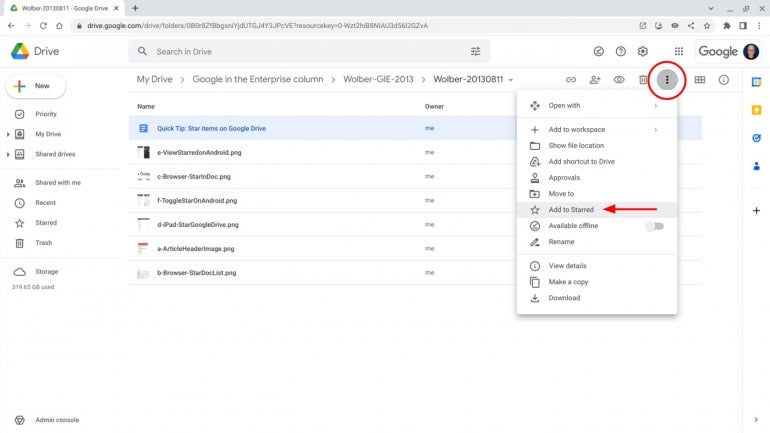
First, on Google Drive, select one or more items, then choose the three-dot (i.e. More Actions) menu in the upper right and pick Add To Starred or Remove From Starred (Figure A).
Figure A
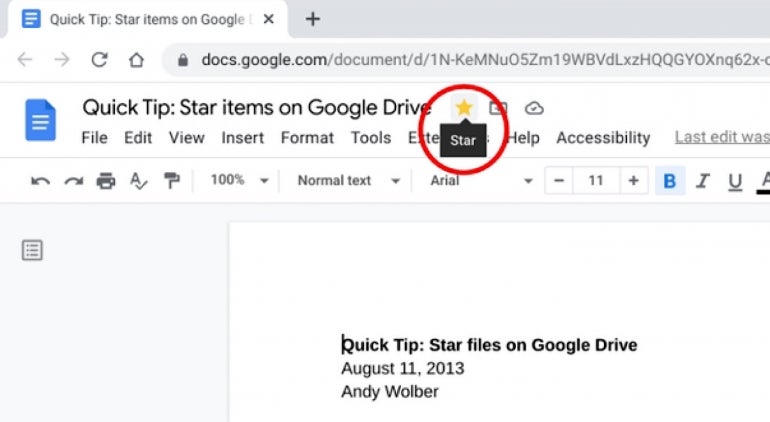
Second, when you have an item open in the Google Docs, Sheets, Slides or Drawings, you may select the Star to the right of the title (Figure B) to either add or remove the item from Starred.
Figure B
How to view Starred items in Google Drive in a browser
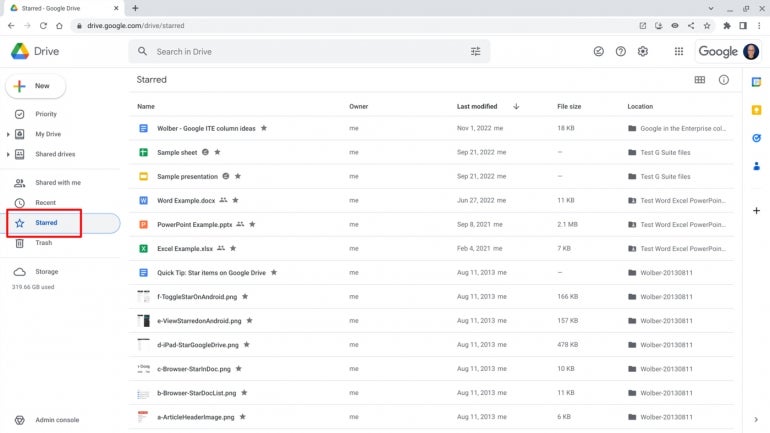
To view Starred items in a browser, go to Drive and then select Starred (Figure C) in the left menu to display a list of all starred items.
Figure C
How to add or remove an item from Starred in iOS, iPadOS or Android mobile apps
What's hot at TechRepublic
- Blackpoint Cyber vs. Arctic Wolf: Which MDR Solution is Right for You?
- Why AWS Sellers Choose Deepgram Over Other Voice AI Tools
- SS&C Intralinks DealCentre AI vs. Datasite: Which platform is built for the future of dealmaking?
- SS&C Intralinks FundCentre AI vs. Juniper Square: Which platform better supports modern private markets fund managers?
- Verito vs. Rightworks: Which IT Provider Is Best for Your Firm?
There are two ways to modify the Star setting for items in the Google Drive, Docs, Sheets and Slides mobile apps.
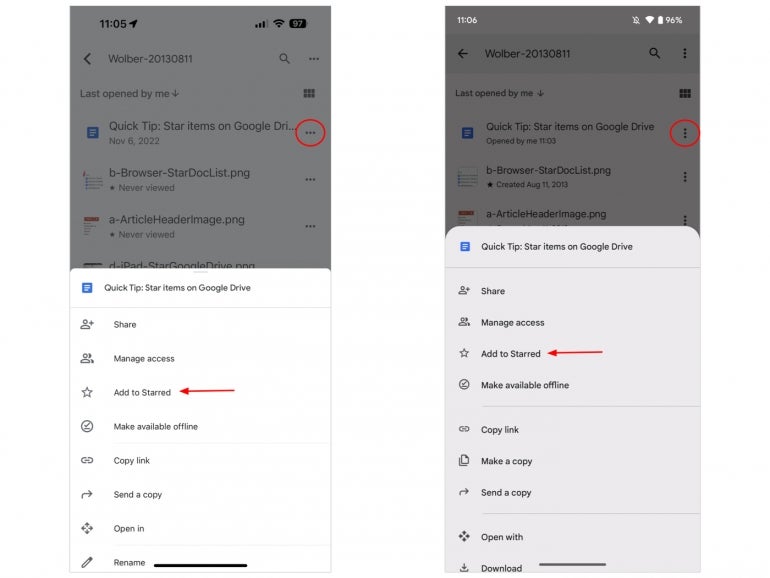
While in a directory view with a list of items displayed, tap the three dot menu adjacent to the item, then choose Add To Starred or Remove From Starred (Figure D). On Android, the three dot menu consists of three dots stacked vertically, while on iOS and iPadOS the menu dots are arranged horizontally, similar to an ellipsis.
Figure D
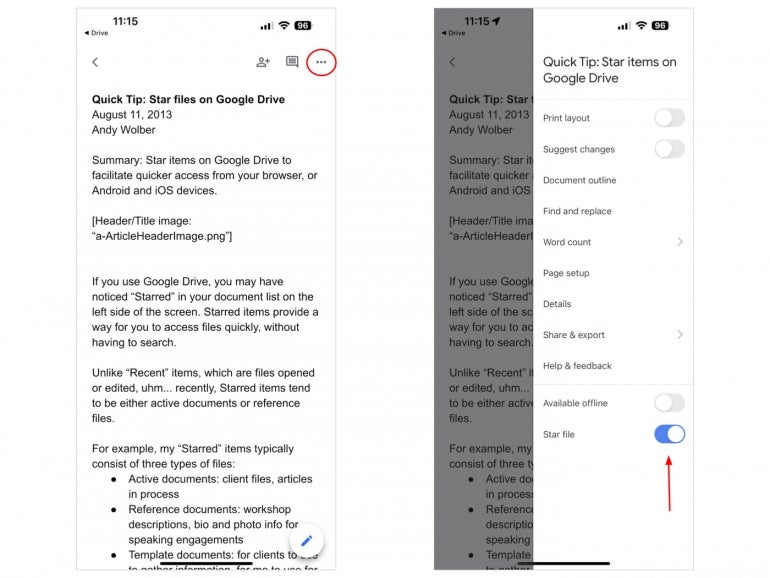
When an item is open in the Google Docs, Sheets or Slides mobile apps, tap the three dot menu in the upper-right, then adjust the Star slider to the right to add the item to Starred or to the left to remove the item from Starred (Figure E).
Figure E
How to access Starred items in iOS, iPadOS or Android mobile apps
In all cases, you’ll want to be in the main directory screen in the Google Drive, Docs, Sheets or Slides app.
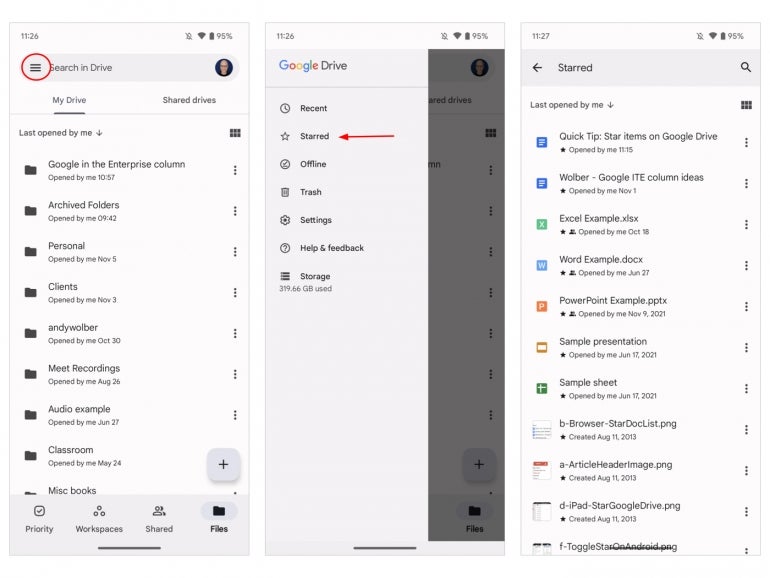
Tap the three-horizontal line menu in the upper-left, then select Starred to display a list of all Starred items in the app. For example, in the Google Docs app, this would display all Google Docs that you have added to Starred (Figure F).
Figure F
And, now that I’ve completed this article, I’ll “un-Star” it. Mention or message me on Twitter (@awolber) to let me know how you use Starred items on Google Drive.