


A modder strapped two desktop CPU coolers to a ZTE Nubia Z70 Ultra and got The Witcher 3 running locally at 1080p on the Ultra preset.
That is about as literal as “turn your phone into a PC” gets.
The hardware was pushed far beyond a normal handset configuration, but supported Android phones can now deliver a desktop-style setup with an external monitor, keyboard, and mouse, no heatsink sandwich required. Google brought connected-display desktop support to Android 16 QPR3, while Samsung continues to offer DeX on compatible Galaxy devices.
The ZTE mod pushes Snapdragon hard
The Nubia Z70 Ultra used in the build has a Snapdragon 8 Elite, 24GB of LPDDR5X RAM, and 1TB of UFS 4.0 storage.
According to Tom’s Hardware, the creator removed the cameras and mobile-network hardware, moved the display into a custom enclosure, and mounted desktop heatsinks around the remaining components.
The cooling paid off. In a 20-loop 3DMark Wild Life Extreme stress test, the rig posted 99% stability, with scores ranging from 6,910 to 6,980.
The creator also built an XFCE Linux desktop through Termux and used Turnip graphics drivers with Wine, Box64, Hangover, and GameNative to run Windows software locally. The Witcher 3 reportedly managed about 20 to 30 FPS at 1080p Ultra, with GPU utilization near 99%.
Those results come from the creator’s setup and have not been independently reproduced. They also depend on heavily modified hardware and an unofficial software stack.
Running Geralt at 30 FPS is impressive; managing 200 phones built that way would be a different adventure.
How to actually use your phone as a desktop
For supported Android phones, the practical setup is much simpler.
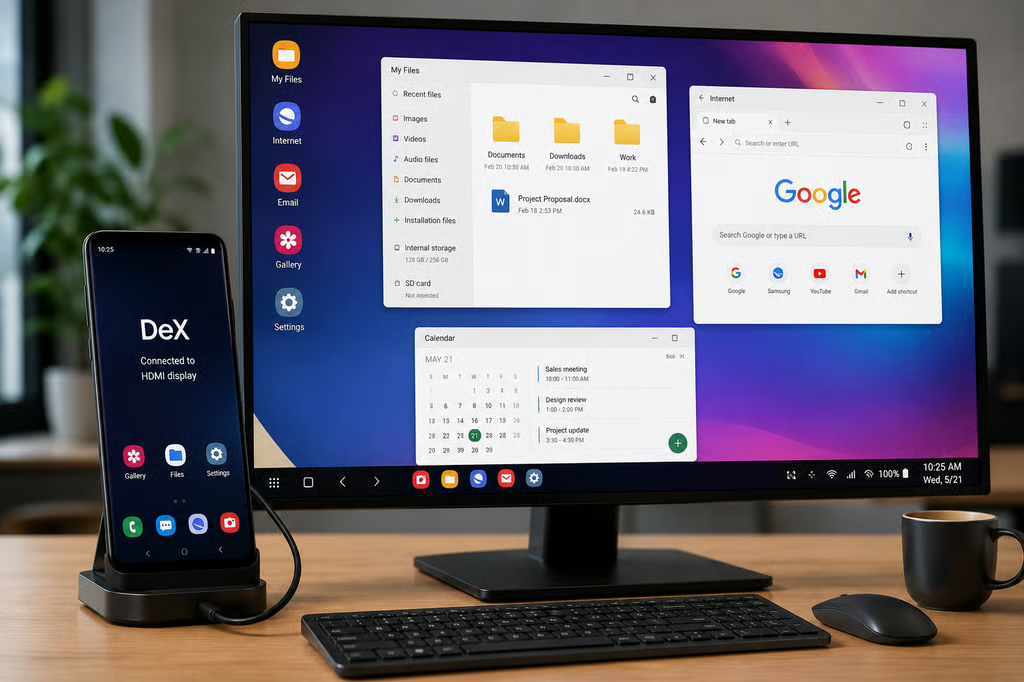
Google says connected-display desktop support reached general availability with Android 16 QPR3 on supported Pixel and Samsung devices. The phone can keep its normal screen while the monitor opens a separate desktop session with free-form windows, a taskbar, and keyboard and mouse support.
- Check that your phone supports desktop mode. Google lists supported Pixel and Samsung devices, while the earlier Pixel desktop-mode rollout shows how Android has been moving toward larger-screen workflows.
- Connect an external display. A supported phone can connect to a compatible monitor over USB-C or an appropriate HDMI adapter. Samsung DeX can also connect wirelessly to a compatible display.
- Add a keyboard and mouse. Android’s desktop environment supports physical keyboards, mice, and trackpads. Apps can open in movable, resizable windows rather than stretching the phone interface across a larger screen.
- On Samsung, launch DeX. The Galaxy S26 series supports both wired and wireless DeX. For a wired setup, connect the phone to a compatible display through USB-C or HDMI and tap Start if prompted; if the prompt does not appear, open Quick Settings and select DeX. For wireless use, Samsung’s instructions direct users to Settings > Connected devices > Samsung DeX > Connect wirelessly, then select the display and tap Start now. DeX supports resizable windows, keyboard and mouse input, and using the phone itself as a touchpad.
For managed deployments, Samsung’s Knox Platform for Enterprise can configure DeX behavior and restrict unwanted apps or features. IT teams should still test displays, docks, peripherals, and business apps on the exact devices they plan to deploy.
Samsung’s August security update patched 56 Android and One UI vulnerabilities, reinforcing the need to keep phones used as desktop endpoints within normal mobile patching and lifecycle policies.
Windows-game emulation sits outside that support model. Wine and Box64 can stretch ARM phone hardware remarkably far, but Android desktop mode and DeX are the realistic choices when reliability, management, and vendor support matter.
Also read: Google’s Pixel 11 brings Tensor G6, deeper Gemini integration, and seven years of software support.