


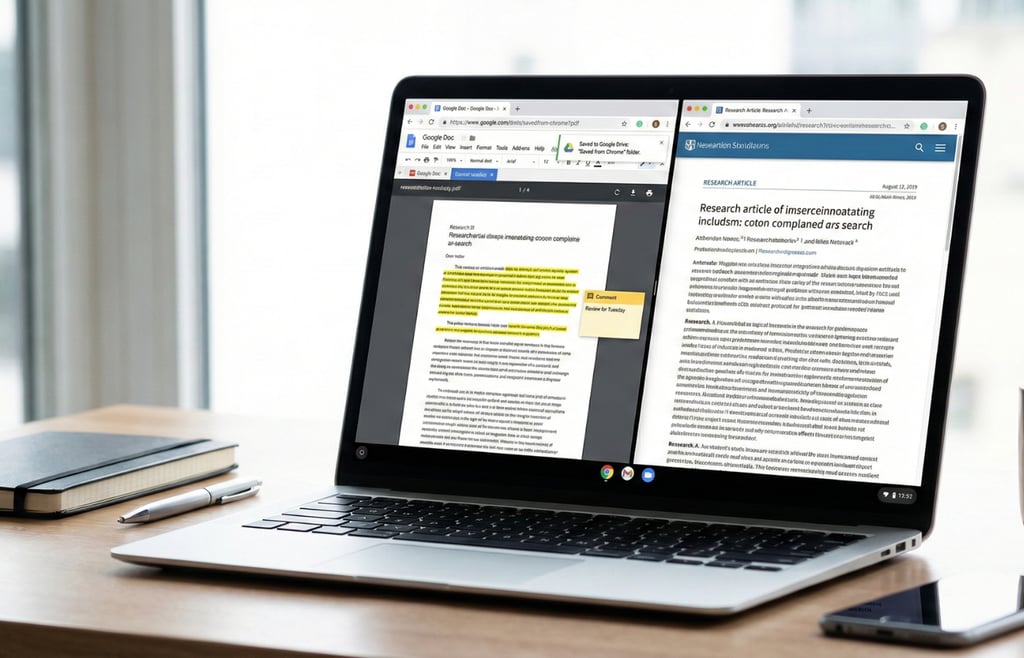
Chrome is turning the browser into a built-in productivity hub. Google has introduced split view, in-browser PDF annotations, and a direct Save to Google Drive option, designed to streamline multitasking, document markups, and file organization.
The updates were announced by Chrome Product Manager Alex Tsu, who said the features are intended to help users focus, collaborate, and manage documents more efficiently across work and personal use.
A cleaner way to keep context in view
Split view allows two tabs to live side by side within a single Chrome window, creating a unified workspace instead of forcing users to bounce between separate tabs or stack multiple windows. The layout keeps both pages active and visible at the same time, preserving context without constant clicking.
The goal is to cut down on tab switching and visual clutter that slows momentum. Instead of toggling back and forth, users can reference material and complete tasks in parallel.
Early testers are already putting it to work in practical ways. Teachers use it to grade papers while keeping rubrics open next to submissions, developers pair documentation with live code, and others keep notes visible while watching instructional videos.
Review, comment, and move on
Chrome’s built-in PDF viewer now supports highlighting and adding notes directly inside the browser, turning what was once a read-only experience into an interactive one. Users can mark key sections, leave comments, and make quick edits.
The update removes the extra step of downloading a file just to annotate it elsewhere. Documents stay in place, and changes happen instantly within the same tab.
This change makes quick digital signatures, report reviews, syllabus markups, and other routine document tasks faster and more contained, especially for users who handle multiple PDFs throughout the day.
Send downloads to one place
Users can now save PDFs directly to Google Drive without downloading and re-uploading them. Files are automatically stored in a dedicated “Saved from Chrome” folder, creating a consistent location for documents that might otherwise get lost in local downloads.
The integration keeps files backed up, organized, and searchable across devices. Instead of tracking down where a document was saved, users can access it from Drive at any time, whether they are on a laptop, desktop, or mobile device.
Work tools that fit into everyday browsing
The new features are built for both individual users and enterprise teams, embedding practical work tools directly into the browsing experience. The functionality lives inside Chrome, without requiring additional software or extensions.
Google presents the updates as a way to support collaboration, organization, and day-to-day task management, minus the complexity. Whether reviewing documents, managing downloads, or working across multiple tabs, the tools are designed to streamline routine workflows.
The focus is on reducing friction inside the browser environment, keeping productivity tasks in the same space where much of today’s work happens.
Google’s latest hardware play arrives with the Pixel 10a, a $499 handset pairing Tensor G4 power with new AI camera tools and a battery rated for up to 30 hours.