
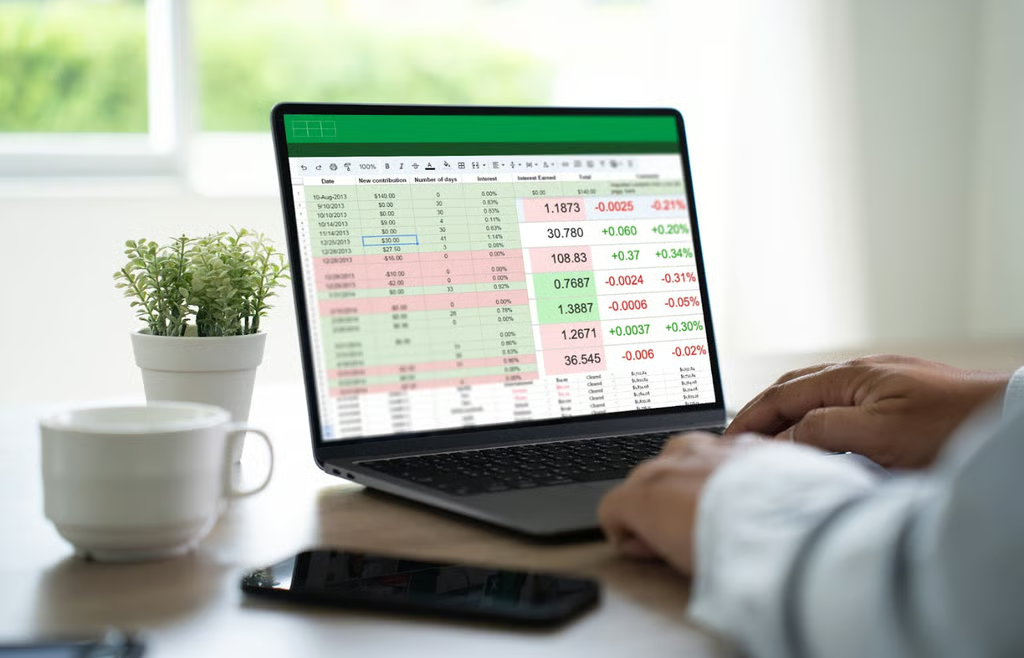


Excel has outlasted many tech trends, and in the age of AI, it remains very much in the mix.
While new platforms promise automation and out-of-the-box intelligence, many teams continue to rely on Excel because it’s flexible, familiar, and deeply embedded in daily business workflows. Rather than replacing spreadsheets with AI, Microsoft is adding tools that fit naturally into how people already use Excel. New import formulas, Copilot features, and familiar productivity tools are meant to remove friction from everyday work, not take control away from users.
Here’s a rundown of clever Microsoft Excel tricks you need to learn.
- What’s new in Excel for 2026
- 1. Let Copilot write formulas for you
- 2. Pull text files into Excel with IMPORTTEXT
- 3. Use IMPORTCSV for recurring CSV imports
- 4. Ask natural language questions of imported data
- 5. Get explanations for formula errors
- 6. Use AI to help clean and standardize data
- 7. Replace VLOOKUP with INDEX and MATCH
- 8. Summarize large datasets with pivot tables
- 9. Create charts faster with AI guidance
- 10. Use AI support in shared workbooks
- Bottom line: Where Excel’s AI features point next
What’s new in Excel for 2026
Microsoft announced the introduction of new formula-based import functions and expanded AI assistance to simplify everyday spreadsheet tasks. According to Excel product manager Gal Zivoni, the new tools were designed to “simplify imports compared to Power Query for basic tasks like loading CSV or TXT files.”
At the same time, Excel is not moving away from its core strengths. Even as the platform adds AI-driven features, its long-standing tools remain central to daily work.
1. Let Copilot write formulas for you
Copilot can generate Excel formulas from plain-language prompts, reducing the need for trial and error when building calculations. This trick is useful when creating logic under time pressure or if you’re working with unfamiliar functions.
For example, instead of manually writing =IF(A1>100,”Yes”,”No”), you can describe the outcome you want and review Copilot’s recommended formula before applying.
2. Pull text files into Excel with IMPORTTEXT
The =IMPORTTEXT(“file.txt”,”,”,1) function loads text, CSV, or TSV files into Excel as dynamic arrays by referencing a file path.
This function is useful when working with recurring exports such as logs, reports, or data extracts that need to be brought into a worksheet without repeatedly using manual import steps. The imported data can be refreshed using Data > Refresh All.
3. Use IMPORTCSV for recurring CSV imports
IMPORTCSV is a simplified function designed specifically for CSV files. The formula =IMPORTCSV(“file.csv”,1) applies smart defaults such as comma delimiters and UTF-8 encoding, so you can bring CSV data into Excel quickly with few parameters.
This trick is useful for scheduled exports where consistency and speed matter more than custom parsing.
4. Ask natural language questions of imported data
Once data is loaded into Excel, Copilot allows users to ask questions in natural language instead of building new formulas. This trick is helpful when exploring unfamiliar datasets or preparing quick summaries, such as identifying outliers, trends, or unusual values across large ranges.
Type something like, “show average sales by region for Q4,” and Excel instantly creates the pivot table or summary chart.
5. Get explanations for formula errors
If you’ve ever been frustrated by #N/A or #VALUE! errors in your spreadsheet, Copilot can help.
It can explain what your formulas do, identify why errors occur, and recommend fixes without you having to manually trace through calculations. This is especially valuable when working with inherited complex spreadsheets or debugging unfamiliar formulas.
6. Use AI to help clean and standardize data
Copilot can assist with identifying inconsistent formatting, duplicate entries, or unclear text patterns. This works well when combining data from multiple sources and preparing it for analysis before applying manual cleanup tools.
7. Replace VLOOKUP with INDEX and MATCH
The formula =INDEX(A:A,MATCH(E2,B:B,0)) offers more flexibility than VLOOKUP and avoids broken references when columns move.
This approach is best used when working with datasets that change structure over time, where fixed column positions can cause lookup errors.
8. Summarize large datasets with pivot tables
Pivot tables are Excel features that many teams rely on when working with large amounts of data.
Using this trick, pivot tables make it easier to reorganize datasets without complex formulas. You can quickly group data such as sales or inventory figures to see totals, spot patterns, and get a clearer view of what’s happening.
9. Create charts faster with AI guidance
Copilot can suggest chart types based on the structure of a dataset, helping you visualize trends more quickly when preparing reports or presentations.
For example, you can ask Copilot, “Create a chart showing monthly sales trends by region,” to quickly generate a visualization without manually testing different chart options.
10. Use AI support in shared workbooks
In shared Excel files, Copilot can help explain changes, summarize sections, and provide context for collaborators who are reviewing the spreadsheet.
For instance, you could ask Copilot, “Summarize the key changes made to this worksheet this week.” Then, Copilot will give you a quick context before reviewing or approving changes.
Bottom line: Where Excel’s AI features point next
Excel is no longer just a manual spreadsheet tool. As Microsoft adds AI assistance, Power Query, and low-code features, Excel is evolving into a data assistant that works alongside automation rather than against it.
While data scientists often rely on Python and analytics teams may prefer platforms like Power BI or Tableau, many mid-level operations still rely on Excel for daily work. Finance, logistics, and administrative teams continue to use Excel because it balances advanced data capabilities with tools people are already familiar with, making it an essential tool in business workflows.
Future perfect? Learn about Microsoft’s 2026 roadmap and product strategy.