


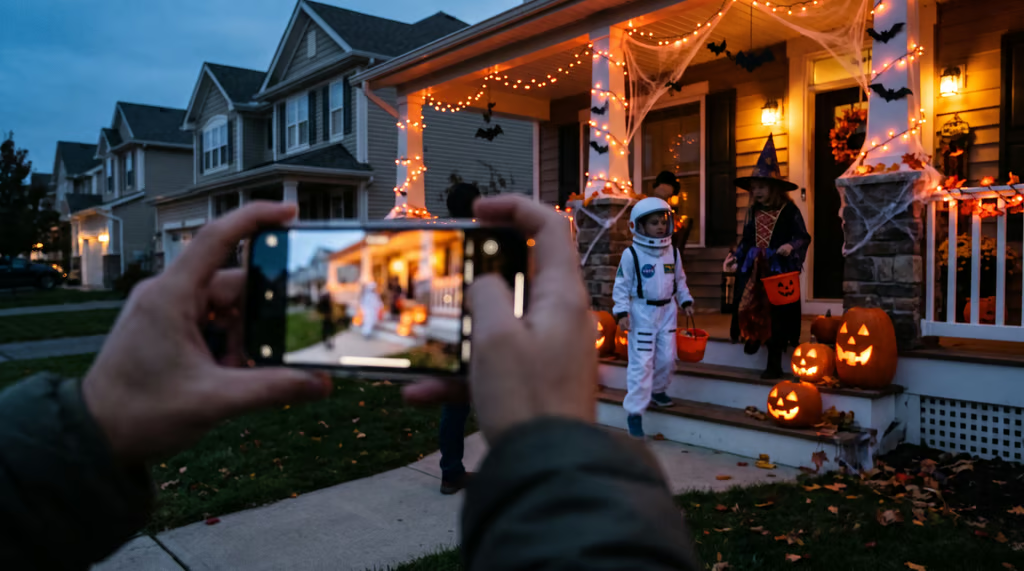
A glowing jack-o’-lantern is easy to photograph when it stays put. A trick-or-treater rushing between houses is another story, especially after sunset, when the iPhone camera may need more time to capture enough light.
Ahead of October 31, iPhone owners can improve their Halloween shots by choosing the right settings for moving subjects, posed costumes and illuminated decorations. Recent testing has also revealed a potential downside to the iPhone 18 Pro’s new manual camera controls: more control over shutter speed can mean noisier photos in low light.
The challenge is balancing brightness with sharpness. Night mode can brighten a dark porch, but longer exposures increase the risk of motion blur. For moving subjects, faster capture and better lighting may produce more useful results.
Best iPhone camera settings for Halloween
Start with what you’re photographing. Stationary decorations can benefit from longer exposures, while moving trick-or-treaters require a different approach.
| Halloween scene | Setting to try | Why |
|---|---|---|
| Moving trick-or-treaters | Burst mode with good lighting | Captures several frames to choose from |
| Posed costume photos | Night mode | Brightens scenes when subjects remain still |
| Glowing pumpkins and decorations | Night mode; adjust exposure | Helps preserve shadow detail and bright highlights |
| Creative motion blur | Manual shutter on iPhone 18 Pro | Controls exposure time, potentially adding noise |
For stationary subjects, let Night mode do its work. Available on iPhone 11 and later, the feature activates automatically when the camera detects low light. Apple’s Night mode guide explains how iOS 27 users can open Camera Controls, select Night Mode and adjust the available capture duration.
Keep the phone steady and ask anyone posing to hold still until the capture finishes. If you’re using an older iPhone, the controls may look different. Newer photography options also have separate hardware requirements, as Apple’s limited rollout of Texture and Grain controls illustrates.
For moving trick-or-treaters, try Burst instead. Apple’s Burst mode instructions explain how to capture consecutive shots by dragging the shutter button toward the photo thumbnail. You can also enable Settings > Camera > Use Volume Up for Burst.
Burst gives you more frames to choose from, but it cannot eliminate blur when there isn’t enough light. Move subjects closer to a porch light when possible. Be aware that turning on Live Photos or flash also deactivates Night mode.
Why the iPhone 18 Pro’s manual controls can backfire
The iPhone 18 Pro introduces another choice for photographers. Apple added manual shutter speed, aperture and white balance adjustments in September, giving users more control over how an image is captured. These additions are among the biggest camera differences in the iPhone 18 Pro versus iPhone 17 Pro.
That flexibility has a trade-off. In testing published October 12, DPReview found that selecting shutter speed manually appeared to stop the iPhone 18 Pro from combining multiple exposures to reduce noise. Night mode also became unavailable.
Using a tripod, the publication compared automatic and manual settings in daylight and low light, with Night mode disabled throughout. Manually adjusting aperture alone produced results similar to automatic shooting, but selecting shutter speed increased visible noise in some images, particularly in darker areas.
The tests covered the iPhone 18 Pro, not the Pro Max, and do not establish a camera defect. Those controls are part of the iPhone 18 Pro’s broader camera upgrades, including the variable-aperture main camera detailed in its full specifications and feature breakdown. They offer more creative flexibility without guaranteeing better results in every shooting condition.
For Halloween, start with automatic shutter speed and switch to manual only when you want a specific creative effect. A steady phone, a well-lit subject and the right capture mode will usually matter more than adjusting every available control.
Also read: Choosing a smartphone for photography involves more than megapixels. The iPhone 18 Pro and Pixel 11 Pro comparison examines how Apple’s manual camera features stack up against Google’s computational photography tools.