


When Outlook asks half the office to sign in again, a password reset can look like the quickest fix. A check of Microsoft’s Service health dashboard can save the help desk from doing it twice.
The Nov. 12–13 Microsoft 365 outage hit Exchange Online hardest, cutting off mailbox access for many users and delaying email. Some features in Teams, SharePoint, and other Microsoft 365 services were also affected.
Microsoft’s preliminary post-incident report traced the disruption to a bug in its network gateways. The bug surfaced after Teams traffic shifted onto gateways shared with Exchange Online while server capacity was already reduced. During a similar outage, the pattern of failures across users, devices, and networks can help IT teams decide what to test first.
Check Microsoft’s service health before touching the tenant
Open the Microsoft 365 admin center and go to Health > Service health. Match the affected product and symptoms against the advisories, then record the incident ID, reported scope, latest update, and any action Microsoft requests. If you cannot reach the portal, use Microsoft’s public status page or @MSFT365Status.
The admin center itself can also become unavailable during an outage. In February 2026, administrators lost access to the portal when they needed it to investigate service problems. The Nov. 12 disruption affected services beyond Outlook, making it important to check the status of each affected application rather than assume every error has the same cause.
Even if Service health shows no matching incident, Microsoft may still be investigating an issue. IT teams should compare reports from affected users to determine whether the symptoms are widespread. If the problem persists, administrators can use the Report an issue option in Service health to notify Microsoft, as outlined in its official guidance.
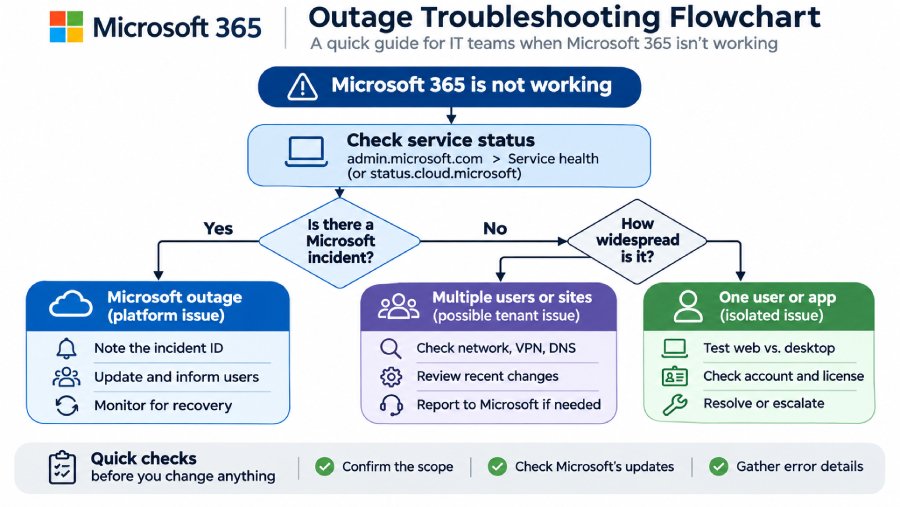
Follow the flowchart to choose the next test
The key decision is whether the problem is widespread, tenant-specific, or isolated to one user. Treat each possibility differently:
- A matching Microsoft incident is listed: Note the incident number and affected services. Avoid sweeping configuration changes, notify staff through an approved alternative channel, and monitor recovery updates. You cannot repair Microsoft’s backend by repeatedly resetting user passwords.
- Several users or offices are affected, but no incident is listed: Check whether failures occur on different networks and devices. Compare VPN and non-VPN connections, DNS resolution, and sign-in behavior. If there is evidence of a local connectivity problem, Microsoft’s network connectivity test can help isolate it.
- One user or application is affected: Compare the browser and desktop client, another device if available, and a second network. Check licensing, account status, error codes, and recent changes before reinstalling software or resetting credentials.
If tests indicate a tenant issue, record what you checked and escalate with timestamps and error messages. Do not assume the problem is local merely because a public status page shows no warning.
More Microsoft news
- Inside Microsoft’s Real-Time War Against Cybersecurity Threats
- Project Ire: Microsoft Tests AI That Autonomously Detects Malware
- Microsoft Targets ‘Critical AI Talent’ from Meta to Dominate Next AI Breakthroughs
- Windows 10 Support Ends Soon, Though Extended Security Updates Offers Are Available
What not to change during a suspected platform outage
An outage can generate misleading symptoms. Failed sign-ins do not always mean passwords are wrong, and delayed email does not automatically mean mail-routing rules need changing.
Avoid disabling multifactor authentication, relaxing Conditional Access, editing MX or DNS records, or rebuilding Outlook profiles as blanket fixes. Make such changes only if testing identifies a separate configuration fault and your normal change controls permit them.
Backups and alternate communication channels may help staff continue essential work, but they do not restore Microsoft’s cloud services. Keep the workaround proportionate to the problem.
Communicate clearly, then prove recovery
Assign one person to track Microsoft’s updates and another to coordinate user reports. Record the outage start time, affected departments, failed services, tested workarounds, and the next planned staff update. If Teams and Outlook are unavailable, use an approved SMS, phone, or independent messaging channel.
Once Microsoft reports restoration, test more than a sign-in screen. Send and receive a message, join a Teams meeting, open a SharePoint file, and confirm OneDrive synchronization for affected groups. Check delayed mail and support tickets before declaring the incident closed.
A June 2026 Teams file outage showed why restored service does not eliminate the need to verify file access and fallback routes. Record what worked, which communications failed, and whether your response plan needs updating.
During a Microsoft 365 outage, the priority is getting employees back online without creating additional problems. A clear troubleshooting process helps IT teams distinguish Microsoft-side failures from internal issues, avoid unnecessary changes, and restore services more efficiently.
Also read: For more context on the November disruption, see how Microsoft Outlook’s outage drew over 130,000 reports as Teams and other services were affected.