


Don’t bother lugging around a standard laptop to administer your Linux servers. Considering Chrome OS is faster, less likely to flake out on you, and less expensive, a Chromebook makes for a great mobile admin tool for remote Linux servers.
Mobility must-reads
- Big Apple OS Makeover: Here’s What to Expect & When
- MWC 2025: Nothing Shows Off (3A) Phones With AI Organization Tool
- Bad News for App Developers: Most Apps Fail to Hit $1,000 Monthly Revenue Within Two Years
- Mobile Device Computing Policy
If you
’
re working from another Linux box, ssh
’
ing to those servers is simple. Even within the Windows platform, you can always use
PuTTY. But how do you secure shell from within Chrome OS?
At one point, it was as simple as opening up the Crosh shell and using the ssh command (as you might on a Linux box). However, the ssh command has been removed from Crosh, so you now have to install the Secure Shell extension for Chrome.
Installing the Secure Shell extension
- Open Chrome on your Chromebook.
- Point it to the Secure Shell extension page.
- Click Add To Chrome.
- When prompted, click Add App and allow the extension to install.
You should see the Secure Shell icon in your list of apps. Click the icon to open the extension.
Using the Secure Shell extension
Once it’s open, the extension is simple to use. All you have to do enter the username, hostname, port (all three are required), and then click the Connect button or hit Enter (Figure A).
Figure A
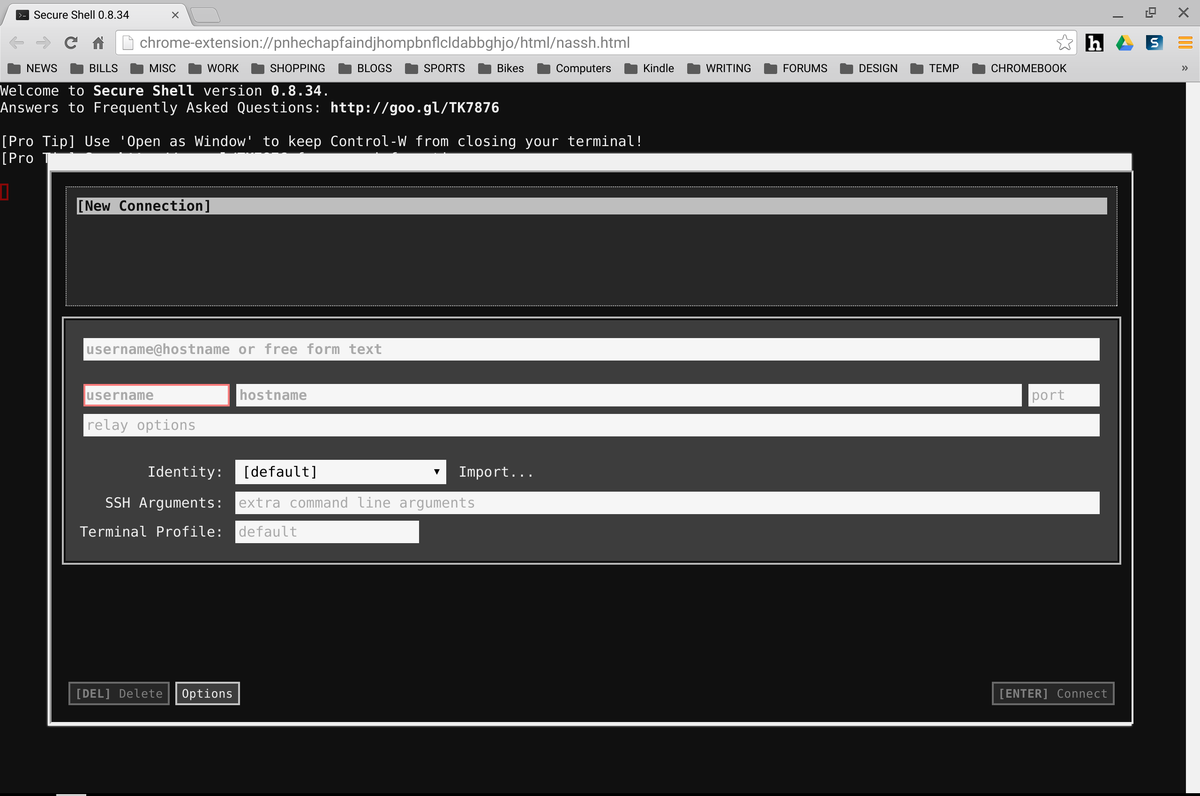
The Secure Shell extension in action.
Once connected, you should see the familiar terminal of your server (Figure B). Enter your credentials as you would in any standard ssh session.
Figure B
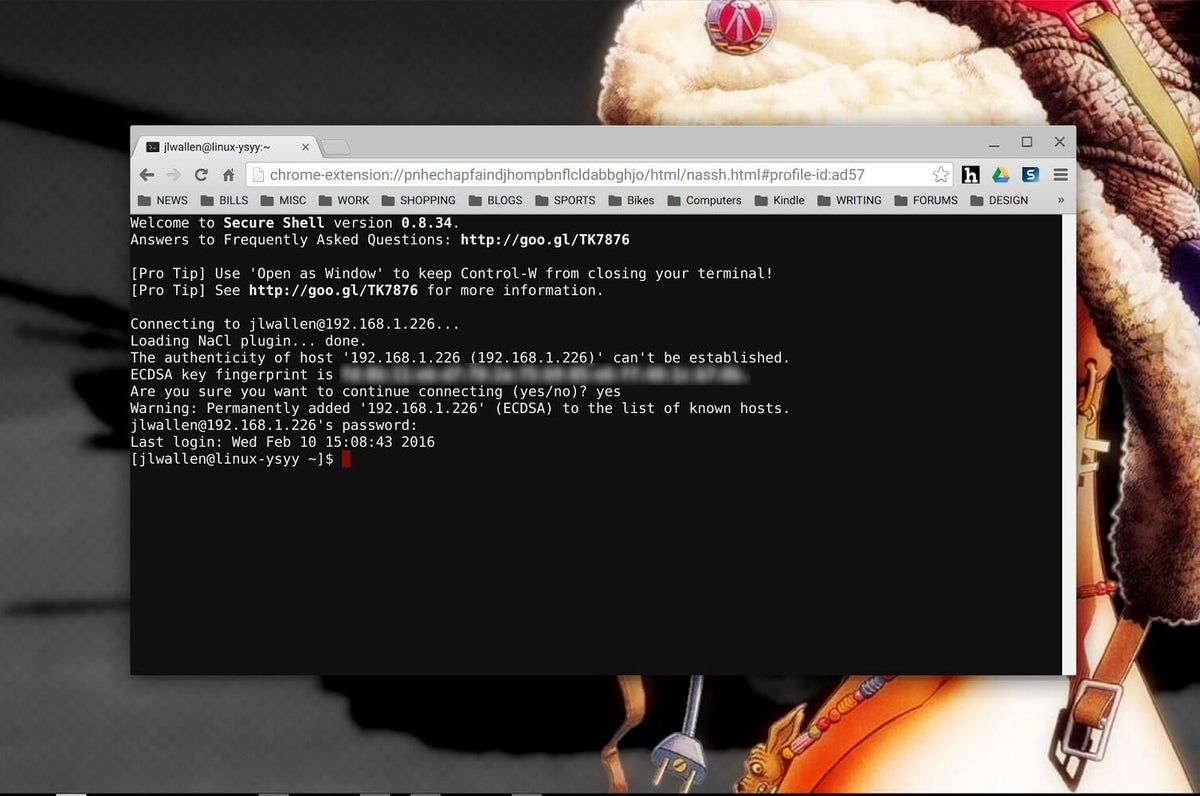
Connected to a Ubuntu Server running on a System76 Lemur.
When you disconnect from a successful session, the Secure Shell extension will remember that connection for a quick reconnect. Click the previous connection in the window to open that session again. You’re ready to go!