
What's hot at TechRepublic
- Blackpoint Cyber vs. Arctic Wolf: Which MDR Solution is Right for You?
- Why AWS Sellers Choose Deepgram Over Other Voice AI Tools
- SS&C Intralinks DealCentre AI vs. Datasite: Which platform is built for the future of dealmaking?
- SS&C Intralinks FundCentre AI vs. Juniper Square: Which platform better supports modern private markets fund managers?
- Verito vs. Rightworks: Which IT Provider Is Best for Your Firm?
While Slack facilitates a more collaborative, adaptable and inclusive working environment for you and your team, the ClickUp integration further boosts your productivity. It enables you to do more than talk with your coworkers. You can maximize your team’s productivity by taking actions like creating your documents without ever leaving Slack. It’s as simple as sending a message to everyone in your company via Slack.
You can create marketing plans, reports, strategies and other documents in rich-text formats right inside Slack using the ClickUp integration. Follow these tips to see how you can leverage the productivity inherent in these two tools to create a seamless workflow.
SEE: Feature comparison: Time tracking software and systems (TechRepublic Premium)
Things you’ll need
- Your email account
- Slack account
- Clickup account
Note: You can only access the Slack integration through Slack’s online app. Also, you can only integrate Slack with ClickUp if you are in the administration team or the owner of the Slack channel.
How to integrate Slack with ClickUp: Step-by-step tips
The first step involves downloading the most current version of ClickUp on your phone or as an extension to your PC. Then, sign in to your ClickUp account (Figure A), and add it as an extension on your computer.
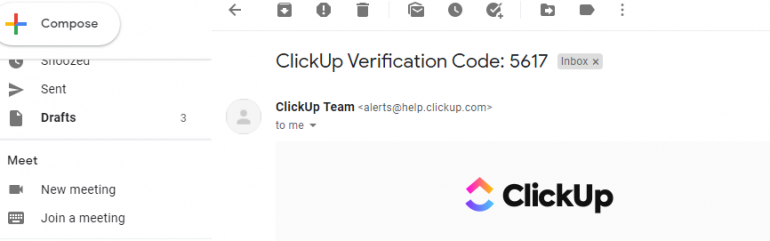
After signing into your account, you’ll receive a confirmation email with a code you can use to verify your ClickUp account (Figure B).
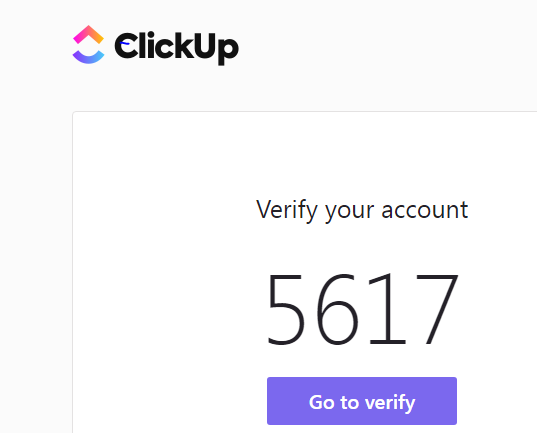
Find this email, and verify the code is the same as the one shown in ClickUp (Figure C).
Activate the ClickUp add-on
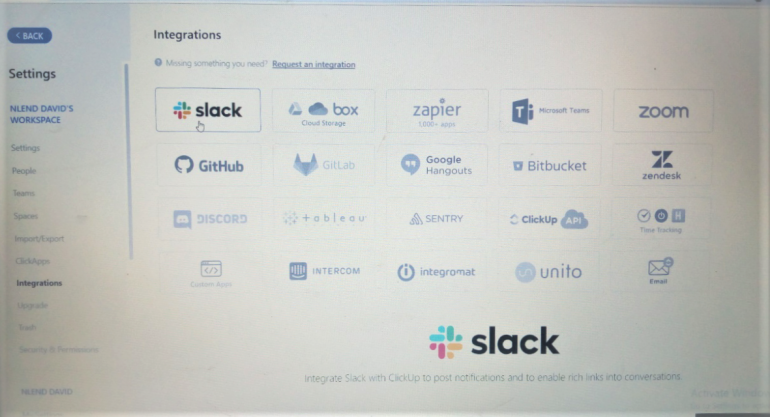
Once verified, ClickUp will open, allowing you to create tasks and lists and configure other settings according to your needs. Now, to authorize Slack, navigate to the Settings menu, and select Integrations (Figure D).
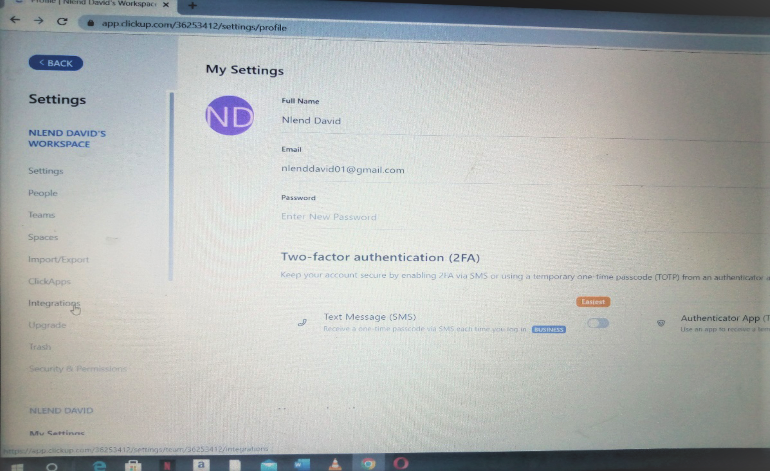
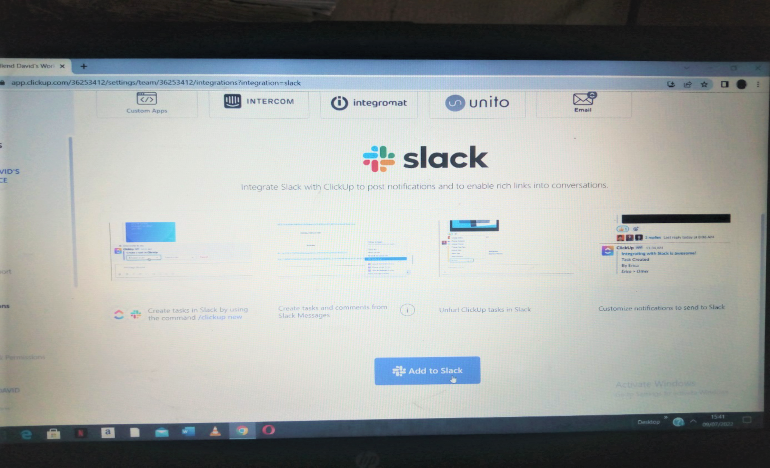
Select Slack from the list of integrations, and then click Add to Slack (Figure E).
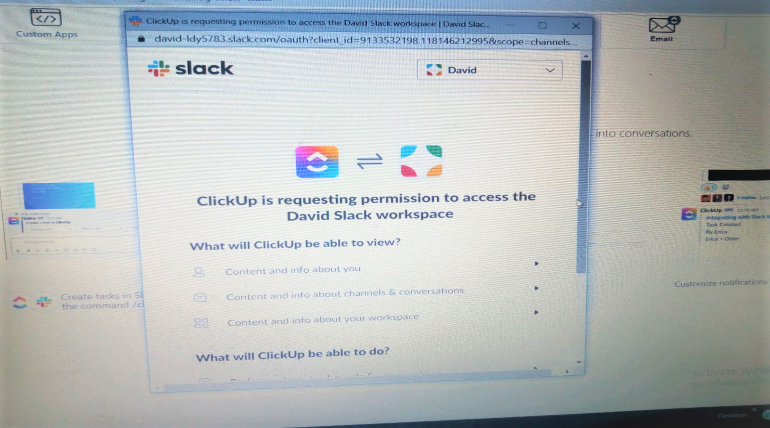
This will cause a pop-up from Slack to appear indicating that ClickUp is requesting permission to access Slack workspaces. It will also summarize some of the other features available with the ClickUp integration. Review these, and select Grant ClickUp Access (Figure F).
Your Slack has been successfully linked with ClickUp after following this step.
Using ClickUp in Slack
A ClickUp integration with Slack allows you to create and organize tasks, create tasks out of message and more.
Create new tasks
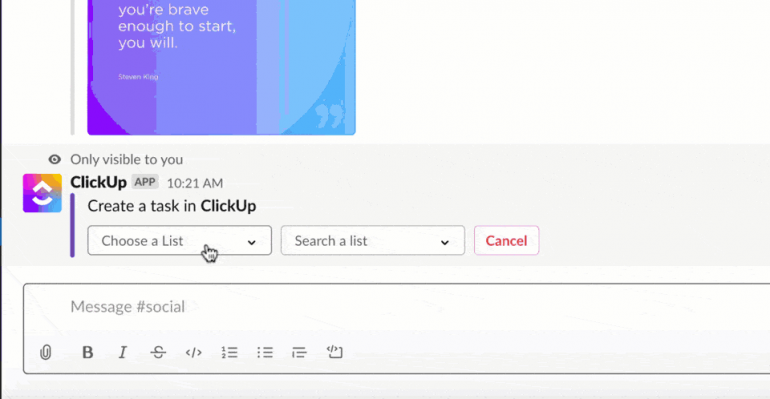
In any Slack channel, enter /ClickUp new to create a new task instantly (Figure G).
Organize work to be done
In Slack, links to tasks will be supplemented with information, context and the opportunity to take action on the task as your team submits them. This information may include who came up with the task and when, the project title, a brief task description, what work is in progress, the task’s assignees, task priorities, tags, the task’s parent folder and list, subtasks, and who remarked as soon as it had been published.
Accessing these links also allows you to take the following actions:
- Changing the current state of affairs
- Affectees of change
- Reorganize your goals
- Rename the tags
- Adjust the deadlines for completing tasks
And using Slack’s dropdown actions, you can keep track of important details like upcoming deadlines, priorities and more (Figure H).
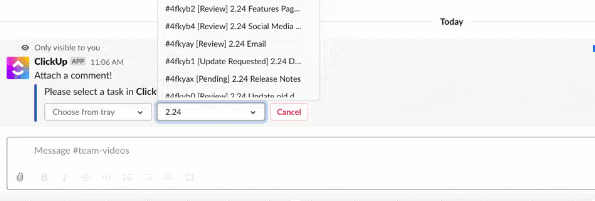
Create tasks and comments out of messages that have been sent.
Messages may be used to create tasks and comments. A new window will open with further options for you to select.
Get notifications
You may choose which Slack channels you want to get task alerts from ClickUp. You can create tasks, post comments and even change your status by customizing your notification options.
How to add Slack messages to ClickUp tasks
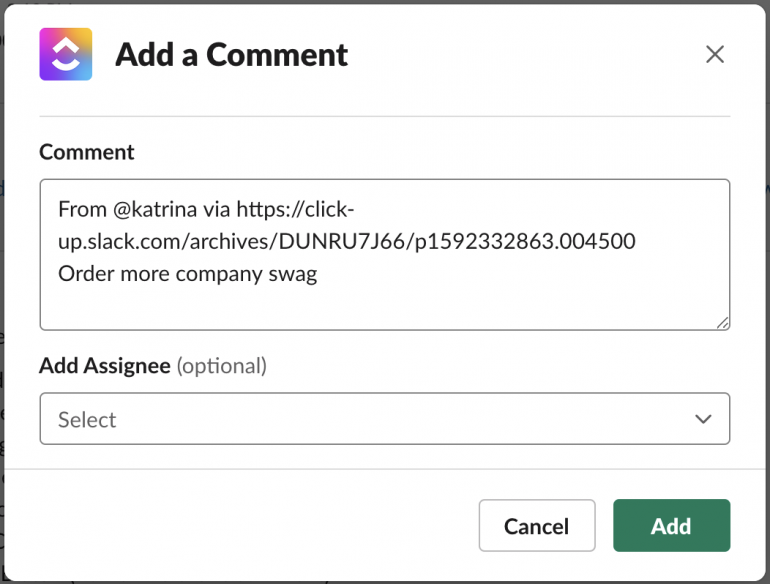
By attaching Slack messages to ClickUp tasks, the Slack message will be pasted into a ClickUp comment in a quote style. It’ll also provide a link to the Slack remark that was made.
To add a message, hover over a message to get more information about it or click the meatballs menu to access other message shortcuts. Select Add Comment, type your comment and click Add (Figure I).
Enable Slack notifications in ClickUp
Slack alerts cannot be enabled until workspace owners or administrators have activated the Slack integration. To activate the Slack connection, follow the steps outlined in this article.
ClickUp currently only supports the integration of one Slack workspace at a time.
Notifications may be enabled after the Slack integration is set up for the workspace.
- Using the Workspace avatar in the bottom left corner, choose Integrations from the dropdown.
- Select the connection with Slack.
- Decide on a Working Area.
- Optional: Choose a folder and a list of files inside.
- Make sure you’ve chosen the Slack channel where you’ll get alerts.
- To change the kinds of notifications, click the Settings menu.
Some of the notifications you can receive in Clickup include:
- Set up a notification to be notified as soon as a new task is created.
- Status Changed: You’ll be notified when a task’s status changes.
- New Comment: Get notified when a task’s comments are updated.
- If an assignee changes, you’ll be alerted through email.
- This option includes all private tasks, lists, and folders.
Please keep in mind that the only way to get Slack alerts for tasks spread over several Lists is if the task’s primary list is included in the desired location. Tasks in multiple Lists will only create Slack notifications if their home List is included in the selected location.
Enable personal Slack notifications
Personal Slack alerts may also be tailored to your preferences. The process is similar to enabling general Slack notifications. To customize your Slack alerts:
- Select My Settings from the dropdown menu that appears when you click on your workspace avatar in the bottom left corner.
- Click Slack Notifications in the sidebar to enable them.
- Decide on a Working Area.
- Optional: Choose a folder and a list of files within.
- Select the Slack channel to which you want to publish notification messages.
- To change the kinds of notifications, click the settings menu.
Some of the personal notifications in ClickUp include:
- Receive a notification each time a new task is created.
- Status Changed: You’ll be notified when a task’s status changes.
- New Comment: Get notified when a task’s comments are updated.
- New Attachment: Get notification when an attachment is added to a task.
- If an assignee changes, you’ll be alerted through email.
- This option includes all private tasks, lists and folders.
By setting up personal notifications, you can be alerted any time a task is assigned to you.
And that is all there is to it. You’ve finally integrated Slack with ClickUp. So, go ahead and customize it according to your needs.