


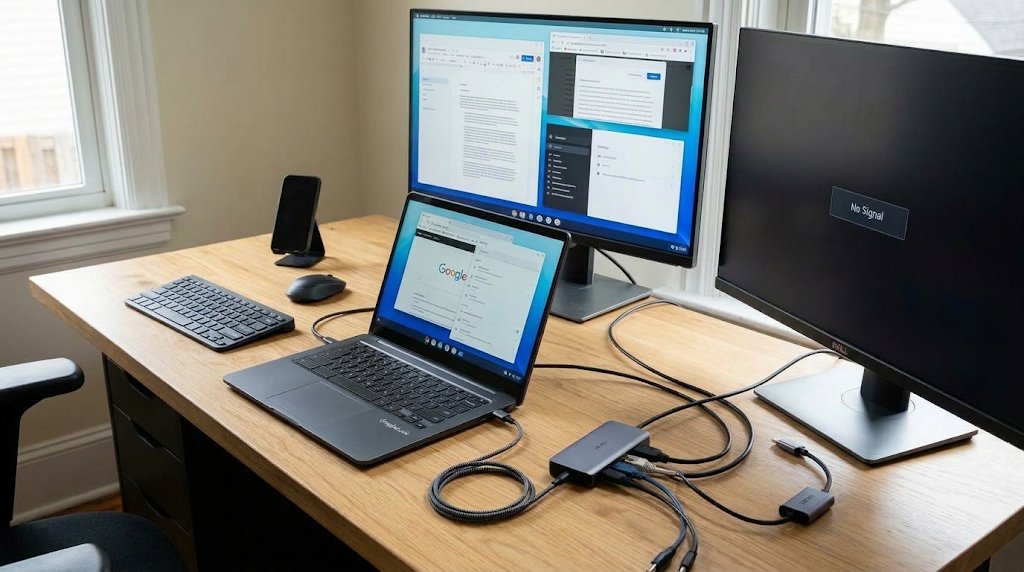
Before replacing your laptop, check what’s plugged into it.
Google says Googlebooks support at least two external displays, and you can work with the lid closed. But that doesn’t tell you whether your existing dock will drive both screens, keep the laptop charged, or wake it the way your old setup did. Dell, for example, documents a case in which a 4K monitor goes blank via one of its own docks and recommends plugging the screen directly into the laptop.
Our November Googlebook update coverage looked at fixes for display and USB-C problems on HP and Dell models. This guide answers the remaining buying question: which parts of your desk setup can you reuse, and what should you test before spending money?
How the five Googlebooks compare for desk setups
The table covers the five US launch models in TechRepublic’s Googlebook lineup comparison.
The article compares published hardware specs and support notes, not hands-on test results. An advertised port or display limit doesn’t confirm that a specific dock can deliver that same result. Beyond Google’s two-display baseline, Lenovo was the only one of the five for which we could verify a model-wide maximum.
| Googlebook | Documented video connections | What that means for your desk |
|---|---|---|
| Acer Googlebook 14 | One Thunderbolt 4 USB-C port and two 10Gbps USB-C ports with DisplayPort; no built-in HDMI listed | Use the Thunderbolt port to test a Thunderbolt dock. For an HDMI-only screen, plan on a video-capable adapter or a dock with HDMI. |
| Dell XPS Googlebook | Two 10Gbps USB-C ports with DisplayPort 1.4 and Power Delivery; no built-in HDMI listed | Direct USB-C video is an option. Don’t buy a dock that requires a Thunderbolt or USB4 host for the features you need. |
| Lenovo Googlebook 15 | Two Thunderbolt ports and HDMI. Lenovo lists up to three external displays plus the built-in screen, with up to 4K at 60Hz over HDMI or up to 8K at 60Hz over Thunderbolt. | The clearest documented choice in this group if you need three external screens. Those are connection limits, not a promise of three screens at maximum resolution through one dock. |
| ASUS Googlebook 14 | Two Thunderbolt 4 USB-C ports with DisplayPort 1.4 and Power Delivery, plus HDMI 2.1b. ASUS lists 4K display support over USB-C. | You can start with a direct HDMI connection and leave USB-C available for charging or a second display connection. Check the exact two-screen setup before buying a dock. |
| HP Googlebook 14 | Two 10Gbps USB-C ports with DisplayPort 1.4 and Power Delivery; no built-in HDMI listed | Use a video-capable USB-C connection or adapter. Check whether your dock supports the host’s USB-C video mode before assuming both outputs will work. |
The biggest split is between models with built-in HDMI and those that depend on USB-C for video. A direct HDMI connection gives Lenovo and ASUS buyers an easy way to keep an existing HDMI monitor without making the dock part of the equation. On Acer, Dell, or HP, a monitor with a compatible USB-C video input can simplify setup; an HDMI-only monitor requires an adapter or dock.
Why two monitor ports on a dock aren’t enough
A USB-C plug indicates the connector shape, not which video mode the dock uses.
Check the dock’s model number and documentation for the host connections it requires. A Thunderbolt dock that also supports ordinary USB-C may offer fewer features in that mode. A dock that relies on DisplayLink is a separate case: Synaptics lists supported platforms, but we didn’t verify Googlebook OS extended-desktop support.
Check for explicit support rather than assuming a Chromebook or Windows listing applies. Our USB-C dock comparison illustrates why some docks produce different results with different laptops.
Dell offers a concrete example. In its WD25 support note, the company says a 4K screen can go blank when connected to the XPS Googlebook DX13267 via that dock. Dell recommends using a display at 2K or lower through the dock or connecting the 4K monitor directly. It also documents dock limitations on the WD25 and SD25 for that laptop: Their power buttons don’t start it from a full shutdown, and wake-on-LAN isn’t supported.
Before testing a direct USB-C connection on the XPS Googlebook DX13267, check for updates under Settings → About Googlebook OS. Dell says build 17.CL3B.260622.276.R1 or later fixes a separate monitor detection issue over direct USB-C. That update isn’t identified as a fix for the WD25’s 4K issue.
How to set up two screens or work with the lid closed
Google’s display guide says a Googlebook extends the desktop by default when you connect an external screen. Go to Settings → Device & accessories → Display to arrange the screens to match your desk or switch to mirroring. Test each monitor on its own first, then connect both and check that you can move a window between them. Seeing the same desktop twice doesn’t confirm that you have two independent workspaces.
For closed-lid use, connect the monitor and an external keyboard or mouse before closing the lid. Google says the external display becomes the main screen, open windows move off the laptop display, and the connected keyboard or mouse can wake the device. Check that behavior with your actual dock and input devices before relying on it. If a screen doesn’t appear, Google’s troubleshooting guide recommends checking the cable and updating the operating system.
What to keep, replace, or test before buying
- Keep monitors that meet your needs on a direct connection. Verify resolution and refresh rate on each screen before blaming the dock. If both screens work individually but one disappears when you connect both through the dock, test a second direct cable before replacing a monitor.
- Keep the dock if it does the jobs you need. Test a normal work session with both displays, charging, keyboard, webcam, and Ethernet in use, then put the laptop to sleep and wake it with the lid closed. If video is the only failure, decide whether a separate cable is an acceptable trade-off.
- Replace the dock only when the operating requirement is clear. If you need dual extended screens, charging, and peripherals through one cable, look for documentation that covers your exact laptop, dock, and display modes. If the vendors don’t document that combination, buy from a seller with a return window and test it while you can still return it.
- Pilot one desk before equipping a team. Use the same laptop model, dock, cables, and monitors you plan to deploy. Record what worked after sleep and after disconnecting and reconnecting the dock, not just what lit up on the first try. Repeat the pilot when the laptop or dock model changes.
If you’re shopping for one desk, start with the monitors you own and add the fewest new parts. If you’re buying for an office, make the exact monitor and dock combination part of the pilot. A port count can narrow your shortlist; it can’t tell you how your desk will behave on Monday morning.
Related reading: Still deciding whether to switch platforms? TechRepublic’s ChromeOS vs. Googlebook OS comparison breaks down differences in apps, support, and upgrades.