


monday work management is an outstanding project management platform. With it, you can create multiple workspaces that can contain dashboards, tables, charts, kanban, Gantt, cards, forms, file galleries and much more. monday work management also offers automations and integrations.
One such integration is Google Calendar. If, like me, you depend on Google Calendar to keep your busy life organized, you might find yourself wanting to integrate these two platforms. With this integration, you can sync all of your items and tasks to the external calendar so you can view everything in one convenient place.
SEE: Hiring kit: Project manager (TechRepublic Premium)
What's hot at TechRepublic
- Blackpoint Cyber vs. Arctic Wolf: Which MDR Solution is Right for You?
- Why AWS Sellers Choose Deepgram Over Other Voice AI Tools
- SS&C Intralinks DealCentre AI vs. Datasite: Which platform is built for the future of dealmaking?
- SS&C Intralinks FundCentre AI vs. Juniper Square: Which platform better supports modern private markets fund managers?
- Verito vs. Rightworks: Which IT Provider Is Best for Your Firm?
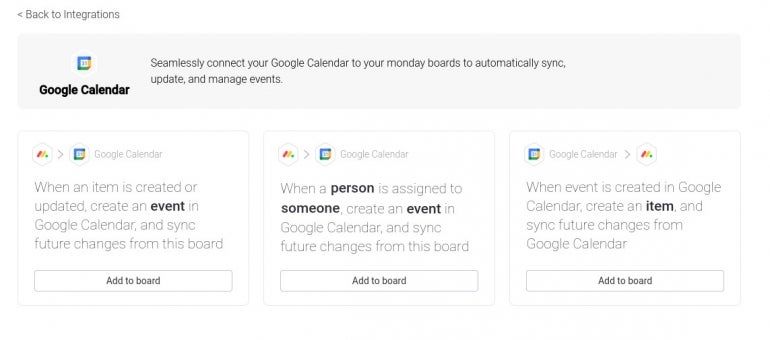
The Google Calendar monday work management integration offers three different recipes for integration:
- When an item is created or updated, monday work management will create an event in Google Calendar and sync future changes to the board.
- When a person is assigned to someone, create an event in Google Calendar and sync future changes from this board.
- When an event is created in Google Calendar, create an item and sync future changes from Google Calendar.
Which recipe you choose will depend on your workflow with both services. Just remember, if you have a very busy monday work management board (or a very busy Google Calendar) if you choose the wrong option you could wind up with a mess on your hands. So, make sure you know what you need from this integration before moving forward.
What you’ll need to integrate
The only things you’ll need for this integration are both a monday work management account and a Google Calendar with which to sync. That’s it…let’s integrate.
How to integrate monday work management and Google Calendar
First, make sure you’re logged into your Google Account associated with the calendar to be integrated. Once you’ve logged in, head over to your monday work management account and log in to that as well.
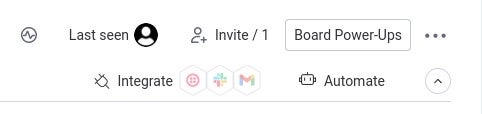
From your monday work management account, click the Integrate button near the top right of the window (Figure A).
Figure A
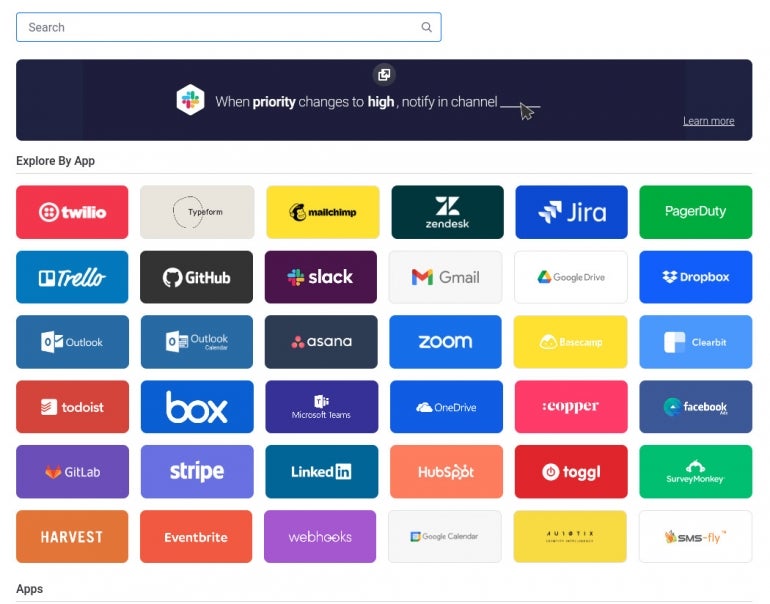
In the resulting window (Figure B), locate and click the Google Calendar entry.
Figure B
In the next pop-up (Figure C), make sure to click the recipe you want to use as your sync option.
Figure C
Select your recipe and click Add To Board. You will then be prompted to connect to your Google Calendar (Figure D).
Figure D
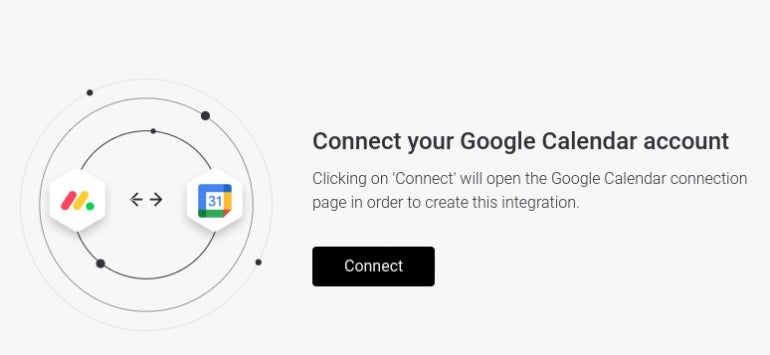
You will then be prompted to select the Google account for the integration (Figure E).
Figure E
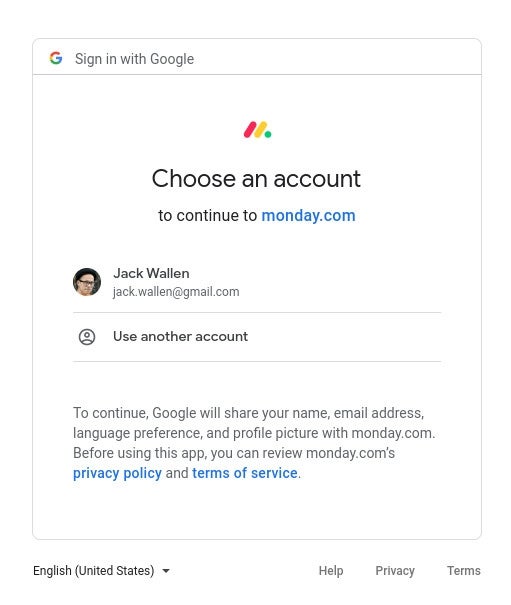
Walk through the permissions wizard for your Google account and finally, when prompted, click Event to configure how the integration will work (Figure F).
Figure F
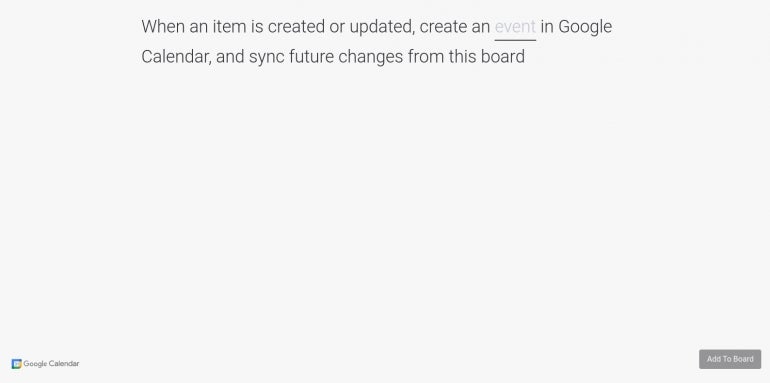
This will open yet another pop-up (Figure G), where you must configure how fields will populate from the current board.
Figure G
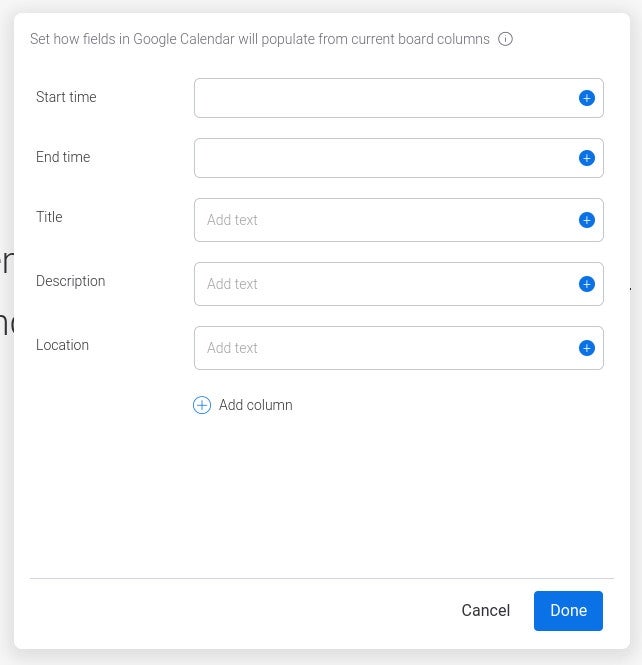
Once you’ve added the required fields, click Done and then click Add To Board.
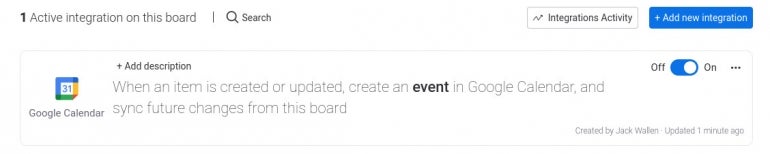
And that’s it. You’ve successfully integrated monday work management with Google Calendar. If at any time, you wish to disable the integration, you can go back and click the ON/OFF slider (Figure H) to the OFF position to pause the sync.
Figure H
Enjoy this new syncing between your monday work management boards and your Google Calendar.
Subscribe to TechRepublic’s How To Make Tech Work on YouTube for all the latest tech advice for business pros from Jack Wallen.