
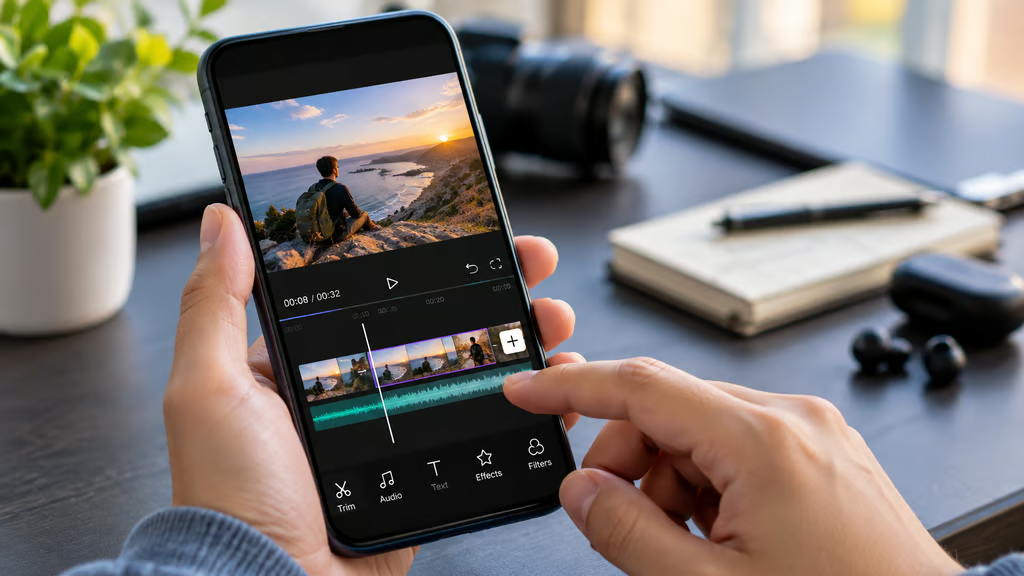


Android video editing has moved well beyond basic trimming and filters. Adobe Premiere now offers free multi-track editing and 4K exports, while established apps such as CapCut, LumaFusion, PowerDirector, and KineMaster cover everything from quick social clips to more complex timeline work.
The right app depends on how much editing control you need, whether you work across devices, and how much you want to spend. Some provide capable free editors, while others reserve cloud storage, premium assets, collaboration, or watermark removal for paid plans.
We compared five Android video editors on editing tools, export quality, AI features, desktop or cloud workflows, pricing, and the limits that can affect everyday use.
- Best Android video editing apps at a glance
- How we chose the best Android video editing apps
- 1. Adobe Premiere: Best free Android video editor
- 2. CapCut: Best for social video and team workflows
- 3. LumaFusion: Best for advanced editing without a subscription
- 4. PowerDirector: Best for AI-assisted editing
- 5. KineMaster: Best for mobile-first editing tools
- Which Android video editing app should you choose?
Best Android video editing apps at a glance
| App | Price | Maximum export | Cross-device workflow |
|---|---|---|---|
| Adobe Premiere | Free; paid AI credits/storage optional | Up to 4K | Premiere desktop handoff coming soon |
| CapCut | Free; Standard and Pro pricing varies | Depends on plan and device | Pro supports mobile, desktop, and web |
| LumaFusion | $29.99 one-time | Up to 4K | Project transfer across supported devices |
| PowerDirector | Free; mobile annual plan $34.99 before promotions | Up to 4K | Premium cloud projects |
| KineMaster | Free; Premium $7.99/month or $51.99/year | Up to 4K60 on compatible devices | KineCloud project backup and sharing |
How we chose the best Android video editing apps
We focused on tools that can handle real editing work on Android rather than apps built mainly around automated templates.
The main criteria were:
- Editing tools: Multi-track timelines, keyframes, color tools, audio controls, effects, and speed adjustment.
- Export quality: Resolution, frame-rate support, watermarks, and hardware limitations.
- AI features: Captions, audio cleanup, background removal, generative tools, and AI-assisted editing.
- Workflow: Cloud projects, desktop handoff, external storage, and project transfer.
- Pricing: What works for free, what requires a subscription, and whether a one-time purchase is available.
- Device support: Android requirements and hardware limits that can restrict advanced features or 4K editing.
Hardware still matters for heavier projects. New flagship processors such as Snapdragon 8 Elite Gen 6 provide more headroom for video and AI workloads, but each editor still sets its own device and memory requirements.
1. Adobe Premiere: Best free Android video editor
Adobe Premiere arrived on Android on Sept. 22 with one of the strongest free feature sets in this group.
The app includes a multi-track timeline, frame-accurate editing, text, effects, transitions, layered audio, speed controls, and Enhance Audio for cleaning up dialogue. Adobe also allows editing and exporting at up to 4K without ads, a watermark, or a required Adobe login.
TechRepublic’s look at Premiere on Android covers the launch in more detail, including its Android 13 requirement and minimum 5GB of RAM.
Generative features require an Adobe account and Firefly credits. Adobe supports tools for generating video, images, and sound effects, while core editing remains free.
Premiere still has some gaps. Adobe lists keyframes, cropping, enhanced captions, Adobe Fonts, beat detection, and continued editing on Premiere desktop as coming soon.
That makes Premiere strongest today for someone who wants capable, watermark-free 4K editing on one Android device without paying upfront.
2. CapCut: Best for social video and team workflows
CapCut remains one of the broadest mobile editing platforms, particularly for short-form content.
It combines conventional editing with templates, effects, captions, AI tools, cloud storage, and a large library of creative assets. Its workflow spans mobile, desktop, and web, which gives it an advantage over apps designed mainly around editing on one device.
CapCut now divides paid access between Standard and Pro. Standard is aimed primarily at mobile users and includes roughly 100GB of cloud storage, while Pro adds up to 1TB, premium templates, commercial-use assets, team templates, brand libraries, review tools, and wider cross-platform access.
CapCut does not publish one fixed global subscription price. Its help center says pricing varies by region, platform, account, and available promotions, so the price shown inside the Android app is the figure to check before subscribing.
For teams creating a high volume of Shorts, Reels, TikToks, and branded social content, its templates and shared assets make it easier to move quickly than a more traditional editor.
Premiere has the simpler free 4K proposition, but CapCut offers the more developed collaboration and cross-device workflow today.
3. LumaFusion: Best for advanced editing without a subscription
LumaFusion for Android is the pick for editors who want a more traditional non-linear editing workflow without another monthly subscription.
The Android version costs $29.99 as a one-time purchase.
It supports six video or graphic tracks plus six additional audio tracks, media up to 4K, unlimited keyframes, LUTs, color correction, green screen and luma keying, audio EQ, auto-ducking, custom titles, and project archiving.
LumaFusion can also work with media stored on supported external USB-C drives and import files from services including Dropbox, Box, Google Drive, and OneDrive.
Android requirements are relatively modest at Android 10 or later with at least 3GB of RAM, although heavier 4K projects will naturally benefit from faster hardware.
LumaFusion lacks the generative-AI emphasis of Premiere, CapCut, and PowerDirector. Its appeal is different: a mature timeline, deeper manual controls, and a one-time purchase instead of an ongoing editing subscription.
4. PowerDirector: Best for AI-assisted editing
PowerDirector Mobile combines traditional Android editing with a growing collection of AI tools.
The app supports trimming, speed controls, background removal, effects, titles, transitions, music, and exports up to 4K. Current AI features include text-to-video, image-to-video, voice tools, speech enhancement, and AI-assisted editing.
Premium access adds features such as Getty Images stock assets, automatic captions, cloud projects, additional effects, and an ad-free workflow.
CyberLink lists the Android annual plan at $34.99 before promotional discounts. The free app contains ads and in-app purchases, while some higher-end functions, including watermark removal and 4K export, can depend on paid access and device capability.
PowerDirector is a better fit than LumaFusion for users who want AI creation tools alongside a conventional timeline. LumaFusion is stronger for editors who prefer manual controls and a one-time purchase.
AI-generated clips are also becoming available outside traditional editors. Google Vids now gives personal accounts limited free AI video generation, although its editing workflow remains desktop-only rather than an Android app.
5. KineMaster: Best for mobile-first editing tools
KineMaster offers a particularly broad editing toolkit directly on Android, including multi-layer editing, keyframes, color grading, chroma key, speed controls, audio mixing, captions, and several AI features.
Supported devices can export at up to 4K and 60fps. KineMaster notes that recording 4K doesn’t guarantee a phone can edit or export 4K, so its built-in performance check determines each device’s limits.
Its AI tools include background removal, automatic captions, voice generation, noise removal, tracking, and Super Resolution for upscaling footage.
The free version provides access to the editing tools but adds advertising and a KineMaster watermark. Premium removes both and adds premium assets plus 10GB of KineCloud storage.
KineMaster currently lists Premium at $7.99 per month or $51.99 per year.
It is a good middle ground for users who want more manual control than a template-heavy editor without moving into LumaFusion’s paid-upfront model.
Which Android video editing app should you choose?
| Best for | Pick | Reason |
|---|---|---|
| Free editing | Adobe Premiere | Free multi-track editing and watermark-free 4K exports |
| Social and team content | CapCut | Templates, cloud storage, collaboration, and cross-device editing |
| Advanced manual editing | LumaFusion | Deep timeline controls with a $29.99 one-time purchase |
| AI-assisted creation | PowerDirector | Broad mix of AI generation and conventional editing tools |
| Mobile-first editing | KineMaster | Strong manual and AI tools with up to 4K60 export |
Adobe Premiere is the easiest recommendation if you want to edit and export 4K video without paying or accepting a watermark. Its main limitation is that several expected features, including keyframes and desktop continuation, are still on Adobe’s roadmap.
CapCut makes more sense for social teams that rely on templates, shared assets, and cross-device editing. LumaFusion remains the better choice for editors who want deeper manual controls without a subscription.
PowerDirector puts the strongest emphasis on AI creation, while KineMaster offers a broad mobile toolset with fewer restrictions on the editing features themselves.
Whichever app you choose, test it on the Android hardware you actually plan to use. Export resolution, AI tools, timeline responsiveness, and the number of layers a device can handle can vary even when the app itself advertises 4K support.
Also read: YouTube now lets eligible US creators add Amazon shopping links directly to Shorts, videos, and livestreams.