


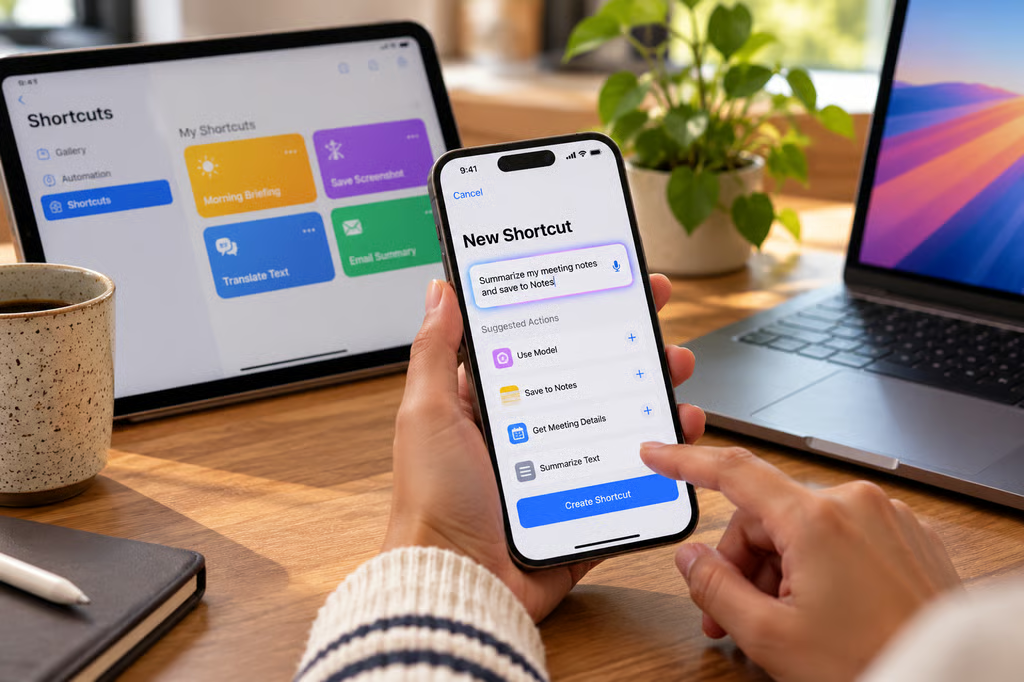
iOS 27 makes Shortcuts much easier to build by letting users describe what they want in natural language instead of assembling every action manually. Apple Intelligence can turn that description into a shortcut that users can test, revise, or edit before saving.
The bigger change for existing Shortcuts users is what happens inside those workflows. The Use Model action can work with on-device and cloud models, while new notification, screenshot, and keyboard triggers create more opportunities for automations to run without someone manually starting them.
According to Apple’s Sept. 29 release notes, the changes apply across iOS 27, iPadOS 27, and macOS 27, although individual features vary by platform and device. They expand the automation tools included in iOS 27 without removing the existing manual Shortcuts editor.
For anyone using Shortcuts with work data, the practical question is which information reaches an on-device, Private Cloud Compute, or external model before an automation is allowed to run unattended.
What changed in iOS 27 AI Shortcuts
Natural-language shortcut creation is the most visible addition. On a compatible device, users can describe the workflow they want, test the result, request a change, or edit the actions directly.
Apple also added three automation triggers:
- Screenshot: Runs when a screenshot is saved to Photos, Files, or the Clipboard.
- Keyboard: Runs when an external keyboard connects or disconnects on iPhone or iPad.
- Notification: Runs when a notification arrives from a selected app, with optional filtering by its title, subtitle, or message.
Automations now sit inside the same editor as shortcut actions and can sync between a user’s devices.
The Use Model action has also expanded. Apple’s Shortcuts documentation lists On-Device, Cloud, Cloud Pro, and an Extension Model that uses ChatGPT. Apple says the newer models can also retrieve current information from the web when supported.
Apple introduced the original Use Model action last year, allowing shortcuts to call an on-device model, Private Cloud Compute, or ChatGPT. The company expanded that system during WWDC 2026 with newer models, web retrieval, storage, and additional automation controls.
A new model transcript can help users inspect what information was supplied to a model. In Apple’s WWDC26 Shortcuts session, the company demonstrates viewing the raw content sent into a Use Model action.
The transcript is useful for checking inputs, but it is not a network audit. Users should still confirm which model a shortcut is configured to use before feeding it confidential company or personal data.
Device requirements and model limits
Apple Intelligence features in Shortcuts require compatible hardware.
Apple lists support for the iPhone 15 Pro and 15 Pro Max, iPhone 16 models and later, the iPad mini with A17 Pro, iPads with an M1 chip or later, and Macs with Apple silicon.
That means installing iOS 27 alone does not unlock the AI-powered Shortcuts features on older hardware.
Apple also says server-dependent Apple Intelligence features can have daily usage limits. Its release notes specifically include AFM 3 Cloud models in Shortcuts among the features affected.
Those limits can vary according to the feature, request complexity, system demand, and other factors. Apple does not document in the release notes exactly how every automation behaves if it reaches a cloud-model limit in the middle of a run.
For automations that need to complete reliably, build in an obvious result or confirmation step rather than assuming the model action succeeded.
The broader Siri AI changes in iOS 27 also make device, language, and regional eligibility worth checking separately before deploying AI-heavy workflows across a fleet.
Five iOS 27 automations worth testing
Apple and MacRumors document the individual triggers and actions behind these examples, but the complete workflows below have not been independently validated by Apple or TechRepublic. Test them with non-sensitive data before letting them run automatically.
1. Turn screenshots into organized notes
The new Screenshot trigger can start a shortcut whenever an image is captured. Apple’s improved Extract Text From Image action can now recognize tables and lists.
A workflow could extract text from a screenshot, pass it to Use Model for cleanup or summarization, and append the result to a selected note. Check the extracted text and model transcript before using the automation with confidential screenshots.
2. Build a morning briefing
A time-based automation could collect the first calendar event of the day, outstanding reminders, and weather information, then pass those inputs to Use Model for a short summary.
Apple’s new Storage actions can preserve values between shortcut runs and sync them across devices, which can help a workflow remember previously processed information.
3. Set up an evening wind-down
One of the examples documented by MacRumors combines tomorrow’s first calendar event with an alarm, Sleep Focus, and smart-home lighting.
The lighting portion depends on the relevant app or accessory exposing compatible Shortcuts actions. Run the shortcut manually before allowing it to fire overnight.
4. React to delivery notifications
The new Notification trigger can watch a specific app and filter the notification text.
Apple demonstrated a workflow that reacts to an arriving delivery notification and turns on an outdoor light. Whether a similar shortcut works depends on the notification text produced by the selected app and the smart-home actions available to Shortcuts.
5. Create a web-connected news summary
A Use Model workflow can retrieve current information from the web and turn it into a short briefing.
This is where input review becomes especially useful. Check the model transcript to see what information the shortcut supplied, avoid including sensitive work or personal context unless necessary, and confirm the output before using it elsewhere.
Natural-language creation lowers the barrier to building sophisticated Shortcuts, but it also makes reviewing the generated actions more important. A prompt that sounds correct can still produce a workflow that calls the wrong action, sends unnecessary information to a model, or behaves differently when an app or service is unavailable.
For business use, the safest rollout is to test the shortcut manually, inspect model inputs, confirm the selected model, and then enable automation only after its failure behavior is understood.
Also read: Apple’s Apple Intelligence rollout in China is expected to exclude Siri AI initially, creating another regional difference for organizations managing Apple devices.