


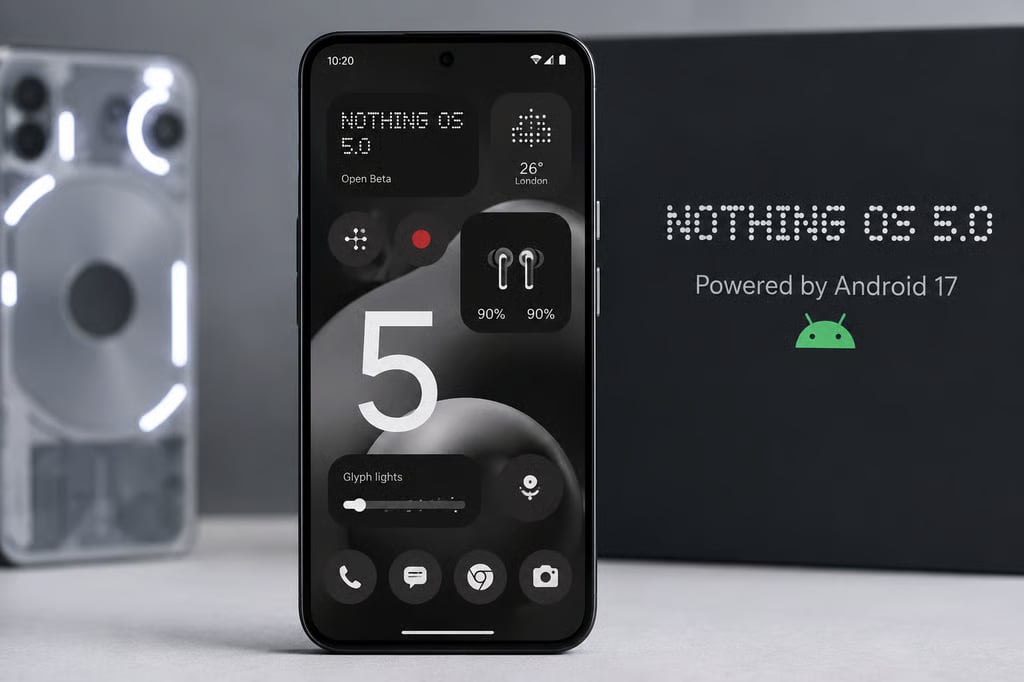
Your Nothing phone just got a software upgrade. Now comes the fun part: discovering all the new tricks hiding inside it.
Nothing OS 5, the company’s Android 17-based update, introduces a dedicated Glyph app, new home screen widgets, redesigned controls, and improvements to multitasking and privacy. The update also brings a refreshed interface, giving compatible Nothing phones more customization options and refinements intended to improve everyday performance.
Some of the most useful additions are easy to overlook. Here are seven features worth exploring first, including where to find them and what they can do for you.
- 1. Try the new Glyph app and Glyph Timer
- 2. Rearrange multiple home screen apps at once
- 3. Explore the Away Time and Collector widgets
- 4. Separate Notifications and Quick Settings
- 5. Connect Bluetooth devices with fewer taps
- 6. Check the new privacy indicators and permission controls
- 7. Explore the redesigned Recents screen and multitasking improvements
- Which Nothing phones can get Nothing OS 5?
- What to do before exploring Nothing OS 5
- Is Nothing OS 5 worth exploring?
1. Try the new Glyph app and Glyph Timer
Nothing’s signature Glyph Interface now has a dedicated app, making it easier to manage supported lighting features on the back of your phone.
Previously, users had to navigate different areas of Settings to manage Glyph features. Nothing OS 5 brings supported lighting controls, sounds, ringtones, and schedules into one location.
The update also introduces a Glyph Timer widget that lets users start a countdown directly from their home screen. On compatible devices, the rear lighting provides a visual indication of the remaining time.
How to try it: Open your app drawer and look for the new Glyph app. Explore the available controls, then open the widget menu on your home screen to find the Glyph Timer.
For anyone who wants to keep track of a countdown without repeatedly checking the display, the widget offers a particularly useful shortcut.
Glyph functionality varies by phone model, so some controls may be unavailable on certain devices.
2. Rearrange multiple home screen apps at once
Reorganizing your phone’s home screen used to involve dragging icons and widgets around individually. Nothing OS 5 makes the process considerably easier.
The update introduces home screen batch editing, allowing users to select multiple items and move them together, including between home screen pages. It’s a relatively small change, but one that could save time when reorganizing a cluttered phone.
How to try it: On the Nothing Phone (3a) series, long-press an empty area of the home screen and tap Arrange, as described in Nothing’s official release notes. Select the items you want to reposition and move them together.
You could move frequently used work applications onto one page while keeping entertainment and personal apps elsewhere.
The feature is part of Nothing OS 5’s broader customization improvements, although the exact interface may vary by device.
3. Explore the Away Time and Collector widgets
Nothing OS 5 introduces two widgets with very different purposes:
- The first, Away Time, tracks how long you spend away from your phone. Rather than blocking applications or enforcing screen-time restrictions, it provides information about your habits, including your longest breaks and weekly patterns.
- The second, Collector, lets users turn photos into visual collections that can be displayed on their home screens and, where supported, their lock screens.
You can capture images with your camera or select existing pictures from your gallery, then organize them into personalized collections.
How to try them: Open the home screen widget menu and look for Away Time and Collector. Add either widget to a suitable location and follow its setup instructions. For Collector, check the lock-screen customization options if your device supports them.
Away Time could be particularly useful for people trying to reduce unnecessary phone checks during the workday. Collector is more about personalization, giving users another way to make their home screens and lock screens feel distinctive.
Both features are described in Nothing’s official OS 5 overview.
4. Separate Notifications and Quick Settings
If you’ve ever opened your notification shade while trying to adjust Wi-Fi or Bluetooth, Nothing OS 5 offers another way to organize those controls. The update incorporates an Android 17 feature that allows users to separate Notifications and Quick Settings into two dedicated panels.
With the split layout enabled, swiping down from the left side opens Notifications, while swiping down from the right opens Quick Settings.
Users who prefer the traditional combined interface can keep it.
How to try it: On the Nothing Phone (3a) series, Nothing identifies the following settings path:
Settings → Notifications → General → Notifications and Quick Settings
Enable the split option, then try swiping down from opposite sides of the screen.
For users who regularly switch networks, adjust brightness, or connect accessories, separating the two panels could make frequently used controls easier to reach.
Menu names and availability may differ between Nothing phone models and software builds.
5. Connect Bluetooth devices with fewer taps
Bluetooth controls also receive an update in Nothing OS 5. Nothing has redesigned the Bluetooth interface within Quick Settings to make nearby devices easier to find and manage.
On supported devices, users can connect or disconnect compatible Bluetooth accessories with a single tap on the device icon. That could be useful for anyone frequently switching between wireless earbuds, speakers, and other accessories.
How to try it: Open Quick Settings and access the Bluetooth controls. Review the available devices and try connecting or disconnecting a supported accessory.
The update is intended to make routine Bluetooth interactions more convenient, although connection behavior can still depend on the accessory and its compatibility.
6. Check the new privacy indicators and permission controls
Nothing OS 5 incorporates Android 17 privacy improvements designed to make sensitive device activity easier to recognize.
One of the most noticeable changes is a three-color status bar indicator system that provides visual information about certain activities taking place on the device.
According to Nothing’s official feature announcement, the indicators work as follows:
- Green: Highlights sensitive access.
- Blue: Indicates location sharing.
- Yellow: Indicates AI data processing.
The update also introduces revised location permission prompts intended to make it clearer when applications request access to location information and what level of access users are granting.
How to try it: Open Settings and review the privacy and permission controls. Check which applications can access your camera, microphone, and location. Pay attention to status bar indicators when using applications that require sensitive permissions.
For professionals who use their phones for work, reviewing app permissions can help identify permissions that are no longer necessary.
However, the indicators themselves should not be treated as proof that an application is safe or unsafe. They provide visibility into certain activities rather than a complete security assessment.
7. Explore the redesigned Recents screen and multitasking improvements
Nothing OS 5 also aims to make switching between applications smoother.
The company says the update improves app launches, scrolling, touch responsiveness, and multitasking by refining performance and memory management. The Recents screen also introduces a pill-shaped menu at the top of each application card, making supported actions easier to find.
These include options such as Split screen and App info.
How to try it: Open the Recents screen using your phone’s normal navigation gesture or button. Look for the menu at the top of an application card and explore the available actions.
If your phone and applications support split-screen multitasking, try opening two compatible apps side by side.
Nothing says improved memory management should help reduce unnecessary application reloads, although actual performance will depend on the device, applications, and usage patterns.
For users regularly switching between messaging, documents, and browsers, these improvements could make everyday tasks feel more responsive.
Which Nothing phones can get Nothing OS 5?
Nothing OS 5 is being distributed in stages, with availability depending on the phone model, region, and software build.
Nothing has announced official Nothing OS 5 releases for the Phone (3), Phone (3a) series, and Phone (4a) series, supported by device-specific release changelogs. However, an announced release does not necessarily mean every handset in that family has received the update.
Other eligible models are following separate rollout schedules, and some may receive beta software before a stable release becomes available.
Certain features also depend on hardware capabilities. Glyph functions, for example, differ between devices with different rear lighting systems.
The company maintains a Nothing OS release roadmap detailing rollout stages, supported devices, and upcoming features.
Before looking for the new features, check your installed software version and available updates. For broader compatibility information, see TechRepublic’s Android 17 update tracker, which covers Nothing alongside Samsung, Pixel, OnePlus, and other Android phones.
Owners of older Nothing devices can also read our guide to phones losing Nothing OS 5 support to understand which models are affected.
What to do before exploring Nothing OS 5
Before installing a major operating system update, Nothing recommends backing up important information, including photos, contacts, and call logs.
It’s also worth checking a few things after installation:
- Update your applications: Install available app updates to improve compatibility.
- Check work tools: Confirm that VPN, authentication, messaging, and device-management applications still function correctly.
- Review permissions: Make sure applications have the access they need without retaining unnecessary permissions.
- Monitor battery performance: Nothing warns that devices may temporarily consume more power or feel warmer during installation.
- Watch for follow-up updates: Smaller releases may deliver fixes and refinements after the main rollout.
If you’re using beta software, check Nothing’s installation and rollback instructions carefully. Returning to a stable release may require erasing device data.
Is Nothing OS 5 worth exploring?
Nothing OS 5 introduces more than a visual refresh. Its new Glyph controls, home screen tools, notification options, and multitasking improvements give users several practical reasons to explore the update.
The most immediately useful additions may be the ones that remove everyday friction, whether that’s reorganizing multiple apps at once, connecting Bluetooth accessories more quickly, or checking a timer without waking the screen.
For Nothing phone owners, the best place to start is with the features that match how they already use their devices.
After all, the best smartphone upgrade is the one that makes you spend less time fiddling with your phone and more time actually using it.
Also read: Want to see how Nothing’s latest software stacks up against Samsung’s? Check out our One UI 9 vs. Nothing OS 5 comparison to see which Android experience comes out ahead.