


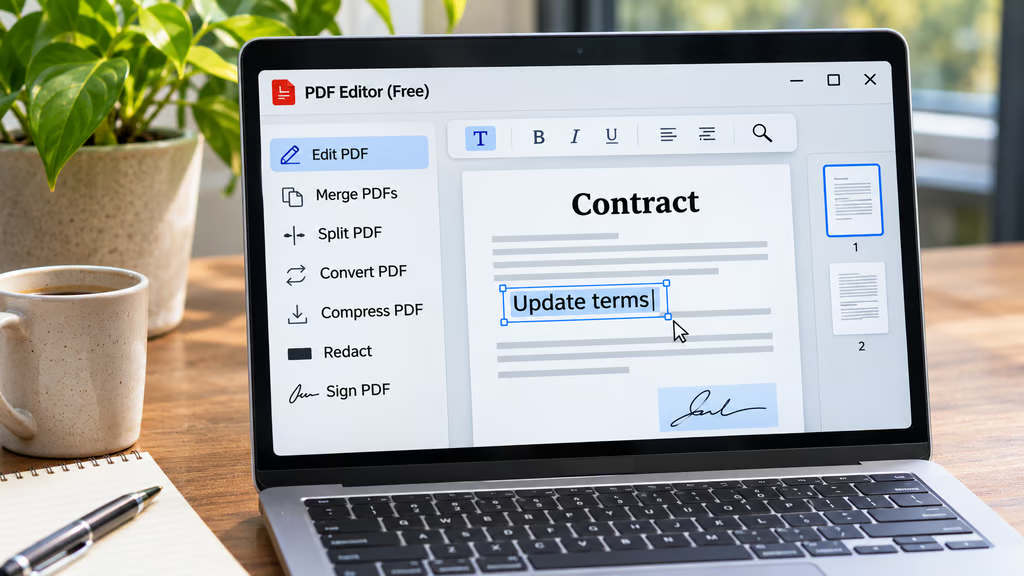
A free PDF editor can help you sign a form, fix a typo, combine documents, or compress a large attachment without paying for Adobe Acrobat. But not every free tool can actually edit existing text, and some upload your files to a server before processing them.
That difference is easy to overlook when you’re working with tax forms, contracts, identification documents, or other personal information.
A May 2026 review of online PDF tools found that eight popular file-processing services uploaded files for the tasks examined, with stated retention periods ranging from roughly one hour to 48 hours.
The best free PDF editor depends on what you need to do. Some are convenient for quick browser-based tasks, while others offer more editing features or let you work without sending documents to a third-party server.
Our top picks at a glance:
- Best overall for local editing: Stirling PDF, for its broad toolset and desktop option.
- Best for occasional online tasks: Smallpdf, for simple PDF operations.
- Best for managing multiple PDFs: iLovePDF, for merging, splitting, and conversion.
- Best for free Windows utilities: PDF24 Creator, for offline PDF processing.
- Best for editing existing text: Sejda, for occasional text changes without a subscription.
- Best for Adobe users: Adobe Acrobat online, for annotations and familiar PDF tools.
- Best for basic browser-based tasks: WebToolVerse, for merging, splitting, and compression.
Best free PDF editors in 2026 compared
| PDF editor | Best for | Can edit existing text for free? | Where files are processed | Free limits |
|---|---|---|---|---|
| Stirling PDF | Local editing and advanced PDF tools | ✔ | Desktop or self-hosted server | Regular editing unlimited; automation capped |
| Smallpdf | Occasional online tasks | Limited; advanced editing paid | Cloud | Daily task restrictions |
| iLovePDF | Merging, splitting, and conversion | Limited | Cloud | Tool-specific file and size caps |
| PDF24 | Free Windows PDF utilities | Limited editing tools | Local desktop or cloud | Desktop unlimited; online tools free |
| Sejda | Editing existing PDF text | ✔ | Local desktop or cloud | Online: 3 tasks/hour; desktop: 3/day |
| Adobe Acrobat online | Annotations and basic PDF tasks | ✖ | Adobe cloud | Tool-specific free allowances |
| WebToolVerse | Simple browser-based operations | Limited utilities | Browser-local, vendor-stated | No published task cap |
Free limits and available features depend on the tool and may change. Desktop and online versions can process files differently. WebToolVerse’s local-processing claim comes from the vendor.
How we compared these PDF tools
We compared seven options based on their editing features, free-use limits, file handling, and ease of use.
Privacy information and historical free-tier limits come from published vendor documentation and a May 31, 2026 review by WebToolVerse. Current product pages and release notes provide additional details about editing features and desktop applications.
WebToolVerse also operates one of the services covered, so its research isn’t independent. Its claims about local processing are treated as vendor statements rather than independently tested findings.
Recommendations reflect documented capabilities rather than performance benchmarks.
1. Stirling PDF: Best overall for local editing
Stirling PDF is one of the most capable free options for people who need more than merging or compressing documents.
It offers tools for editing text, rearranging pages, converting files, running OCR, adding signatures, and redacting information. You can install the desktop application or run a self-hosted version.
The desktop option is particularly useful for sensitive documents because processing can take place on your own computer instead of a third-party PDF website.
Stirling PDF has also continued expanding its editing features. Its Nov. 5 release, version 3.3.0, includes improvements to redaction, document conversion, merging, splitting, and handling large files.
Free limits: Regular PDF editing is free and unlimited under the project’s published terms. Automated processing through its Processor, API, and AI features has a separate allowance of 1,000 PDFs per month.
Privacy: Desktop processing stays on the device. Self-hosted processing takes place on the server running the software.
Main drawback: Installation takes more effort than opening an online editor, and some advanced features require additional setup.
Choose Stirling PDF if: You regularly edit PDFs and want a broad range of tools without depending on an online service.
2. Smallpdf: Best for occasional online tasks
Smallpdf offers a straightforward way to compress, convert, merge, split, and make basic changes to PDFs.
Its browser-based interface is convenient when you need to finish a quick task without installing software.
Smallpdf processes uploaded documents on its servers. The May privacy review reported a retention period of approximately one hour.
Free limits: Daily task restrictions apply, although the number of available tasks depends on the tool and current plan.
Privacy: Files are uploaded for processing and subsequently deleted according to the service’s retention policy.
Main drawback: Frequent use and some advanced editing features require a paid subscription.
Choose Smallpdf if: You occasionally need to compress, convert, or make simple changes to a PDF and don’t mind uploading the file.
3. iLovePDF: Best for managing multiple PDFs
iLovePDF is particularly useful for organizing documents.
Its tools cover merging, splitting, compressing, converting, rotating, and rearranging PDF pages. The browser interface makes it easy to complete common tasks without learning a full editing application.
The May review reported that uploaded files were retained for up to two hours.
Free limits: Restrictions vary by tool. Examples documented in May included two-file or 100MB limits for certain operations.
Privacy: Online processing takes place on the vendor’s servers.
Main drawback: File-size and task restrictions can become inconvenient when working with large documents or batches.
Choose iLovePDF if: You frequently combine, split, compress, or convert PDFs and want an easy browser-based interface.
4. PDF24: Best for free Windows PDF utilities
PDF24 provides a large collection of PDF utilities, including merging, splitting, compression, conversion, and page management.
Its online tools are useful for quick tasks, but Windows users can also install PDF24 Creator to work locally.
PDF24 Creator is completely free, including for commercial use, and doesn’t impose task limits. It also works offline, keeping documents on your computer.
For the online tools, PDF24 says uploaded files are automatically deleted from its processing servers after one hour.
Free limits: PDF24 Creator has no task limits. The online tools are also free, with no general numeric usage cap advertised.
Privacy: Online processing uses PDF24’s servers. PDF24 Creator processes files locally on Windows.
Main drawback: The desktop application is Windows-only, so macOS and Linux users must use another option for local processing.
Choose PDF24 if: You want free PDF utilities and prefer having the option to work offline on a Windows computer.
5. Sejda: Best for editing existing PDF text
Sejda is a useful choice when you need to change content inside an existing PDF rather than simply rearrange its pages.
Its editor supports changes to existing text, annotations, form filling, and other common document tasks.
Sejda also offers a desktop application for Windows, macOS, and Linux. It provides similar features to the online editor while keeping files on your computer.
The online service automatically deletes uploaded files after two hours.
Free limits: The online editor allows three tasks per hour, with documents up to 200 pages or 50MB. The desktop version allows three tasks per day, with additional file and page restrictions.
Privacy: The online editor uploads files over an encrypted connection. Sejda Desktop processes files locally.
Main drawback: The free allowance can be restrictive when editing several documents in one sitting.
Choose Sejda if: You need to make occasional changes to existing PDF text and can work within the free plan’s restrictions.
6. Adobe Acrobat online: Best for familiar PDF tools
Adobe Acrobat online offers browser-based PDF tools from one of the best-known names in document software.
Free users can add annotations, comments, text boxes, and drawings. Adobe also offers tools for converting, compressing, and organizing PDFs.
However, Adobe’s free online editor cannot modify existing body text. Correcting typos or changing text already embedded in a PDF requires Acrobat Pro.
Adobe’s online services upload files to Adobe cloud storage. Files saved to an Adobe account remain available through that account, while files processed without signing in are deleted after a short period.
Free limits: Allowances vary by tool. Adobe’s published FAQ describes one free transaction without signing in and additional limited transactions for signed-in users.
Privacy: Files are uploaded to Adobe’s cloud services.
Main drawback: Existing-text editing and many advanced features require a paid subscription.
Choose Adobe Acrobat online if: You already use Adobe products or mainly need annotations, comments, and occasional PDF conversions.
7. WebToolVerse: Best for simple browser-based PDF tasks
WebToolVerse focuses on lightweight browser tools for merging, splitting, compressing, and protecting PDFs.
Unlike conventional cloud PDF services, WebToolVerse says its tools process documents locally using JavaScript and WebAssembly.
If implemented as described, that means files can be processed without uploading them to a remote PDF server.
However, the local-processing claim comes from WebToolVerse itself and hasn’t been independently established here.
Free limits: No task limit is stated in the vendor’s published documentation.
Privacy: The vendor says files remain in the browser rather than being uploaded.
Main drawback: Its tools focus on basic document operations rather than comprehensive text editing.
Choose WebToolVerse if: You mainly need to merge, split, or compress PDFs and prefer a browser-based tool that claims local processing.
Which free PDF editor should you choose?
For editing text, choose Stirling PDF or Sejda
Not every PDF tool can modify existing text. Some only let you add text boxes or annotations on top of a document.
Stirling PDF provides a broader editing environment, including text editing, OCR, and document conversion. It’s a stronger choice for regular use, especially if you prefer desktop software.
Sejda is a simpler option for occasional edits, although its free limits can interrupt longer sessions.
If preserving the original layout is essential, test a copy of the document first. Complex fonts, tables, and scanned pages can be difficult to edit cleanly in any PDF application.
For merging and compression, choose PDF24 or iLovePDF
You don’t need a full PDF editor just to combine a few documents or shrink a large attachment.
PDF24 and iLovePDF both offer convenient tools for those tasks.
PDF24 Creator is particularly attractive to Windows users who prefer working offline, while iLovePDF is useful for quick operations in a browser.
Smallpdf is another convenient option when you only need an occasional task.
For sensitive documents, consider local processing
Uploading a restaurant menu or public brochure to an online PDF tool carries different privacy concerns from uploading a tax return or signed contract.
Online services such as Smallpdf, iLovePDF, Adobe Acrobat, and Sejda process files on their servers. Their stated deletion periods explain how long documents may remain stored, but a short retention window doesn’t mean the file stayed on your device.
For documents you’d rather not upload, Stirling PDF’s desktop application, PDF24 Creator, and Sejda Desktop offer local alternatives.
WebToolVerse also claims local browser processing, although that should be verified before using it for particularly sensitive files.
What to check before using a free PDF editor
Before committing to a tool, consider these five questions:
- Can it edit existing text? Some free tools only add annotations or rearrange pages.
- Does it support scanned PDFs? OCR is necessary if you want to search or edit text in scanned documents.
- Will it preserve formatting? Test complex layouts, fonts, and tables before editing an important original.
- Where does the file go? Check whether processing happens locally or requires uploading the document.
- What are the free limits? File-size restrictions, daily allowances, and premium-only features can make a free tool less practical.
For redaction, don’t assume placing a black box over text removes the underlying information. Use a dedicated redaction feature and verify that the removed content can’t be recovered.
Our verdict
Stirling PDF is the best overall choice for people who regularly work with PDFs. Its combination of editing features, local processing, and unlimited regular use makes it a flexible alternative to subscription-based software.
Sejda is a good choice for occasional text edits, while PDF24 and iLovePDF are better suited to straightforward tasks such as merging, splitting, and compression.
Smallpdf and Adobe Acrobat online are convenient when you want familiar browser tools, provided their free limits cover what you need.
For documents containing sensitive information, the ability to process files locally may be more valuable than a polished online interface.
Also read: Our LibreOffice vs WPS Office comparison examines free office software, PDF features, and the restrictions that can make a paid plan necessary.