


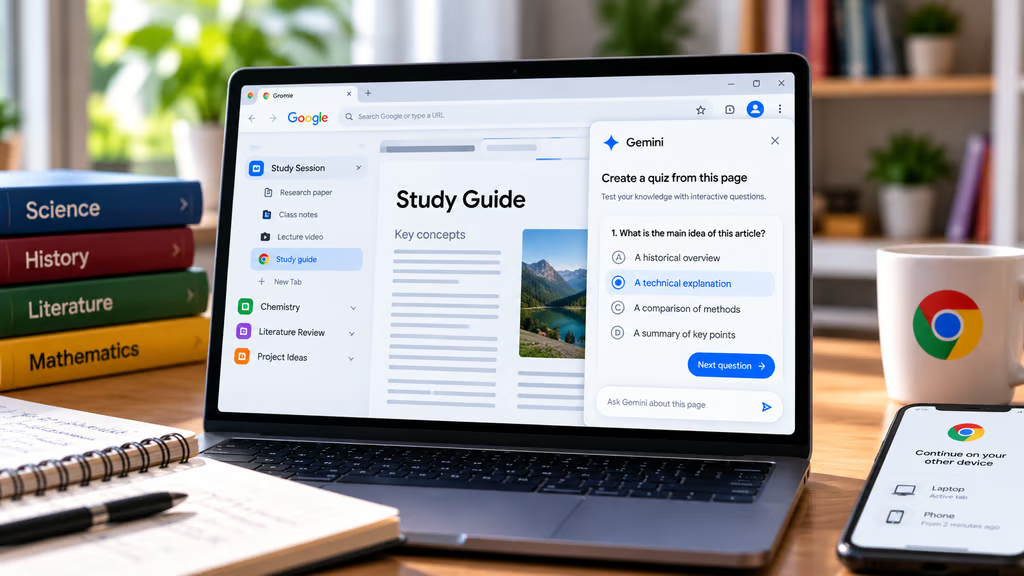
Google has outlined five Chrome features designed to help students research topics, organize coursework, and review study materials. The lineup includes Gemini-powered quizzes, media analysis, tab organization, reading tools, and the ability to resume research on another device.
The interactive quiz builder has the clearest availability restrictions. Google says it is rolling out in English on desktop in the US and India, with more regions and mobile support planned.
Other features are already available in Chrome or are being expanded. Students can use them for everyday research, although availability can vary by device, account type, and browser configuration.
- 1. Gemini in Chrome can explain videos and podcasts
- 2. Gemini can create interactive quizzes from open tabs
- 3. Tab groups and split view organize research
- 4. Reading mode and read aloud make long articles easier to follow
- 5. Chrome can resume research on another device
- Which Chrome study features are available now?
1. Gemini in Chrome can explain videos and podcasts
Gemini in Chrome can answer questions about research papers, help explain difficult concepts, and locate relevant sections of YouTube lectures.
According to Google’s Sept. 24 announcement, the company is expanding Gemini’s desktop capabilities to support more types of media, including podcasts and videos hosted outside YouTube.
After a user plays an audio or video file, Gemini can identify key takeaways, find specific information, or clarify confusing sections.
A student reviewing a recorded lecture, for example, could ask Gemini to locate the discussion of a particular exam topic rather than replaying the entire recording.
Google describes the capability as working after the media has played. It does not confirm that Gemini can analyze a live lecture or podcast as it streams.
Students should also verify Gemini’s summaries against the original material, particularly when studying technical subjects or preparing assignments.
Gemini’s integration with Chrome has expanded across platforms, including Chromebooks, although supported features and account requirements may differ.
2. Gemini can create interactive quizzes from open tabs
Gemini in Chrome can generate an interactive quiz using content from the tab a student is viewing.
Google gives examples including study notes in Google Docs, research papers, and YouTube videos.
A student preparing for a history exam could open class notes and ask Gemini to create practice questions covering the material. The resulting quiz provides another way to review concepts before an assessment.
Google previously described quiz generation in Chrome, but its September announcement introduces an interactive experience with a specific rollout.
Availability:
- Language: English
- Platform: Desktop
- Countries: US and India
- Expansion: Additional regions and mobile devices in the coming months
Google has not provided a firm expansion date.
The company also hasn’t specified whether the new interactive quizzes are available through school-managed Chrome accounts or which institutional policies may affect access.
Students should check whether the feature appears in their browser before relying on it for an assignment.
AI-generated questions can contain errors or omit important details. For graded coursework, students should compare the questions and answers with their course materials rather than treating them as authoritative.
3. Tab groups and split view organize research
Chrome offers two ways to manage research across multiple webpages: tab groups and split view.
Tab groups allow students to organize open pages by subject, course, or project. Groups can be used whether tabs appear horizontally or vertically in Chrome.
Split view keeps two webpages visible side by side within the same browser window.
For example, a student writing a literature review could keep a research paper open on one side and a draft document on the other, reducing the need to switch between separate windows.
Google says paired tabs remain linked, allowing users to return to their side-by-side workspace after switching tasks.
Chrome introduced split view alongside PDF annotation and Google Drive saving features earlier in 2026.
These tools do not require Gemini to organize tabs or display two pages together.
For students using school-managed browsers, some settings may be controlled by their institution. Users should check which features their school allows before depending on a particular setup.
4. Reading mode and read aloud make long articles easier to follow
Chrome’s immersive reading mode removes visual clutter from webpages, making it easier to focus on text.
Users can customize fonts, letter spacing, and contrast to suit their reading preferences.
These adjustments may help when reviewing lengthy articles, research papers, or other text-heavy material.
Chrome also includes read aloud, which narrates webpage content for users who prefer listening while reviewing information.
On Android, Google’s AI playback feature can turn a webpage into a podcast-style conversation.
That conversational playback capability is separate from ordinary text narration. Google’s September announcement identifies Android specifically and does not confirm the same functionality on desktop or iOS.
Students should check which reading options their devices support.
Google previously expanded Chrome’s reading mode with a cleaner full-page interface and additional tab-management options.
5. Chrome can resume research on another device
Chrome’s cross-device tab sharing can help students continue research when moving between a computer and a phone.
Google says Chrome can now preserve the exact state of a tab when it is sent to another device, including its scroll position and partially completed forms.
For example, a student halfway through a 50-page research paper could send the tab from a laptop to a phone and resume reading at the same point during a commute.
That eliminates the need to search through the document again to find the previous stopping point.
Google’s announcement does not specify every account, sign-in, or device requirement for preserving that information.
Students using institutional devices should confirm that cross-device sharing is permitted and functions as expected with their managed accounts.
Which Chrome study features are available now?
Most of Google’s featured study tools build on capabilities Chrome already offers. Tab groups, split view, reading mode, and read aloud are established browser features, while Gemini’s media capabilities and cross-device continuity are expanding.
The new interactive quiz experience has the most explicit restrictions: English-language desktop access in the US and India.
Google plans to expand it, but students outside those markets should not assume they can use the feature yet.
For schools, universities, and IT administrators, availability is only one consideration. Managed Chrome accounts may have different settings, and Google’s announcement does not provide detailed institutional eligibility or data-handling rules for every feature.
Before recommending Gemini-generated quizzes or media analysis for coursework, educators should confirm their institution’s AI policies and whether student accounts support the relevant features.
Students can begin with the tools already available in their browsers, including tab organization and reading mode, while checking Gemini eligibility separately.
Also read: Google’s Gemini integration in Chrome has also expanded to iPhone and iPad, bringing browser-based AI features to more devices.