


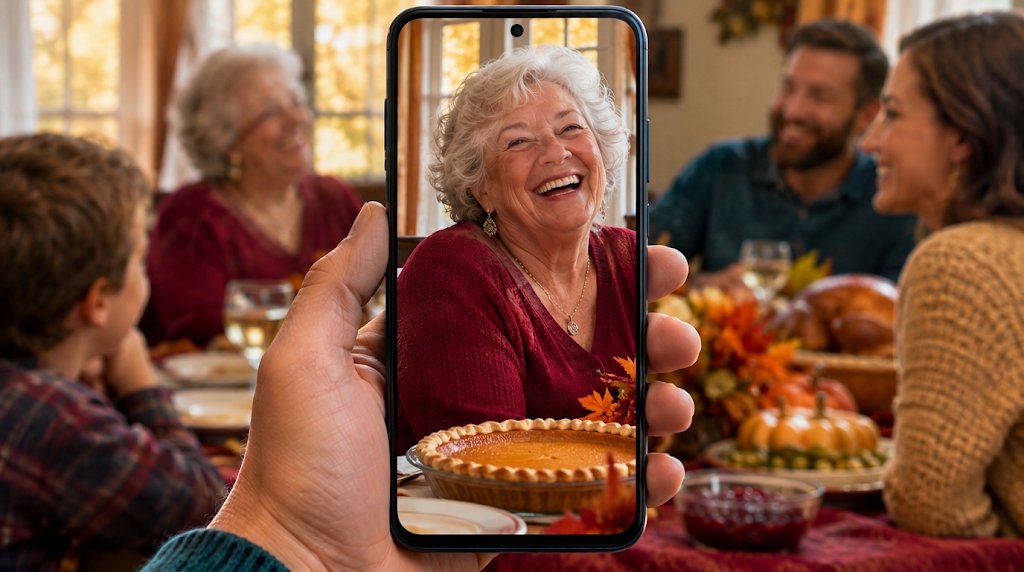
Someone took the perfect photo of Grandma at dinner. The trouble is finding it among the other 200 pictures in the family album.
On Nov. 23, Google highlighted recent Google Photos updates that can make the job easier. The app can filter a shared album by people or pets, and Google has added 12 Remix templates, including styles for scrapbook-like holiday cards and pastel illustrations.
The useful part is how those tools fit together. On Android, you can narrow down a shared album, save one picture, and turn it into a card without sending everyone a link to the entire album. Here’s how to do it, even if the AI option isn’t available on your account.
Find the right photo without scrolling through the whole album
Open Google Photos on Android and go to Collections > Albums.
If someone else shared the album with you, look under Shared with me. Once you open it, look for a row of faces at the top. Tap a face to narrow the album to shots of that person or pet. If you’re looking for a group picture you remember and it doesn’t turn up, go back to the unfiltered album and look near the other pictures from the same moment. Filtering changes what you see, not who can access the album.
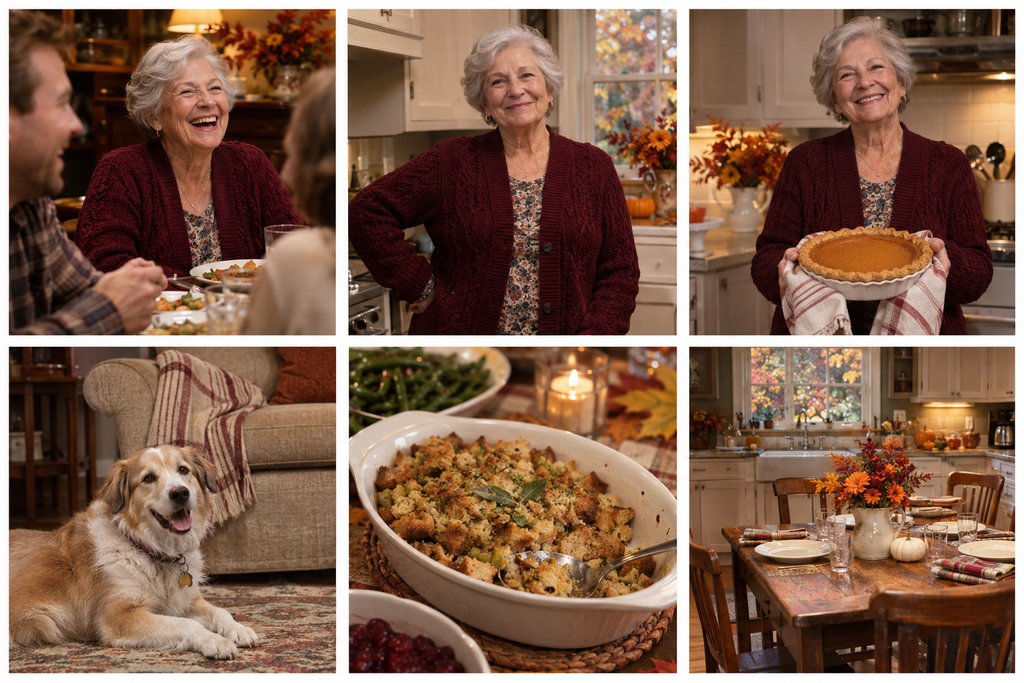
The top row isolates three pictures of one person from a larger family album. Image: AI-generated illustration for TechRepublic, not a Google Photos screenshot.
Pick the picture you want. If someone else added it, save that item to your library before moving on. Google’s sharing guide says this makes a copy, so edits to the original won’t carry through to your version. The copy generally counts toward your storage quota. If space is tight, save the chosen picture rather than the whole album, and check how your cloud storage allowance is shared.
If there’s no row of faces, use the unfiltered album and check that you’re signed in to the account that received the invitation. On a Galaxy phone, be careful about clearing space first: deleting a synced picture from Samsung Gallery can also remove it from Google Photos.
If the card is about Grandma, start with a picture where her face is easy to see on a phone screen. If the whole table is the point, keep the group shot wide enough that you won’t have to crop anyone out.
Turn one photo into a holiday card
In Google Photos, open Create > Photo remix or select a featured template under Remix your photos.
Choose a holiday style if it’s available. Pick a template without a Gemini badge when you want to start from one specific picture: it asks you to select a reference photo. Choose the picture you saved and tap Generate. Check the result before saving or sending it. An AI illustration can change a face or a detail you wanted to keep. If you’re happy with the result, tap Save.
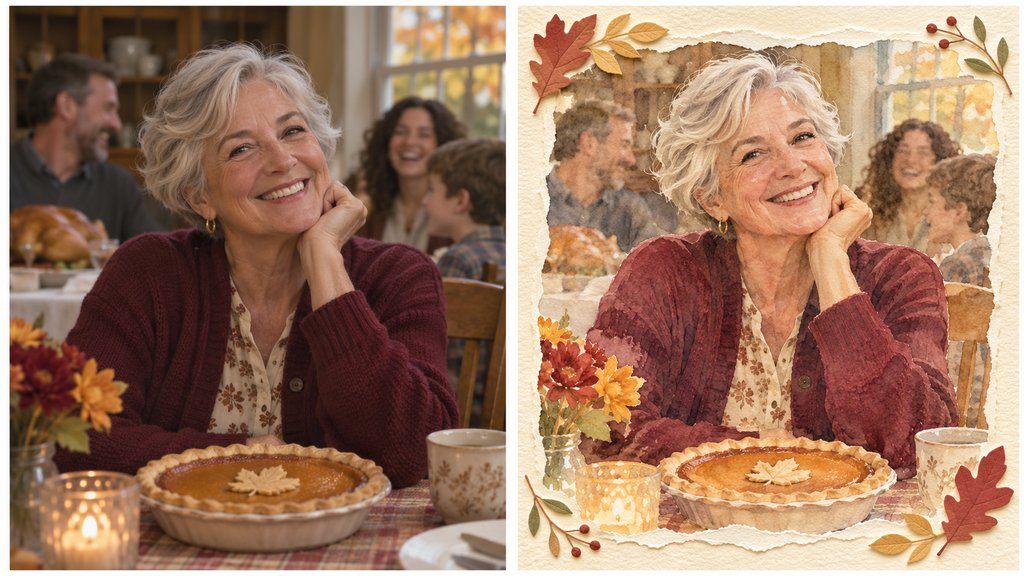
A family snapshot (left) and a scrapbook-style holiday card inspired by it (right). Image: AI-generated illustration for TechRepublic, not Google Photos Remix output.
There are two sets of requirements to look for:
- Photo remix: Google’s Android instructions say you need a personal Google Account, must be at least 18, and must use a backed-up photo. The app also needs a network connection, and availability varies by region. A separate Android-to-Windows photo backup doesn’t replace the Google Photos backup that Remix requires.
- Templates with a badge: These are personalized and require additional Gemini eligibility in Photos. You need to be in a supported location, turn on Face Groups, select your own face group, and enable location estimates. Some badged templates start generating without asking you to pick a photo. If Photo remix doesn’t appear, use Create > Collage with your original photos and skip the AI step.
If the picture doesn’t appear in the Remix picker, check its backup status: open the photo, tap More > About, and look under Details for Backed up. A photo can be visible on your phone without being backed up to the Google Account you’re using. If you don’t want to upload it, you can still send the original.
Share the card, not the entire album
Say your cousins want to keep adding pictures from dinner, but you only want to send the finished card to a neighbor. Keep the family album open to the cousins. For the neighbor, start from the saved card, not the album’s Share button.
- To send the card inside Google Photos: Open the saved image, tap Share, and choose the people you want under Send in Photos. This shares the item you selected instead of inviting those contacts into the album.
- To send the card without a Google Photos link: Download the finished image using More > Download if it isn’t already on your phone. Then open your messaging app and attach the image from its photo picker. Check that the message preview shows the card itself, not a URL.
- To keep collecting photos from the group: Share the album with the people contributing. In the album’s sharing controls, switch off Collaborate when you’re ready to stop new additions. That doesn’t make the album private. If an old album link has been forwarded, the owner can turn off Link sharing to disable the old link. People who already have album access can still add others. If you want someone to see only the card, send the image file instead.
Treat an album link like something that can be forwarded beyond the family chat. Sending the card as a file doesn’t stop someone from forwarding it, but it keeps the rest of the album out of that exchange.
Before you send the card
A good-looking preview is only half the check. Open the saved card at normal size on your phone and compare it with the original. You’re checking what the edit changed, what the picture reveals, and what a recipient can actually open.
- Check the edit against the original. If Remix softened the background, that may be fine. If it changed someone’s expression or left a person out of the group, try a different template or send the original instead.
- Check what travels with the image. Look for addresses, name tags, or paperwork in the frame. If you’re sending the original outside Photos, Google says camera-saved location data can go with it, even if you changed the location in Photos. Check the file you’ll send or choose a different picture.
- Test with someone outside the album. Ask whether they can see just the card and whether they had to sign in. Testing from your own account won’t tell you what an outsider sees. If they land in the whole album, resend the saved image instead of the link.
Keep the original in your library and use the illustrated version for the greeting. Next year, when someone asks for that photo of Grandma, you’ll still have the picture you wanted to keep.
Related reading: If you’d rather keep your family photo library on hardware you control, see how Immich compares with Google Photos.