
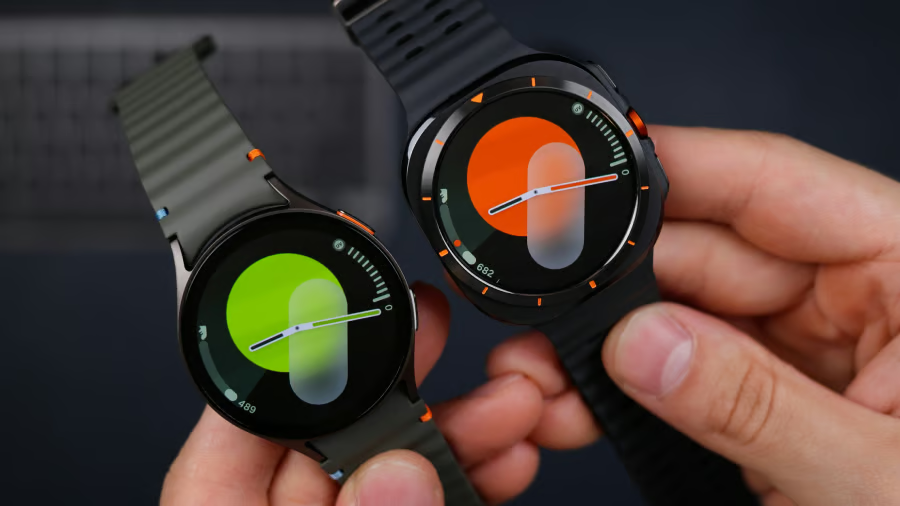


Getting glucose data onto a Samsung Galaxy Watch can be done in a few ways. Some setups lean on an official CGM app. Others use Wear OS display tools or companion apps that pull readings from a connected service.
A good wrist setup helps when the number is easy to see during the day. You can check your glucose, notice the direction it is moving, or catch an alert without digging for your phone.
I built this guide for people who want a clearer way to compare the options. It explains which apps and tools can display blood sugar data on the watch, how each one gets that data there, and which option best fits different daily needs.
Dexcom: Best official watch-face route for G6 users
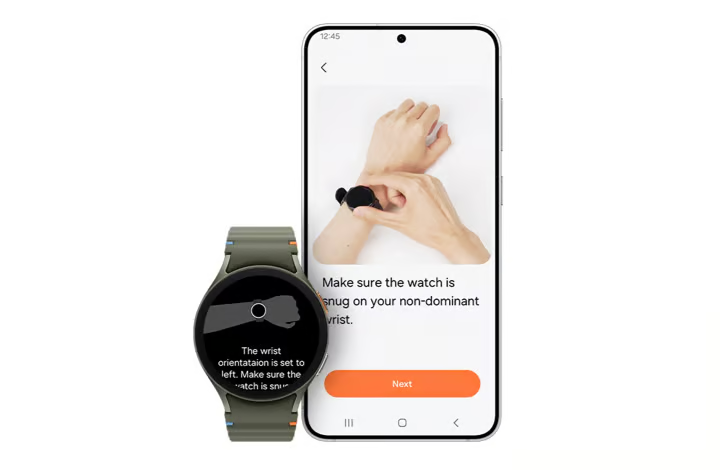
Dexcom is the official CGM anchor for many Samsung Watch users. If you already use Dexcom, your watch can become a quicker place to check readings during the day.
Dexcom G6 has an official Android watch face for Wear OS. Dexcom G7 and Stelo users may still get phone alerts or use third-party display tools, but they do not get the same official Samsung Watch face
How Dexcom works on Samsung Watch
Dexcom’s Android Wear support can show glucose readings, a trend arrow, and a trend graph on the watch. The graph can be scrolled across 1, 3, or 6 hours of CGM data, which helps when you want to see more than the latest number.
The Galaxy Watch does not communicate directly with the Dexcom G6 transmitter. It retrieves current CGM data from a compatible Android phone, so the phone must stay nearby and within the transmitter’s 6-meter range. Leave the phone at home, and glucose updates will not reach the watch. Dexcom also says there may be a brief delay before the watch face shows current glucose levels.
Before you choose Dexcom
G6 users need the Dexcom G6 Android app version 1.11.0 or later and an Android smartwatch running Wear OS 2.0 or 3.0 and above.
Setup happens through the watch’s Play Store: search for Dexcom G6, install the app, then set the Dexcom watch face. Readings must already be showing in the Dexcom G6 Android app before they appear on the watch.
Gluroo: Best for shared glucose viewing
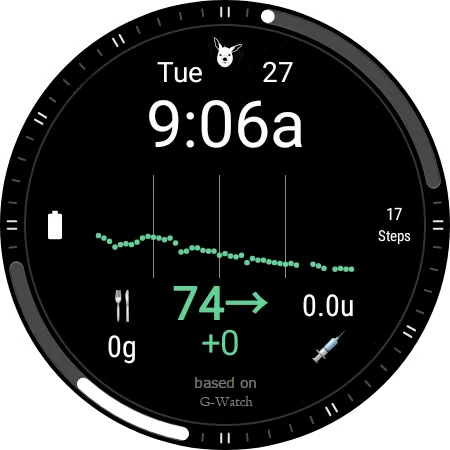
Gluroo is for parents, partners, and caregivers who want glucose data visible across more than one device. They can follow blood glucose, carbs on board, and insulin on board from a Wear OS watch, which makes the app feel more personal than a basic watch display.
According to Gluroo, users need the phone app plus two watch apps: the Gluroo Wear OS app and the separate Gluroo CGM Watchface app.
How Gluroo works on Samsung Watch
Setup starts on the Android phone. Install Gluroo, connect a supported CGM data source in the CGM tab, and make sure readings appear in the phone app before moving to the watch.
On the watch, install Gluroo from Google Play, add the Gluroo CGM Watchface app, and choose the Gluroo watch face. The app can also provide complications for other compatible watch faces, though not every face supports them. The company points to options such as Big Info and Analog Dashboard as faces worth trying.
Before you choose Gluroo
Gluroo is meant for Wear OS models, not older Galaxy Watches running another smartwatch operating system. Its listed Wear OS models include Galaxy Watch 5 and 5 Pro, and Galaxy Watch 6 and 6 Pro, though support can change as Wear OS and the Gluroo watch app are updated.
Choose Gluroo if wrist readings are only part of what you need. It fits daily routines where shared access, caregiver visibility, and diabetes data all belong in the same setup.
What's hot at TechRepublic
- Blackpoint Cyber vs. Arctic Wolf: Which MDR Solution is Right for You?
- Why AWS Sellers Choose Deepgram Over Other Voice AI Tools
- SS&C Intralinks DealCentre AI vs. Datasite: Which platform is built for the future of dealmaking?
- SS&C Intralinks FundCentre AI vs. Juniper Square: Which platform better supports modern private markets fund managers?
- Verito vs. Rightworks: Which IT Provider Is Best for Your Firm?
xDrip+: Best CGM data tool for advanced Android users
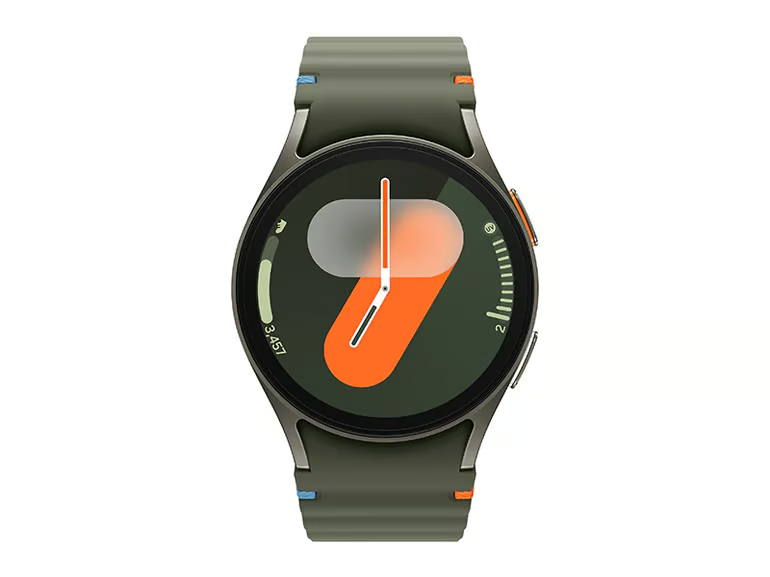
xDrip+ gives Android users more control over how glucose data appears on their phone and watch. It can work with multiple CGM data sources and send readings to Wear OS for wrist-viewing, alerts, and custom displays.
Instead of a simple app store setup, xDrip+ feels more like a toolkit for people who like tuning their devices. Its loyal Android community comes from that flexibility.
How xDrip+ works on Samsung Watch
xDrip+ usually runs from the Android phone, while Samsung Watch acts as the wrist display. Depending on the setup, the smartwatch can show glucose values through compatible faces, complications, or other display methods.
Before you choose xDrip+
xDrip+ is more hands-on compared to Dexcom and Gluroo. For newer Galaxy Watches, including Galaxy Watch 5, 6, and 7, the more stable route may be GlucoDataHandler.
Users install xDrip+ on the Android phone, install GlucoDataHandler on both the phone and the watch, enable local broadcast data, and then use a compatible watch face to display the glucose value.
Wear OS version matters. Wear OS 4 Samsung watches are generally more likely to work smoothly, while Wear OS 5 models may need GlucoDataHandler, Wear Installer 2, sideloading, or another workaround. Standalone watch-only use without a phone relay is not the usual xDrip+ setup.
Glucose checks on Samsung Watch depend on the setup
A Samsung Watch can make blood sugar data easier to catch during the day, but the CGM still does the measuring. Dexcom provides G6 users with an official watch face path, Gluroo works well for shared viewing, and xDrip+ offers advanced Android users more control.
Samsung’s future glucose work may eventually change what its watches can do on their own. For now, wrist readings still depend on a separate CGM and a compatible app or display tool. Before relying on any setup, check device support, alert behavior, data delays, and your healthcare provider’s guidance.
Read our breakdown of the top Apple Watch CGM apps for checking blood sugar data throughout the day.