


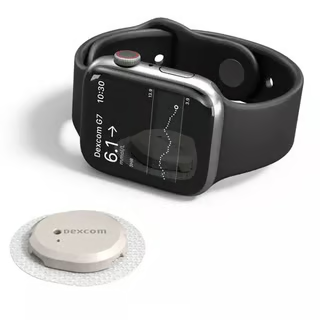
The Apple Watch can make glucose checks quicker, but it does not measure blood sugar on its own. Real wrist readings require a continuous glucose monitor, or CGM, plus an app that sends those readings to your devices.
Once connected, the watch gives you a wrist-based way to track glucose levels and receive alerts. App support is important because some CGM systems use the watch as a companion display, while others send readings more directly after setup.
I put this list together for Apple Watch users comparing CGM apps because watch support can get confusing fast. I broke down what each option actually does on the wrist, what still happens on the iPhone, and what to know before you rely on it.
Dexcom G7: Best for phone-free Apple Watch glucose readings
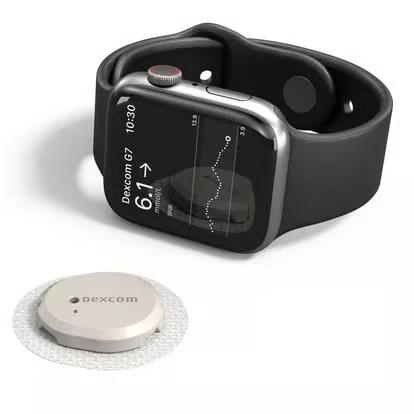
Dexcom G7 gives Apple Watch users the most independent watch experience among these CGM apps. After setup, the G7 sensor sends readings directly to a compatible Apple Watch over Bluetooth, so your glucose reading stays visible even when your iPhone is not close.
Short stretches away from your phone are where that setup helps most.
How Dexcom G7 works on Apple Watch
Apple Watch can show the current glucose reading, trend direction, and alerts from Dexcom G7. The trend arrow adds context by showing whether glucose is rising or falling.
Direct to Apple Watch uses a sensor-to-watch Bluetooth connection after setup. Dexcom says a cellular Apple Watch plan is not required for that link.
Before you choose Dexcom G7
Setup still starts on a compatible iPhone. You use the app to pair a new sensor and manage settings before readings move to the watch on their own.
According to Dexcom, Direct to Apple Watch requires:
- Apple Watch Series 6 or later
- watchOS 10 or later
- iPhone running iOS 17 or later
- Dexcom G7 app version 2.1 or later
Watch alerts also depend on notification settings, including the option to mirror iPhone alerts from the G7 phone app.
Libre by Abbott: Best for FreeStyle Libre users
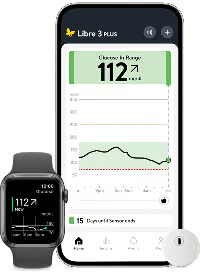
People who already use FreeStyle Libre sensors can use Apple Watch as a wrist display for glucose data. Watch support lets users check readings without opening the phone app every time.
How Libre works on Apple Watch
The Libre watch app shows your current glucose value, a trend graph, and notifications from the phone app. Widgets and complications can also keep glucose information visible on the watch face.
Tapping a complication opens the watch app when you want a closer look at your readings.
Food review happens back on the iPhone. Abbott provides Libre Assist as a phone-app feature for reviewing meals alongside glucose patterns, while Apple Watch remains focused on readings and notifications.
Before you choose Libre by Abbott
Libre watch support depends on the iPhone staying close enough to connect the sensor and Apple Watch. Watch notifications come from the phone app.
The app works with FreeStyle Libre 2, Libre 2 Plus, Libre 3, and Libre 3 Plus systems. It requires Apple Watch Series 4 or later running watchOS 10 or higher.
Existing Libre users may need to update the Apple Watch app before wrist features appear.
Abbott advises using the watch app to view glucose information, not to make dosing or treatment decisions.
Must-read Apple coverage
- iOS 27 AI Shortcuts: What Changed and 5 Useful Things to Try
- iPhone Duo Camera Tricks: Smart Take, Kid Cue, Duo Preview, and More
- macOS 27 Cheat Sheet: Compatible Macs, Siri AI, Features and What Changed
- Common Mistakes When Using One Apple Account on Multiple iPhones
- 9 Hidden macOS Features That Feel Like Productivity Hacks
Eversense: Best for long sensor wear and on-body vibration alerts
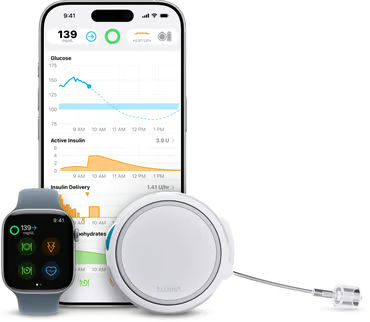
Unlike Dexcom G7 and Libre, Eversense uses a small sensor inserted under the skin, with a removable smart transmitter worn over it.
Eversense E3 lasts 90 days, while Eversense 365 lasts one year.
How Eversense works on Apple Watch
Glucose data and alerts from the Eversense app can appear on Apple Watch. Watch use depends more on the iPhone than Dexcom G7’s Direct to Apple Watch setup, but readings still appear on your wrist.
The transmitter is rechargeable and can vibrate on the body to alert to high and low glucose levels. Physical alerts help during sleep, exercise, work, or any moment when you are not looking at your wrist.
Before you choose Eversense
Setup takes more work than a patch-style CGM. Eversense instructs users to have a healthcare provider insert and remove the sensor, while the user wears the transmitter over it with a daily adhesive patch.
Calibration is part of the system. Eversense E3 requires more fingerstick calibration than Eversense 365 after the early setup period.
Apple Watch support adds wrist viewing, but the implanted sensor and wearable transmitter carry the decision. This option suits users who are comfortable with provider insertion and want fewer sensor changes.
The right CGM makes Apple Watch more useful
Apple Watch features can help narrow your choice, but they should not be the only factor. Check compatibility, sensor availability, insurance coverage, and your healthcare provider’s guidance before relying on any setup.
If you want the most phone-free Apple Watch experience, Dexcom G7 is the strongest fit. If you already use FreeStyle Libre sensors and mainly want readings on your watch face, start with Libre by Abbott. If you want longer sensor wear and physical alerts you are less likely to miss, Eversense is the better match.
The best choice is the one that fits your daily routine, not just the one with the most features.
Learn more about Apple Watch’s role in diabetes management, including the features that help and the limits users should know.