


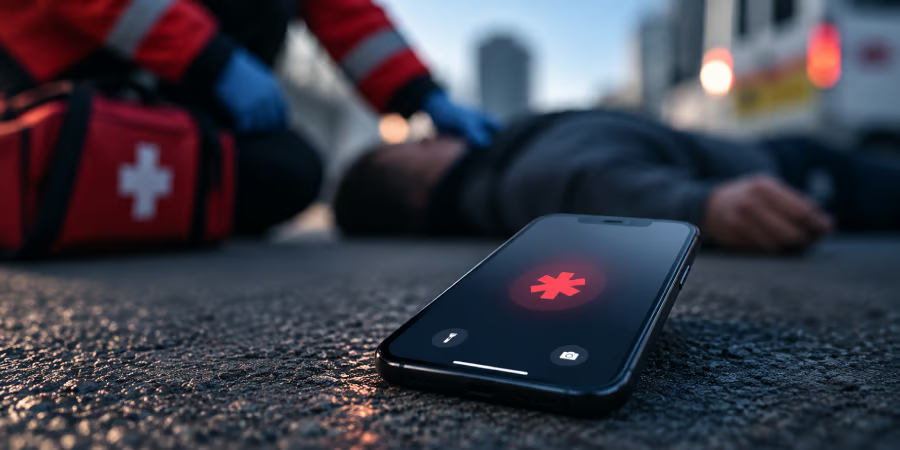
Your phone may already have a feature designed to help others assist you in an emergency — but it is only useful if you set it up first.
iPhones and many Android phones can display selected emergency contacts and medical information from the lock screen, allowing someone to access potentially important details without knowing your passcode.
That can matter when you cannot unlock the phone yourself. A few minutes of setup can give a first responder or bystander a way to identify an emergency contact, see relevant medical information or call for help.
What you should know before setting up an emergency contact
- Tell your emergency contact first: Always let the person you are adding to your emergency contacts know you are adding them. That way, they can adjust their phone and daily habits accordingly.
- Only share information that is useful in an emergency: Lock-screen information may be visible to anyone holding your phone. Include relevant details such as allergies, medications or medical conditions, but leave out passwords, PINs, banking information, identification numbers and other unrelated private data.
- Keep your information up to date: Review your emergency contacts and medical information whenever anything changes. An old phone number, medication, allergy, or medical condition could leave responders with incorrect information.
Here’s how to set up emergency info on Android
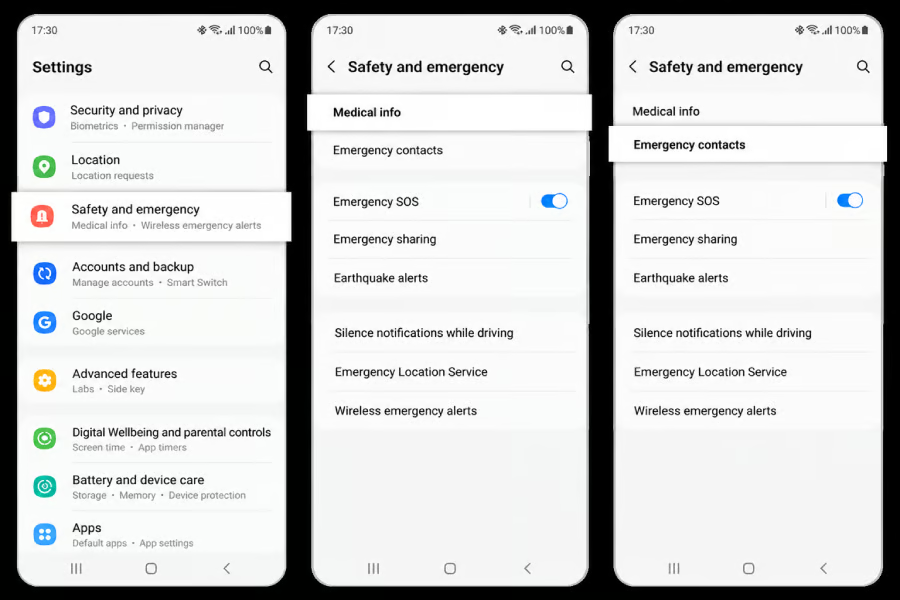
Setting up emergency information on Android can be tricky because manufacturers are free to change how these features work. The steps that work on a Samsung Galaxy, for example, may not work on a Google Pixel, and even two phones from the same manufacturer can use different menus depending on their Android versions.
Luckily, you don’t have to memorize every manufacturer’s instructions. The easiest way to find the relevant setting is to use the search function inside the Settings app.
Search for terms such as “emergency contact,” “emergency information,” “Personal Safety,” or “SOS.” Settings should surface the relevant option directly.
From there, add the information your phone supports, including your name, emergency contacts, medical conditions, allergies, medications, and blood type.
Some Android phones also support custom lock-screen messages. These can be useful for simple information such as an alternate contact number, but avoid putting sensitive personal details there.
You can usually find this feature inside the Lock screen settings or Lock screen Messages settings. If your device supports it and you find it, you can leave a custom message that helps when you lose consciousness or lose your phone.
Just make the message short — because character limits are often very strict — and useful.
Here’s how to set up emergency info on an iPhone
iPhone users have a more consistent setup because Apple controls both the hardware and software, so the steps are largely the same.
Apple stores this information in the Health app under Medical ID. Once configured, the information can be made available from the Lock Screen without requiring the iPhone’s passcode.
- Open the Health app.
- Tap your profile picture in the top-right corner.
- Tap Medical ID.
- Add relevant details such as medical conditions, allergies, medications, and blood type, along with any other information you think emergency responders may need.
- Scroll down to Emergency Contacts and tap Add Emergency Contact.
- Choose someone from your contacts, then select their relationship to you.
- Turn on Show When Locked. This allows someone to access your Medical ID from the Lock Screen without knowing your passcode. Without this setting enabled, someone who finds your locked iPhone may not be able to see the Medical ID information you entered.
- Tap Done to save everything.
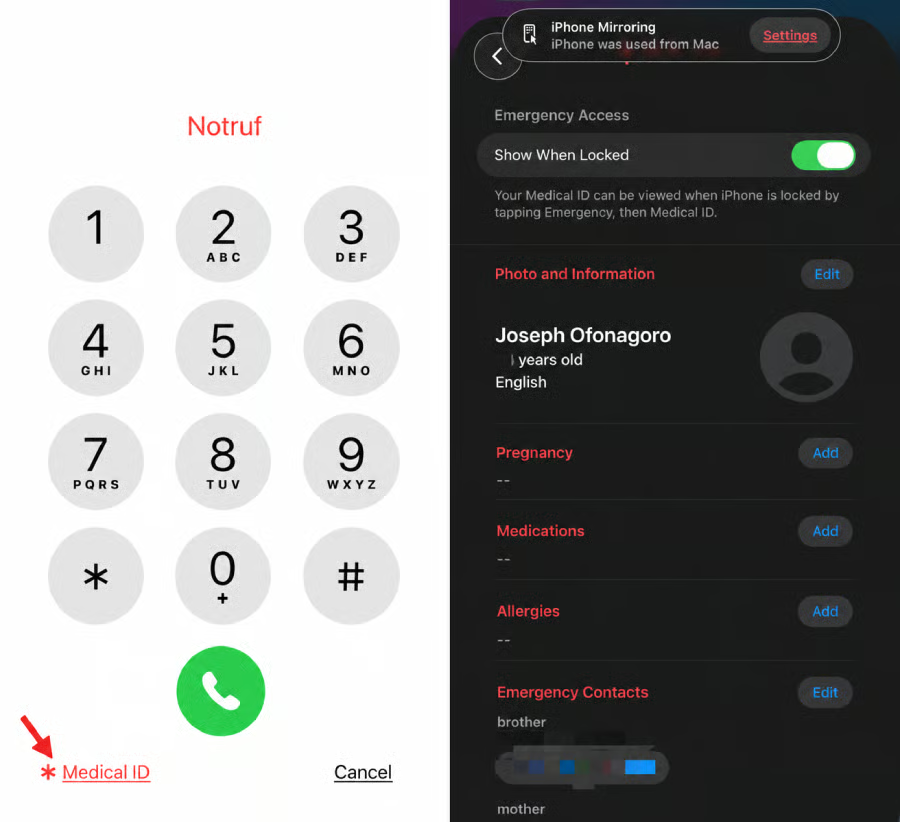
Once you’ve finished, lock your iPhone and check the emergency interface from your passcode screen. You should be able to access the Medical ID without unlocking the phone, which also lets you confirm exactly what information you have made visible.
Mobility must-reads
- Big Apple OS Makeover: Here’s What to Expect & When
- MWC 2025: Nothing Shows Off (3A) Phones With AI Organization Tool
- Bad News for App Developers: Most Apps Fail to Hit $1,000 Monthly Revenue Within Two Years
- Mobile Device Computing Policy
How to set up Emergency SOS calling on your iPhone
Medical ID helps others find your emergency information. Emergency SOS serves a different purpose: it lets you quickly call emergency services and can notify the emergency contacts you have already configured.
Depending on your settings, the iPhone can also share your current location with those contacts after the emergency call.
- Open Settings.
- Tap Emergency SOS.
- Make sure Call with Hold and Release is turned on. With this enabled, pressing and holding the side button and either volume button starts the Emergency SOS countdown.
- You can also enable Call with 5 Presses. Once enabled, rapidly pressing the side button five times starts the SOS countdown.
- Set up your emergency contacts using the guide above for iPhones.
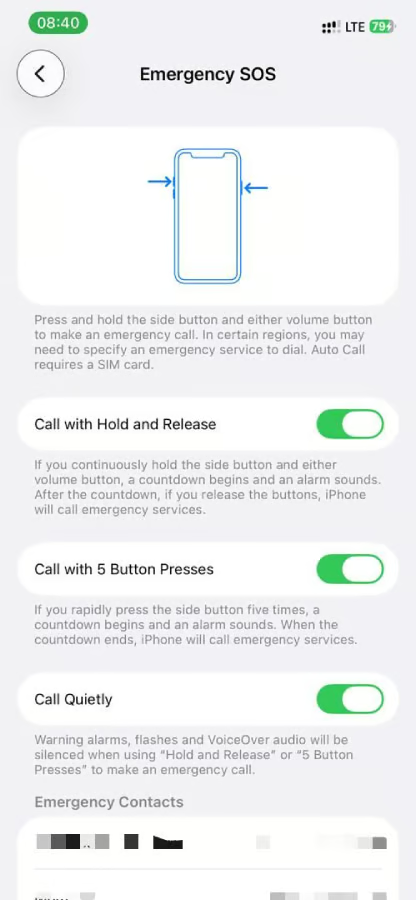
When you need help, press and hold the side button and either volume button until the Emergency SOS countdown finishes. Your iPhone will then call the emergency services number for your region.
You may never need it — until you suddenly do
Nobody expects to become the person who needs emergency help, which is exactly why these settings are so easy to ignore. But if it happens, the information you entered beforehand could give a stranger or first responder a way to identify you, contact someone you trust, or understand an important medical condition.
The setup takes only a few minutes, and once it is done, you don’t have to think about it again until it needs an update.
Your phone already goes everywhere with you, so taking a few minutes to set up its emergency features is a small step you may never need — but could be very glad you took.
Other News: Google is rolling out AI-powered Battery usage summaries to Pixel 10 and Pixel 11 devices, giving users plain-English explanations of what may be causing unusual battery drain.