


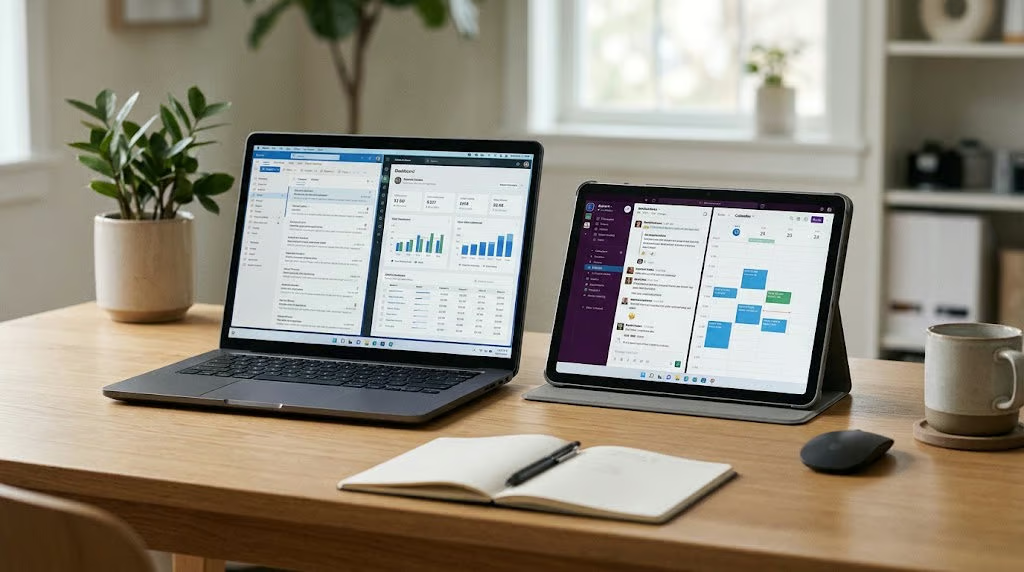
Running out of screen space? The tablet on your desk might be the extra display you need. With the right setup, it can keep documents, messages, and applications visible without another hardware purchase.
An October 28 guide from SamMobile details how Samsung’s Second Screen feature turns compatible Galaxy tablets into additional Windows displays, including through an experimental USB connection. Apple’s Sidecar offers a similar option for Mac and iPad owners, making existing tablets worth testing before buying a monitor.
Both options can be useful for remote work and travel, although compatibility, connection quality, and screen size can limit the experience. Not every tablet can serve as an external display.
Turn a tablet into an extra display
Samsung’s Second Screen feature can extend or mirror a Windows desktop. Extending adds workspace for separate applications, while mirroring duplicates the computer’s display.
The October 28 Second Screen guide identifies supported Galaxy Tab S7 and newer S-series models, selected FE and Lite variants, certain Tab Active devices, and the Galaxy Tab A11+. A Samsung laptop isn’t required.
Newer tablets offer productivity features beyond screen sharing. TechRepublic’s Galaxy Tab S12 Ultra cheat sheet details its AMOLED display, S Pen, and Samsung DeX capabilities.
Samsung’s support documentation lists One UI 3.1 or later for certain older supported tablets, while SamMobile’s updated guide specifies One UI 5.1.1 or later. Users should verify requirements for their model. Wireless connections also require a compatible Windows PC with Miracast support.
To connect wirelessly:
- Enable Wi-Fi on both devices and open Quick Settings on the tablet.
- Tap Second screen, then press Windows + K on the PC.
- Select the tablet and accept any connection prompts.
- Press Windows + P, choose Extend, and arrange the displays under Settings > System > Display.
Samsung also offers experimental USB connectivity through its Second Screen PC app. It requires One UI 7.0 or later, Windows 11 version 24H2 or later, and a data-capable USB cable. Users must enable the option in the app’s Labs settings. Depending on the device, they may also need to select USB file transfer or install a Windows USB driver.
Users should check Windows versions and wireless display support before deploying this setup. The Windows 11 26H2 versus 25H2 comparison covers broader upgrade considerations.
Mac owners can use Apple’s Sidecar feature to extend or mirror a desktop on a compatible iPad over Wi-Fi or USB. Both devices must share an Apple Account with two-factor authentication enabled.
On the Mac, open System Settings > Displays and select the iPad. macOS 27 and iPadOS 27 also expand direct touch interaction with Mac windows and menus. The macOS 27 cheat sheet details compatible Macs and other changes.
The trade-offs of skipping a monitor
A tablet can keep meeting notes or messages visible without crowding the main display, particularly when working away from a permanent desk. Wireless connections, however, may introduce lag.
In SamMobile’s Galaxy Tab S12+ and S12 Ultra testing, some higher-resolution configurations were limited to 30Hz instead of 60Hz. Results may differ across devices.
Smaller screens make detailed spreadsheets harder to navigate, while wireless sessions consume battery power. A dedicated monitor remains preferable for permanent workstations or tasks requiring more screen space and consistent responsiveness.
Before purchasing one, test your tablet during a normal workday. You’ll quickly discover whether it meets your needs or a dedicated display is worth the investment.
Read more: For a purpose-built alternative, compare the best portable monitors for work and travel, including options for different budgets and display needs.