


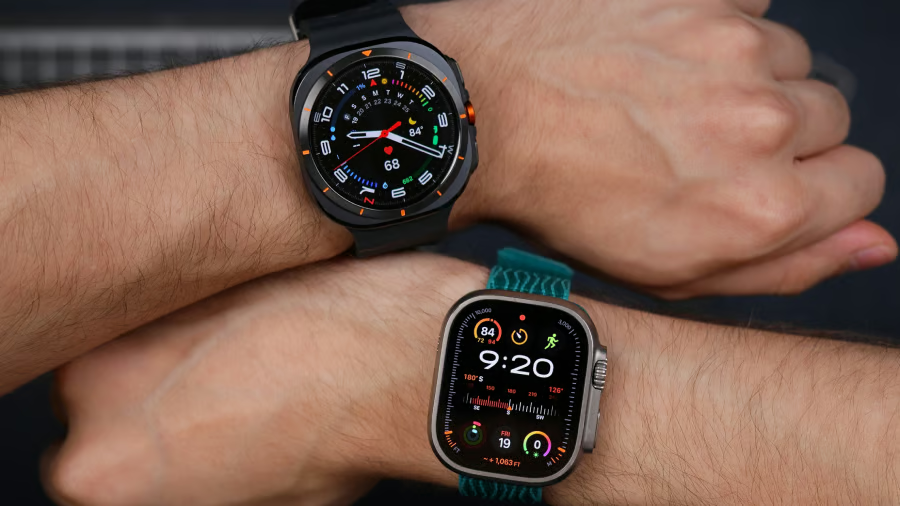
Smartwatch settings can make a glucose alert feel wrong even when the reading itself is not.
The latest number may already be in your glucose app, but the watch can still change how useful that information feels. It may send the alert to your phone, stay quiet overnight, show older health data from the platform, or keep the reading off the watch face or workout screen you check most.
I looked at the settings of the Apple Watch, Samsung Galaxy Watch, Pixel Watch, Huawei Watch, and Garmin to see which ones are most likely to change how blood sugar information appears in daily use.
Important caveat: Smartwatches generally do not measure blood sugar directly. In most cases, they display or relay glucose data from a compatible continuous glucose monitor or glucose app. The FDA has warned against using smartwatches or rings that claim to measure blood glucose without piercing the skin, but that warning does not apply to smartwatch apps connected to authorized CGM systems.
Apple Watch
The glucose experience on your Apple Watch can depend on where the reading comes from, whether the watch face shows it, and how iPhone-to-watch notification routing behaves.
Apple says notifications appear on either the Apple Watch or the iPhone, not both: an unlocked iPhone receives the alert, while the Apple Watch gets it when the phone is locked or asleep, unless the watch itself is locked.
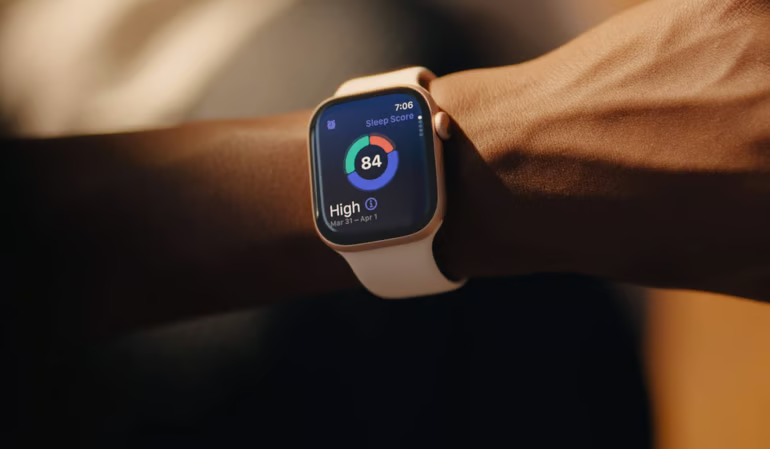
Apple Watch settings that can affect glucose alerts and visibility
| Apple Health sharing permissions | If glucose data is shared with Apple Health, it may appear in the health history. For the latest number, the glucose app or watch display may still be the better place to check. |
| Watch face complications or widgets | A glucose number may be available in the app but still hard to spot if it is not placed on the watch face, complication area, or widget view you use for quick checks. |
| Notification routing | An unlocked iPhone can receive the glucose alert instead of the Apple Watch. The alert was delivered, just not to your wrist. |
| App notification settings | Apple lets users allow notifications, send them to Notification Center, or turn them off for supported apps. If the glucose app is not allowed to notify Apple Watch, the reading may stay in the app or appear only on the phone. |
| Low Power Mode | When the iPhone is not nearby, Low Power Mode can turn off Wi-Fi and cellular, retrieve missed notifications once an hour, and update complications less often. That can make a wrist reading feel less up-to-date. |
In daily use
Your iPhone may be unlocked on your desk while the Apple Watch is on your wrist. A glucose alert can appear on the phone instead of the watch, making the wrist look like it missed something even though the notification reached another Apple device.
Samsung Galaxy Watch
Galaxy Watch can make glucose information more useful when alerts appear alongside meal, sleep, and activity context. The key checks are whether the alert reaches the watch, whether the reading is easy to see, and whether Samsung Health adds clues around what may have affected the number.
Samsung lets Galaxy Watch users choose which phone notifications appear on Wear OS watch models and turn app notifications on or off individually.
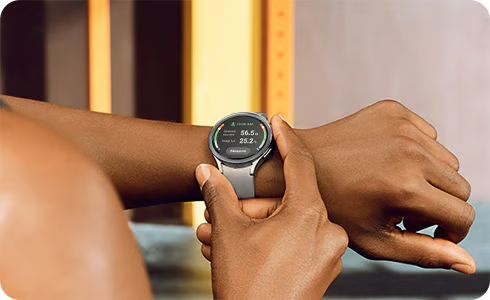
Samsung Galaxy Watch settings that add context or change visibility
| Galaxy Wearable notification access | The glucose app needs to be allowed in watch notifications; otherwise, the phone may receive the alert while the Galaxy Watch stays quiet. |
| Tiles and watch face placement | A glucose app or related health view can be harder to find if it is buried in an app rather than placed on a tile, complication, or watch face. |
| Samsung Health food logs | Where available, meal logs can help explain why a glucose number rose after eating or stayed elevated. Samsung Health can track diet-related information, but availability and watch/app behavior may vary by device, region, and software version. |
| AGEs index | On supported Galaxy Watch models, the AGEs index provides metabolic health context tied to diet and lifestyle habits. It should not be treated as a live glucose reading. |
| Sleep and Energy Score | Sleep and readiness data can help explain glucose patterns around poor rest or recovery. Energy Score uses activity and sleep data, and Samsung notes that it needs at least the previous day’s activity, sleep, and heart rate data during sleep. |
In daily use
At night, Bedtime mode may keep your Galaxy Watch quiet while your phone still receives a high or low alert. The next morning, Samsung Health food and sleep data can help you connect a change in glucose to a late meal or poor rest, but that context does not replace the wrist alert itself.
Pixel Watch
Pixel Watch is most useful when the glucose alert, Android’s health-data layer, and Fitbit-style context work together. Its Health Connect permissions, watch filters, connection, and recovery metrics help make sense of the glucose reading.
Google’s Pixel Watch settings include filters such as Mute notifications from phone and Hide silent notifications, and alerts also depend on Bluetooth, Wi-Fi, or LTE connection.
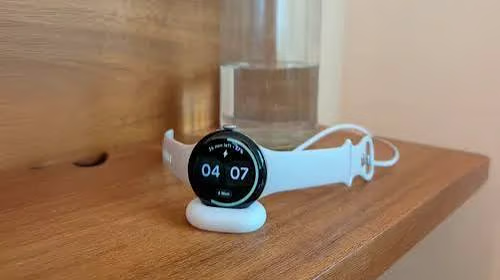
Pixel Watch settings that affect glucose access, context, and alerts
| Health Connect permissions | These permissions can affect whether glucose-related data and nearby context, such as sleep, steps, and heart rate, can move between supported Android health apps. |
| Health Connect delay | Data viewed through Health Connect may not be as up to date as a live glucose app. Dexcom says glucose data shared to Google Health Connect appears on a three-hour delay. |
| Fitbit readiness and recovery data | Readiness uses sleep, resting heart rate, and heart-rate variability. These signals can help explain patterns after poor sleep or hard training. |
| Cardio load and activity context | Exercise can affect glucose. Cardio load can help indicate whether a recent workout may have contributed to a rise, a drop, or a delayed recovery pattern. |
| Mute notifications from phone and Hide silent notifications | These filters can keep a glucose alert on the phone or hidden from the watch, making the wrist display feel behind. |
In daily use
After a hard workout, a glucose reading can look different when viewed beside cardio load, sleep, or readiness. The number may be accurate on its own, but Pixel Watch can help show whether exercise, poor rest, or recovery strain may have played a role.
What's hot at TechRepublic
- Blackpoint Cyber vs. Arctic Wolf: Which MDR Solution is Right for You?
- Why AWS Sellers Choose Deepgram Over Other Voice AI Tools
- SS&C Intralinks DealCentre AI vs. Datasite: Which platform is built for the future of dealmaking?
- SS&C Intralinks FundCentre AI vs. Juniper Square: Which platform better supports modern private markets fund managers?
- Verito vs. Rightworks: Which IT Provider Is Best for Your Firm?
Huawei Watch
Unlike the other smartwatches on this list, the Huawei Watch GT 6 Pro should not be framed as a live CGM display or a direct blood sugar reader. The feature does not provide glucose readings in mg/dL or mmol/L and should not replace a clinical test, a finger-stick meter, or a CGM. Availability may also vary by region.
Huawei lists sleep tracking, heart rate, blood oxygen during sleep, stress measurement, and all-day HRV among the GT 6 Pro’s health features, which is why consistent wear matters for any blood-sugar risk signal built from sensor patterns.
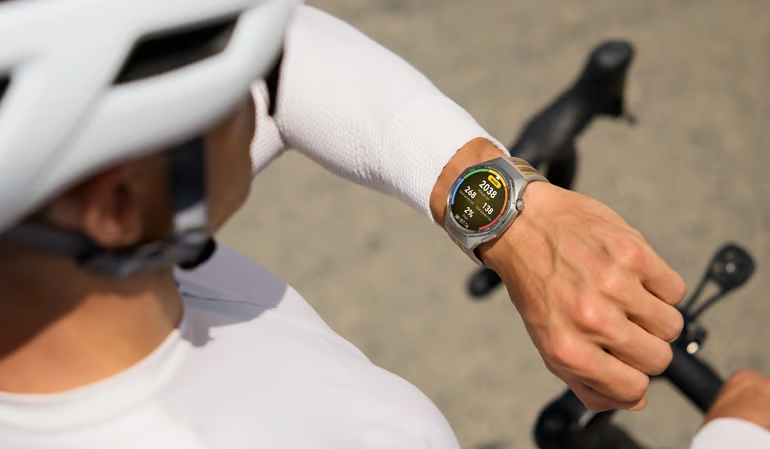
Huawei Watch habits that affect blood-sugar risk signals
| All-day wear | Short wear windows can leave gaps in the daytime data used to build a diabetes-risk picture. |
| Sleep tracking | Taking the watch off overnight can remove sleep stages, sleep hours, respiratory rate, heart rate, and blood oxygen data. |
| Heart-rate and HRV tracking | Heart rate and all-day HRV can add context to the risk signal, but only if the watch is worn consistently. |
| Stress tracking | Stress does not measure blood sugar, but it can provide context for habits and conditions that may affect blood sugar patterns. |
| Assessment window | A diabetes-risk signal depends on patterns over time, not a one-tap glucose reading. Inconsistent wear can make the result less complete. |
| Charging routine | Charging the watch every night may remove the same overnight window needed for sleep and recovery data. |
In daily use
You may wear the Huawei Watch GT 6 Pro during work hours and charge it every night. The watch can still collect daytime heart rate data, but it misses sleep data that would help complete the picture of the risk of hyperglycemia. The issue is incomplete wear data, not an incorrect glucose reading.
Garmin
Garmin’s main issue is where the glucose reading appears during activity. According to Dexcom, compatible Garmin smartwatches and cycling computers can display glucose levels through Connect IQ apps, including trend direction and a three-hour history on the watch.
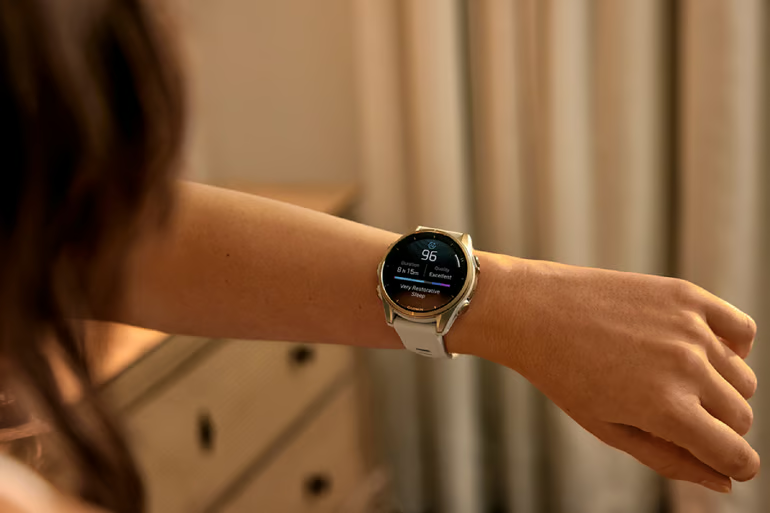
Garmin settings that affect where glucose readings appear
| Connect IQ widget | The widget makes glucose easier to check outside workouts, but it has to be installed and easy to reach on the device. |
| Watch face setup | Select Garmin watches can display glucose data via custom Face It watch faces. Without that setup, the reading may be available but not easy to parse at a glance. |
| Activity data field | This is the key setting for workouts. Glucose can appear beside activity data, but only if the data field is added to the right sport profile. |
| Sport profile customization | A cycling profile may show glucose while a running profile does not. Each activity screen needs its own setup. |
| Phone and Bluetooth range | Dexcom notes that a compatible smartphone needs a data connection and Bluetooth range to both the CGM and Garmin device. A weak connection can make the watch display less current. |
In daily use
During a ride, Garmin may show pace, heart rate, and distance while leaving glucose off the screen. If the glucose data field was never added to that cycling profile, the reading may still exist elsewhere on the watch, just not where you need it mid-workout.
What the watch can and cannot change
A smartwatch can be a helpful way to view glucose alerts or CGM data, but it should not be treated as the sole device measuring blood sugar.
Missing the difference can lead to small but important mistakes. You might overlook an overnight warning, assume a number is current when it actually came through a delayed health data connection, or miss an alert because it was routed to your phone rather than your wrist.
The safer habit is to treat the watch as the display layer, not the source of truth. Check where the reading comes from, whether it is live or delayed, and whether the setting you rely on is actually turned on.
Compare Apple Watch, Galaxy Watch, and Pixel Watch to see which one handles blood sugar tracking best.